Serve.LoveAll walkthroughsTalk to usBook a demo

Serve.Love · BeSeen Machine

A real volunteer answers, from anywhere

A BeSeen Machine is a kiosk with lockers, set up outside a church, a food pantry, or a shelter. A neighbor walks up, talks by live video with a volunteer who could be across town or across the country, and the volunteer opens a locker with what they need: socks, a hygiene kit, a snack.

01

Walk up

No app, no account. Tap the screen and a quick face scan starts the visit.

02

Talk to a real person

A volunteer's phone rings wherever they are. They talk by video, with captions.

03

Get what you need

Tap what you need, the volunteer approves it, and a locker door opens.

What the guest sees at the kioskOn the BeSeen Machine screen
For the neighbor walking up

Built to be understood with the sound off

Our example: Harvest Table Community Pantry runs a BeSeen Machine, the Harvest Table Market Kiosk, outside its building. This is what someone sees before they ever touch it.

1The home board

"Tap to get help"

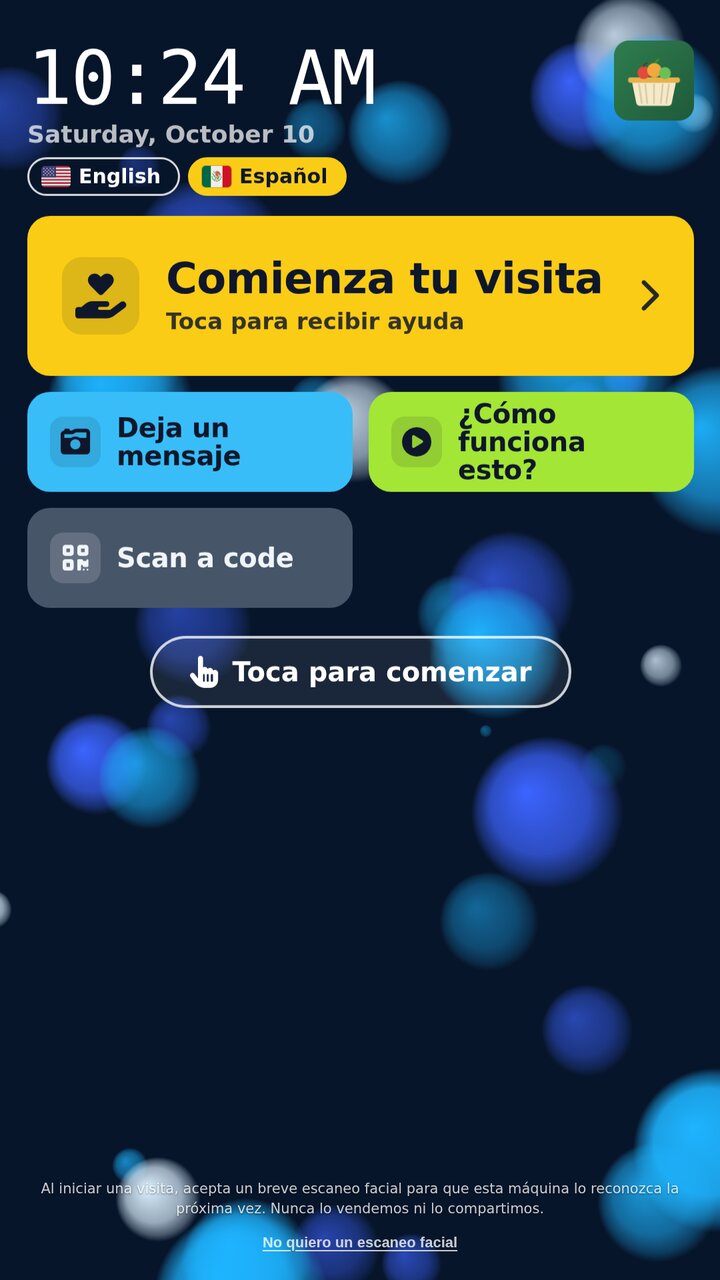
The screen is always on. A clock, an English/Espanol switch, the pantry's logo, and one big yellow button. Tiles underneath let someone leave a message, watch a short video on how it works, or scan a code.

The fine print says what starting a visit means: a quick face scan so the machine recognizes the same person next time, never sold or shared, with a link for anyone who would rather skip it.
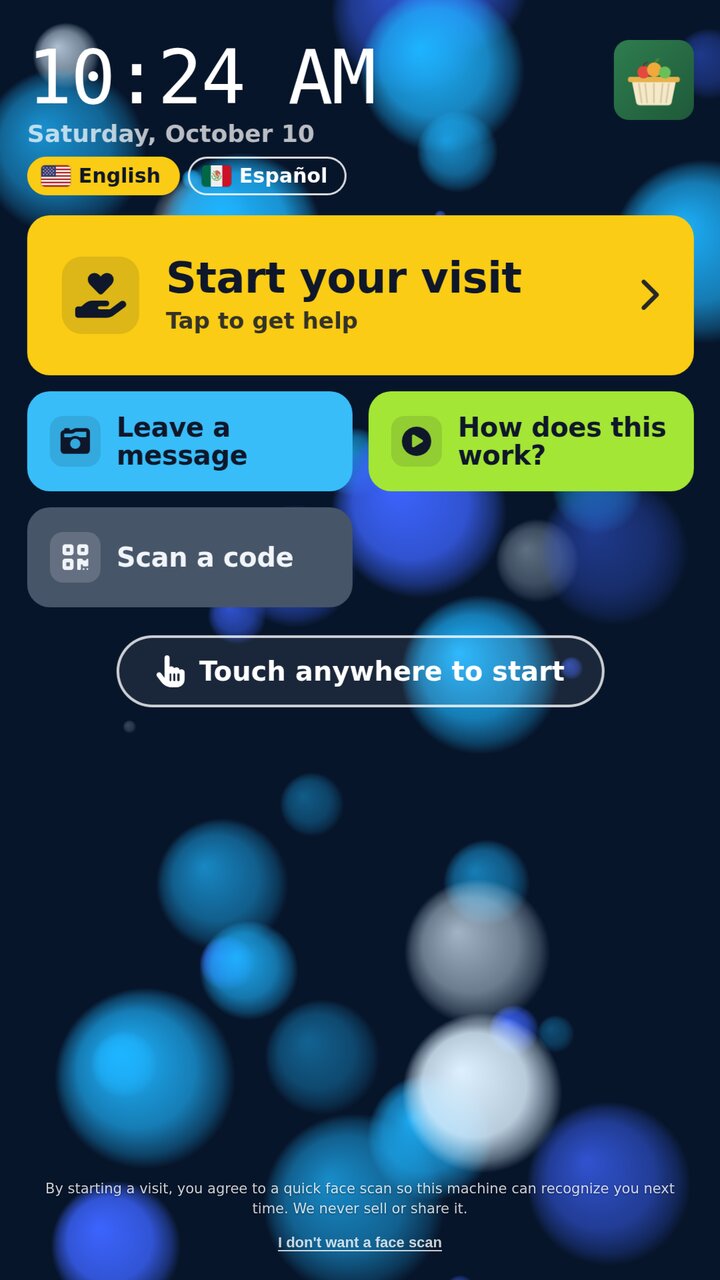
The BeSeen Machine home board on a sunny morning: a clock, English and Espanol chips, the pantry's logo, a big yellow Start your visit / Tap to get help button, and tiles for Leave a message, How does this work, and Scan a code.
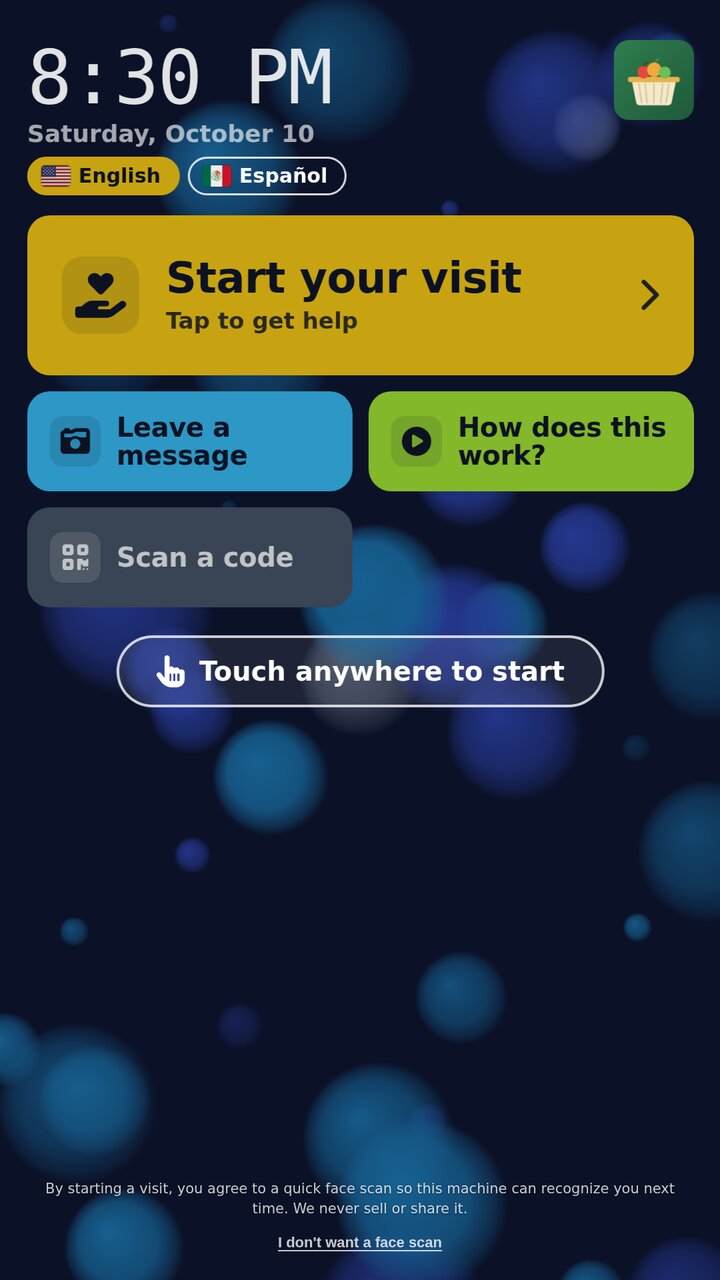
The same home board dimmed at night, still showing the Start your visit button.
Day or night. The board dims after dark, so it is easy on the eyes at night.
The home board switched to Spanish, reading Comienza tu visita, after tapping the Espanol chip.
One tap for Spanish. The whole board switches, not just a label.
A frame of the muted attract video that loops on the screen when no one is using the machine, showing the BeSeen Machine branding.
A muted loop. Plays when the machine is idle, explains itself without sound.
Starting a visit

A quick face scan, then help

Tapping the screen starts the same short process for everyone, whether or not a volunteer happens to be on shift right now.

2Face scan

"Look at the camera"

The machine takes a few photos, about 15 seconds, so it can recognize the same person on a future visit.

Look at the camera, Scanning screen: We take a few photos of your face so we can recognize you next time, this takes about 15 seconds.
3If someone is on shift

Straight to a live volunteer

If a volunteer is on shift, the machine calls one right away. The screen names them, "Calling Sarah J., Tulsa, OK," and lays out what happens next: connect with a volunteer, talk together, a locker opens with the items, take them and close the door. A line at the bottom says the call is recorded, video and sound, for safety and quality.
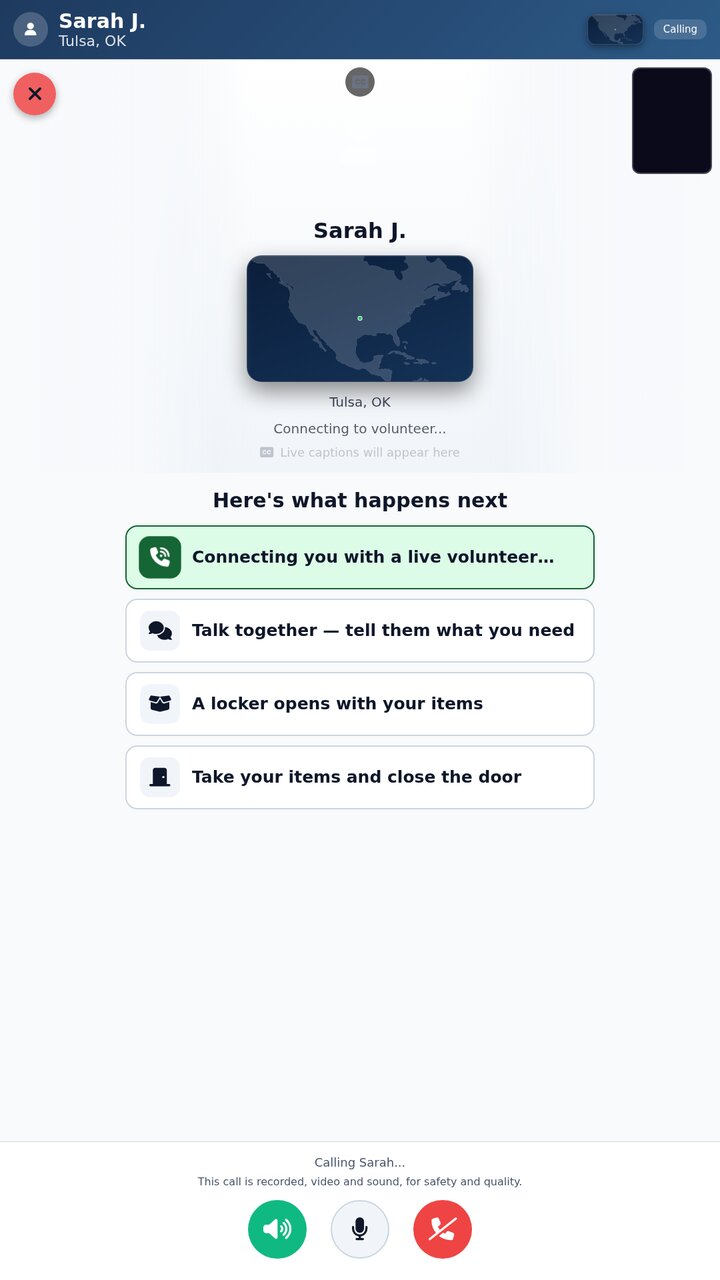
Calling Sarah J., Tulsa, OK, with a list: Connecting you with a live volunteer, Talk together, A locker opens with your items, Take your items and close the door, and a note that the call is recorded for safety and quality.
4Either way

Supplies work even without a volunteer

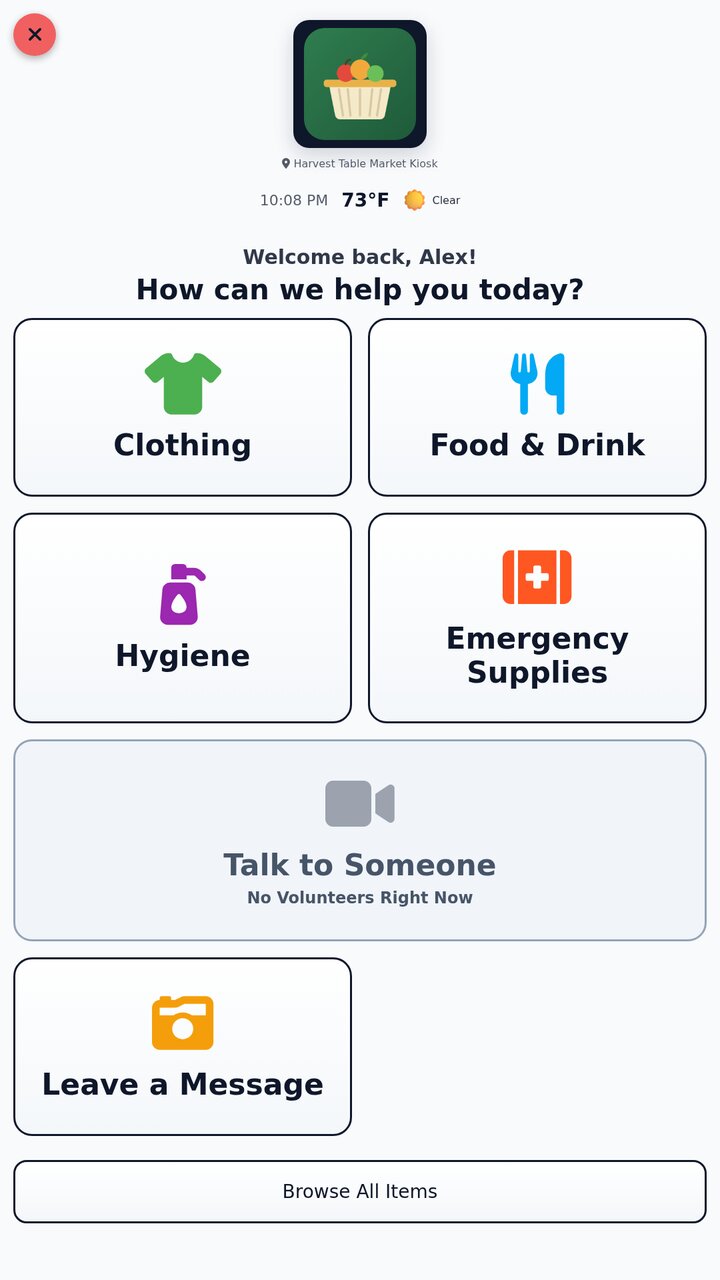
If no one is on shift, the menu still helps: Clothing, Food & Drink, Hygiene, Emergency Supplies, and a full item browser. "Talk to Someone" shows whether a volunteer is actually available right now, and leaving a message always works.
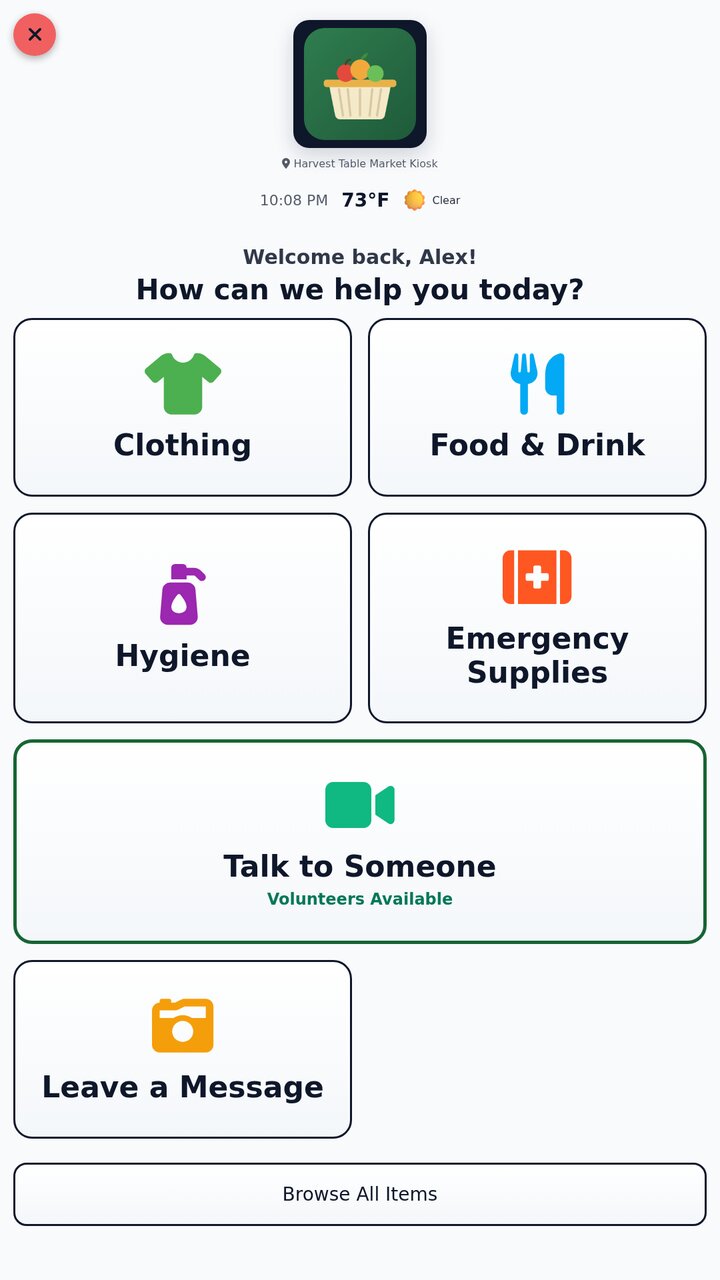
The menu with Talk to Someone showing Volunteers Available in green.
Volunteer available. "Talk to Someone" is live and green.
The same menu with Talk to Someone greyed out and reading No Volunteers Right Now, while the supply tiles and Leave a Message still work.
No one on shift. "Talk to Someone" greys out, but everything else still works.
What the volunteer seesTheir phone rings, wherever they are
The call

A real person, from anywhere

The volunteer doesn't have to be at the machine, or even nearby. Their phone rings wherever they are.

5The volunteer's phone

"A neighbor needs help"

The call comes in like any phone call, with the kiosk's name and a one-line reason. The volunteer can decline or accept, from home, from work, from wherever they happen to be.
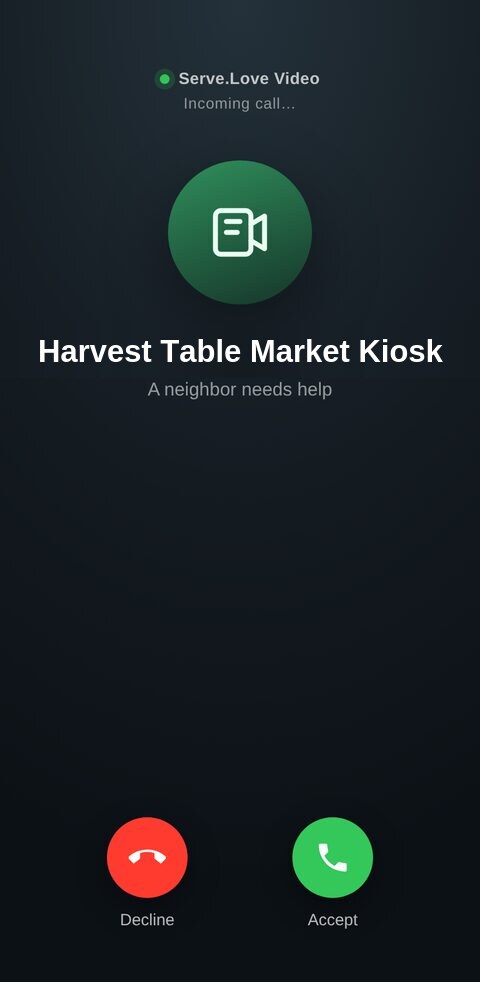
Serve.Love Video incoming call screen on the volunteer's phone: Harvest Table Market Kiosk, A neighbor needs help, Decline or Accept.
What the guest sees at the kioskBack on the kiosk screen
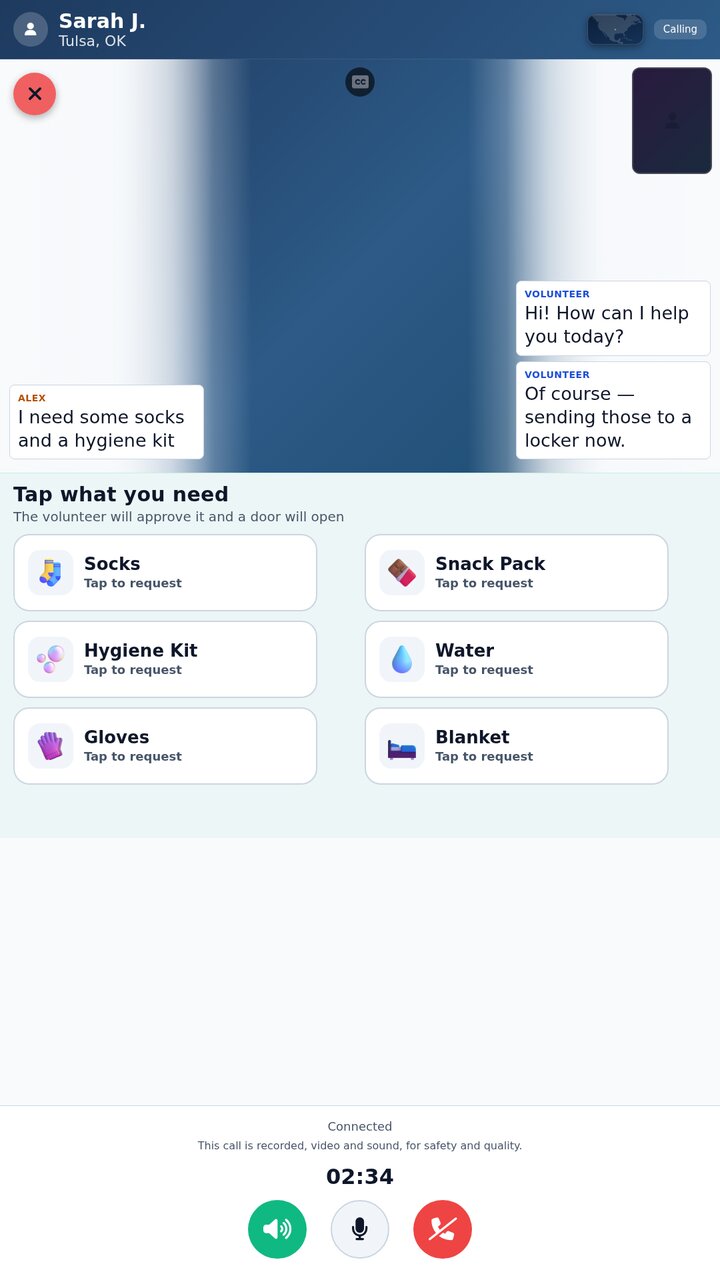
Live video call with captions: the guest says I need some socks and a hygiene kit, the volunteer says Of course, sending those to a locker now, with item tiles for Socks, Hygiene Kit, Gloves, Snack Pack, Water, and Blanket, a note that the call is recorded for safety and quality, and a call timer reading 02:34.
They talk, with captions. The guest asks for socks and a hygiene kit. The guest taps those items on screen, the volunteer approves them, and a locker door opens.
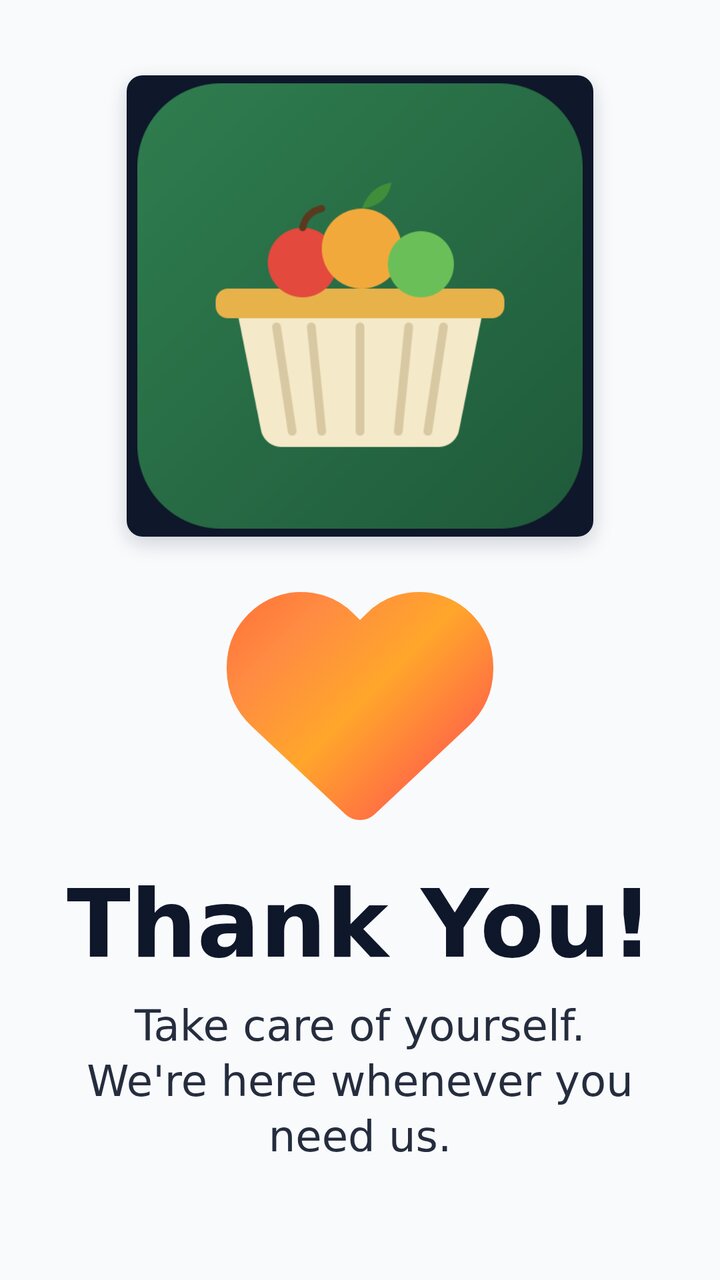
Thank You screen with the pantry's logo: Take care of yourself, We're here whenever you need us.
Visit complete. The guest takes their items and closes the door.
Optional, per machine

How was your visit?

A coordinator can turn on a short rating after calls, and separately after self-service visits with no call at all. It's off until someone turns it on.

6Rating

Five stars, one tap

If the setting is on, the guest sees five empty stars with a Skip option, so no one has to rate if they don't want to.
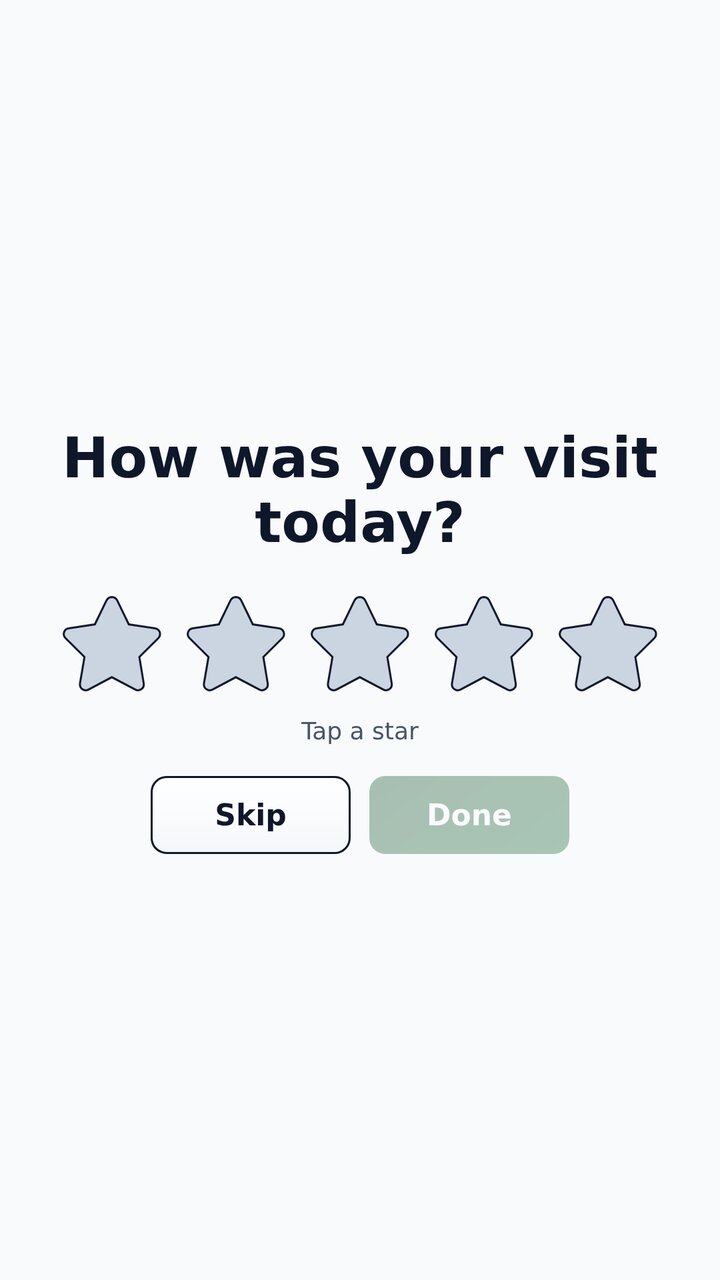
How was your visit today? Five empty stars, with Skip and Done options.
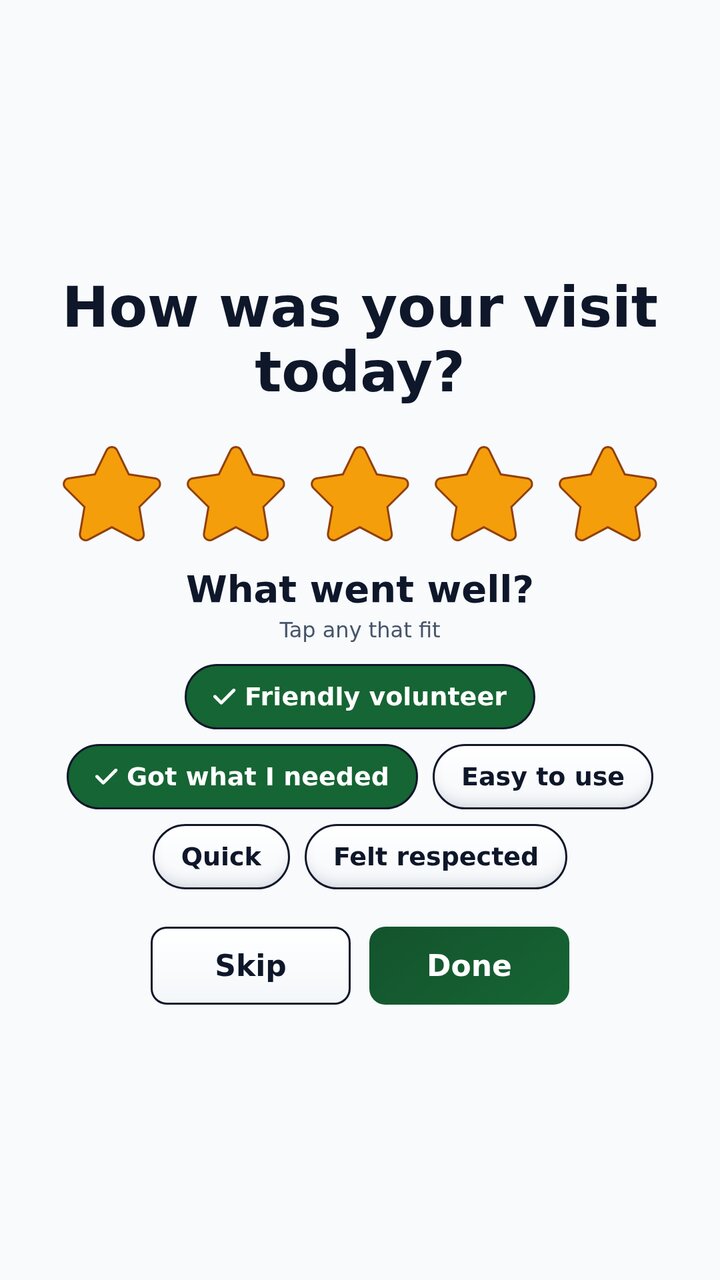
Five stars selected, with What went well, Friendly volunteer and Got what I needed picked.
Five stars. "What went well": friendly volunteer, got what I needed.
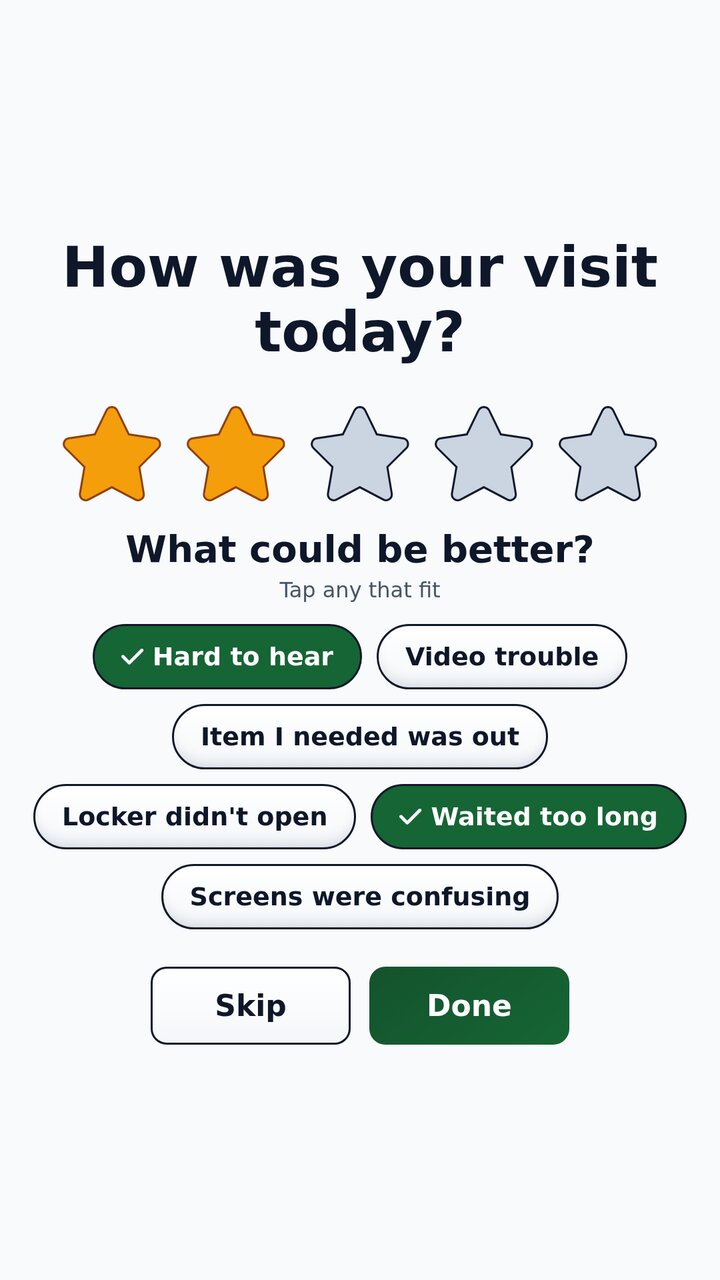
Two stars selected, with What could be better, Hard to hear and Waited too long picked.
Two stars. "What could be better": hard to hear, waited too long.
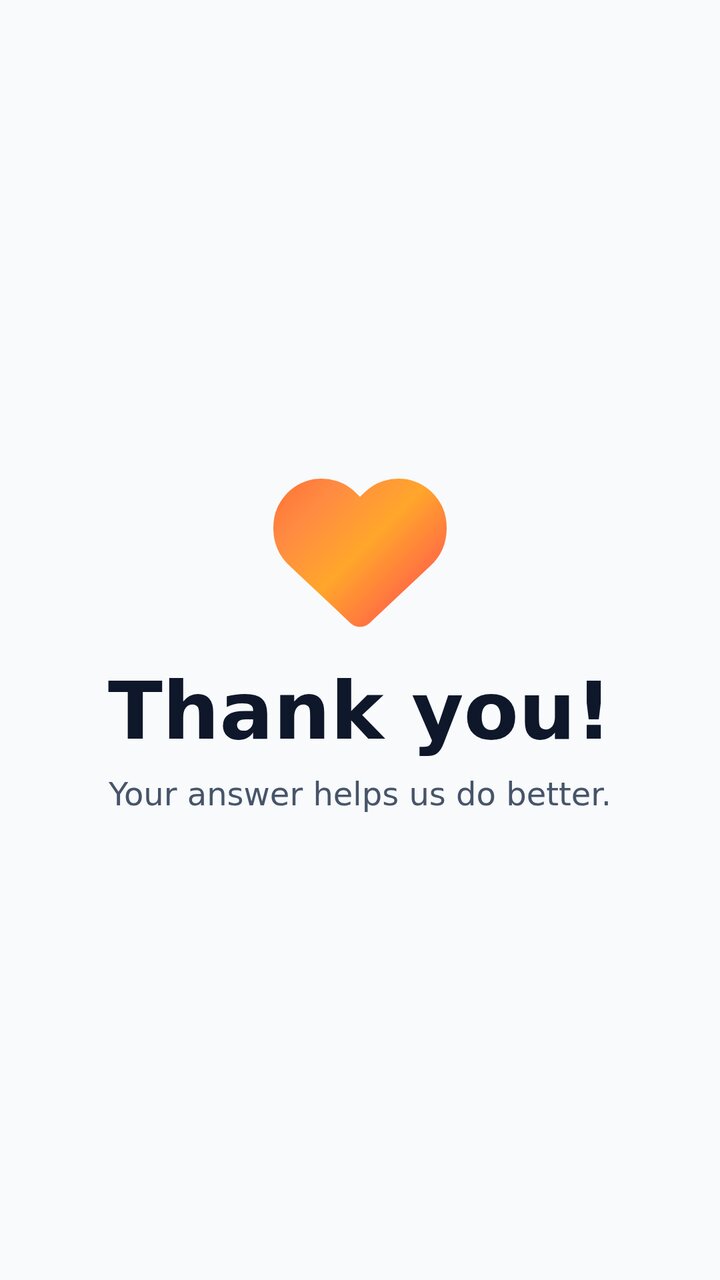
Thank you screen: Your answer helps us do better.
Either way. "Your answer helps us do better."
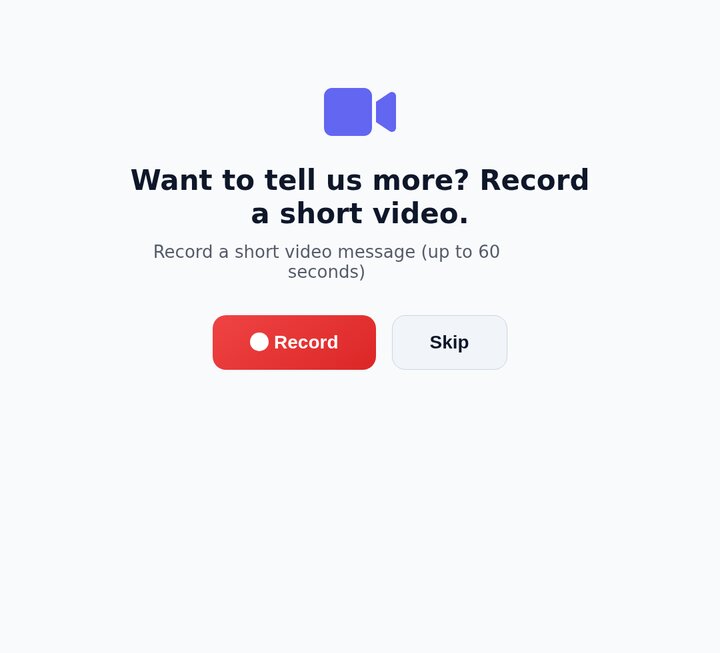
After a low rating, a screen offering to record a short video: Want to tell us more, with Record and Skip buttons.

After a low score, an open door. If video messages are also turned on, the guest can record a short clip instead of just picking from a list, or skip it.
What the coordinator seesDashboard, Edit Unit settings
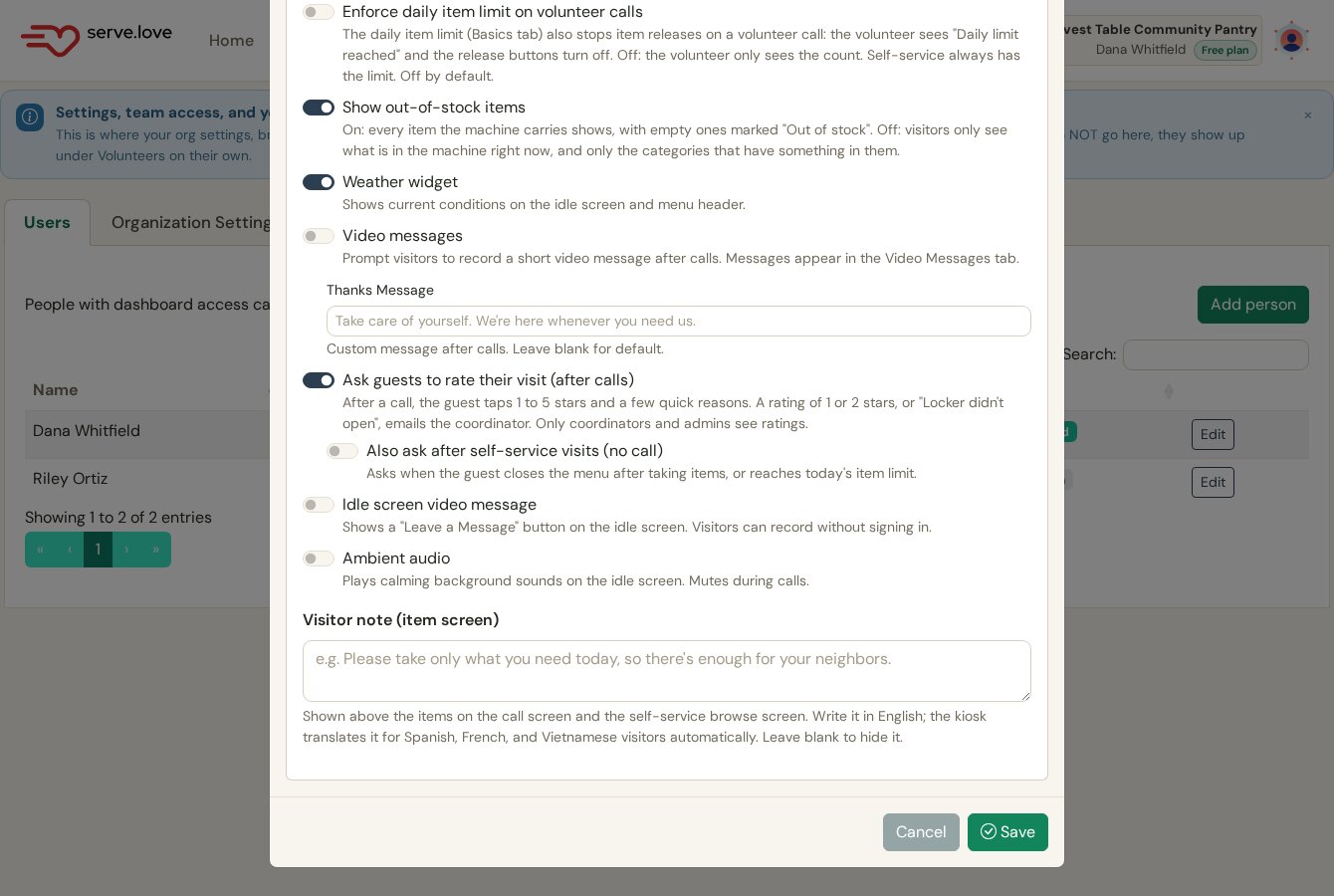
Dashboard Edit Unit, Features and calls tab, with an Ask guests to rate their visit after calls switch, and a nested Also ask after self-service visits with no call switch.

Turned on per machine. Off by default. A coordinator switches it on for calls, and separately for self-service visits with no call. Ratings go to coordinators and admins only, never to the volunteer who took the call.

What the volunteer seesBack on their phone, after the call
The volunteer's side

After the call

Once the guest is taken care of, the volunteer's phone walks them through a short wrap-up.

7Call complete

"Someone was seen today"

The volunteer sees who they just spoke with and a running count for the shift: calls taken, items given, people helped, and time left.
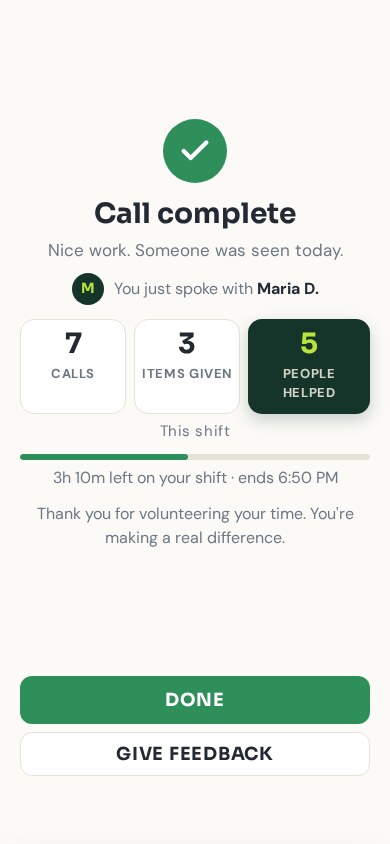
Call complete, Nice work, Someone was seen today, You just spoke with Maria D., with this shift showing 7 calls, 3 items given, 5 people helped, and time left on shift.
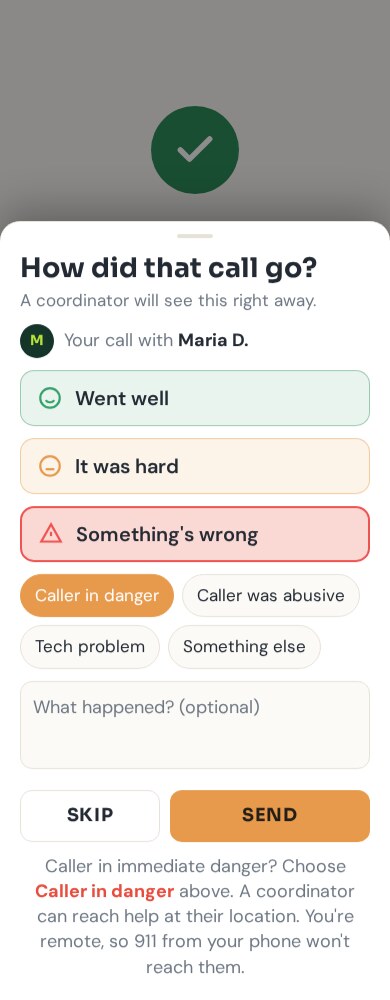
How did that call go, a coordinator will see this right away, with Went well, It was hard, and Something's wrong options including Caller in danger, Caller was abusive, Tech problem, and Something else, an optional note, and Skip or Send.
A quick check-in. If the caller was in immediate danger, the volunteer flags it here, because the volunteer is remote and their own 911 won't reach the caller. A coordinator can reach help at the kiosk's location instead.
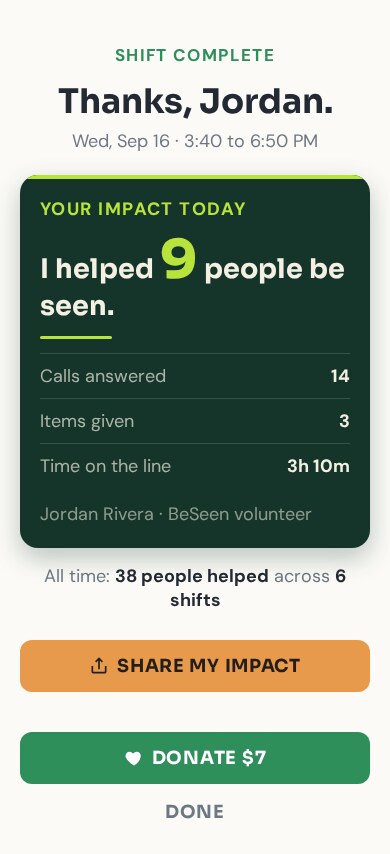
Shift complete, Thanks, Jordan, Impact today: helped 9 people be seen, 14 calls answered, 3 items given, 3h 10m on the line, and all time 38 people across 6 shifts, with Share my impact and Donate $7 buttons.
End of shift. Today's totals and the volunteer's totals since they started. Share my impact opens the phone's share sheet, and Donate $7 helps keep the line open.
Sharing the moment

One volunteer finds the next one

Tapping "Share my impact" shares a link to the volunteer's card. Friends see the card in the preview, and the page behind it invites them to volunteer or give.
8Share
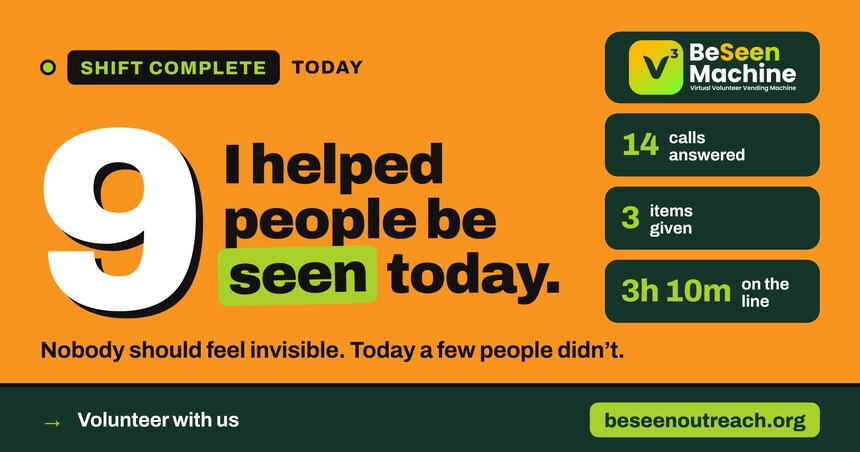
A branded share card reading I helped 9 people be seen today, with 14 calls answered, 3 items given, 3h 10m on the line, and beseenoutreach.org.

A card worth posting. "I helped 9 people be seen today," with BeSeen Machine branding and a Volunteer with us link to beseenoutreach.org.
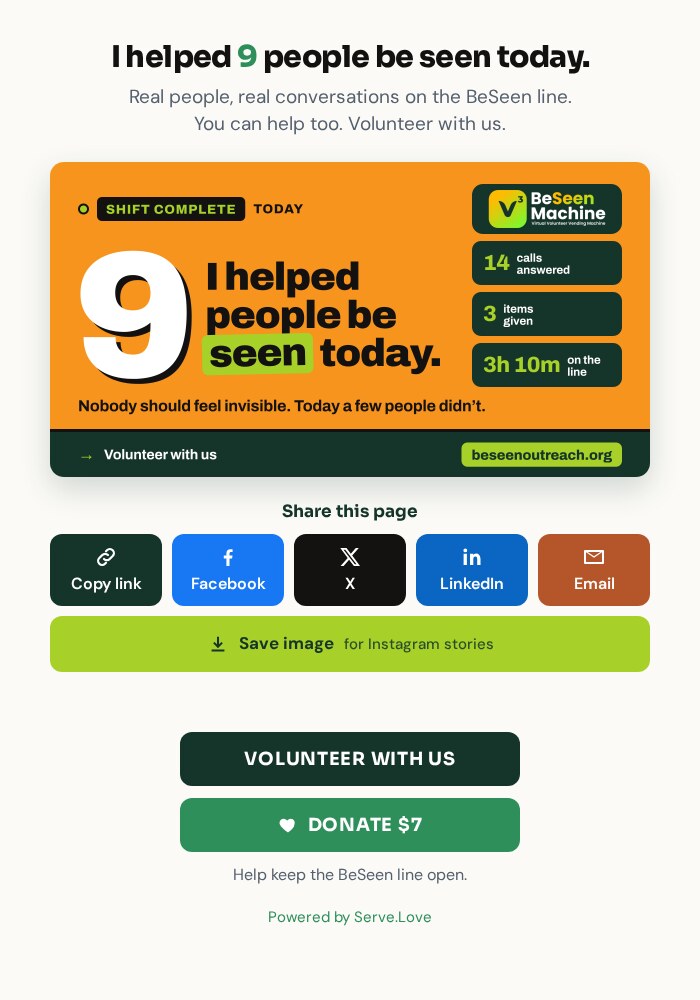
The page the shared link opens: the share card, a Share this page row with Copy link, Facebook, X, LinkedIn, Email and Save image for Instagram stories, then Volunteer with us and Donate $7 buttons.

Where the link goes. Anyone who taps it sees the card, can pass it on with one tap, and is invited to volunteer or donate $7 to keep the BeSeen line open.

What the coordinator seesTheir email inbox
The safety net

What the coordinator sees

Flags and low ratings don't just sit on the volunteer's phone. They go straight to the person running the kiosk.
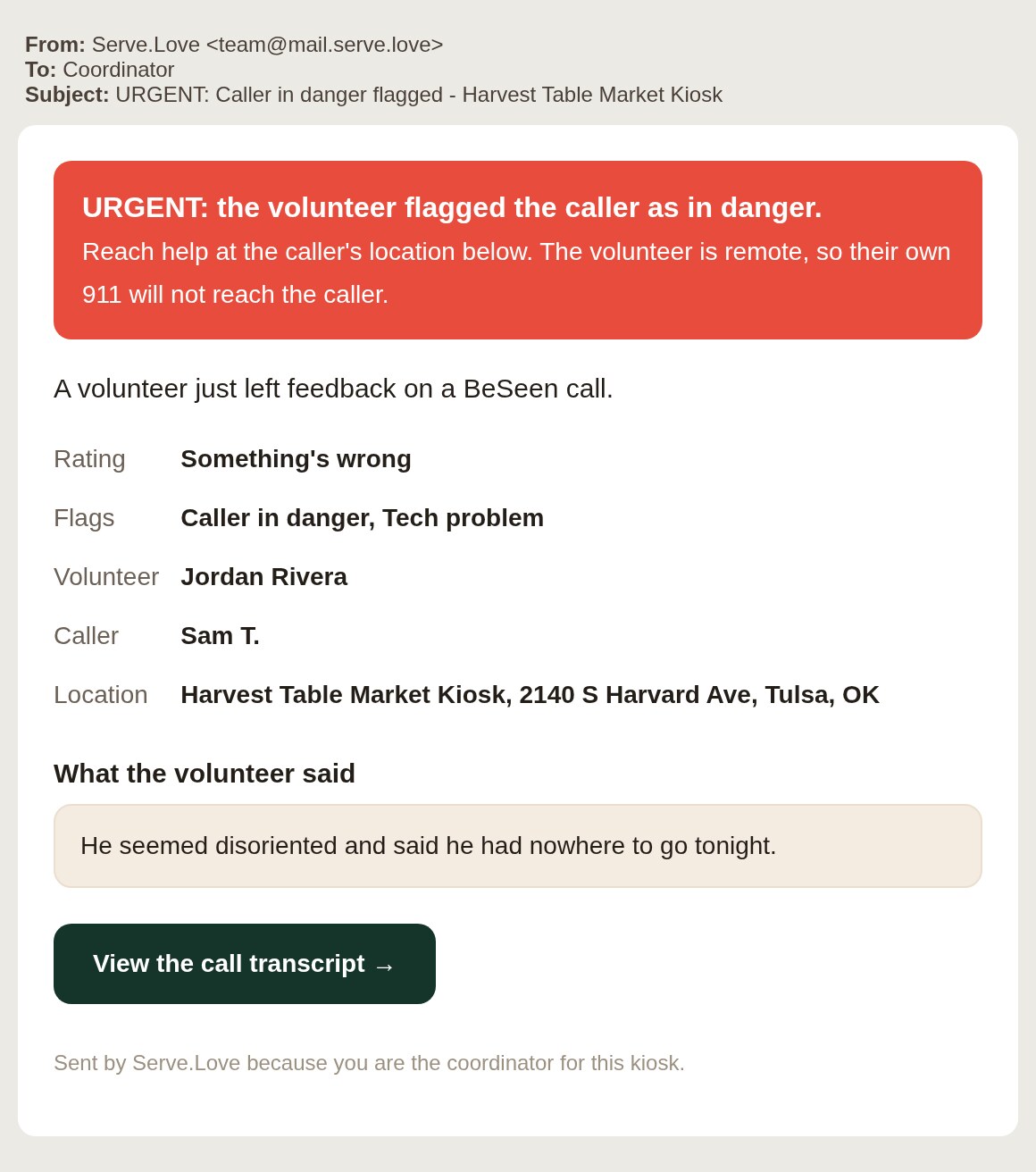
9An urgent flag

Straight to the coordinator. Volunteer, caller, the kiosk's address, what was said, and a transcript, the moment a volunteer flags danger.
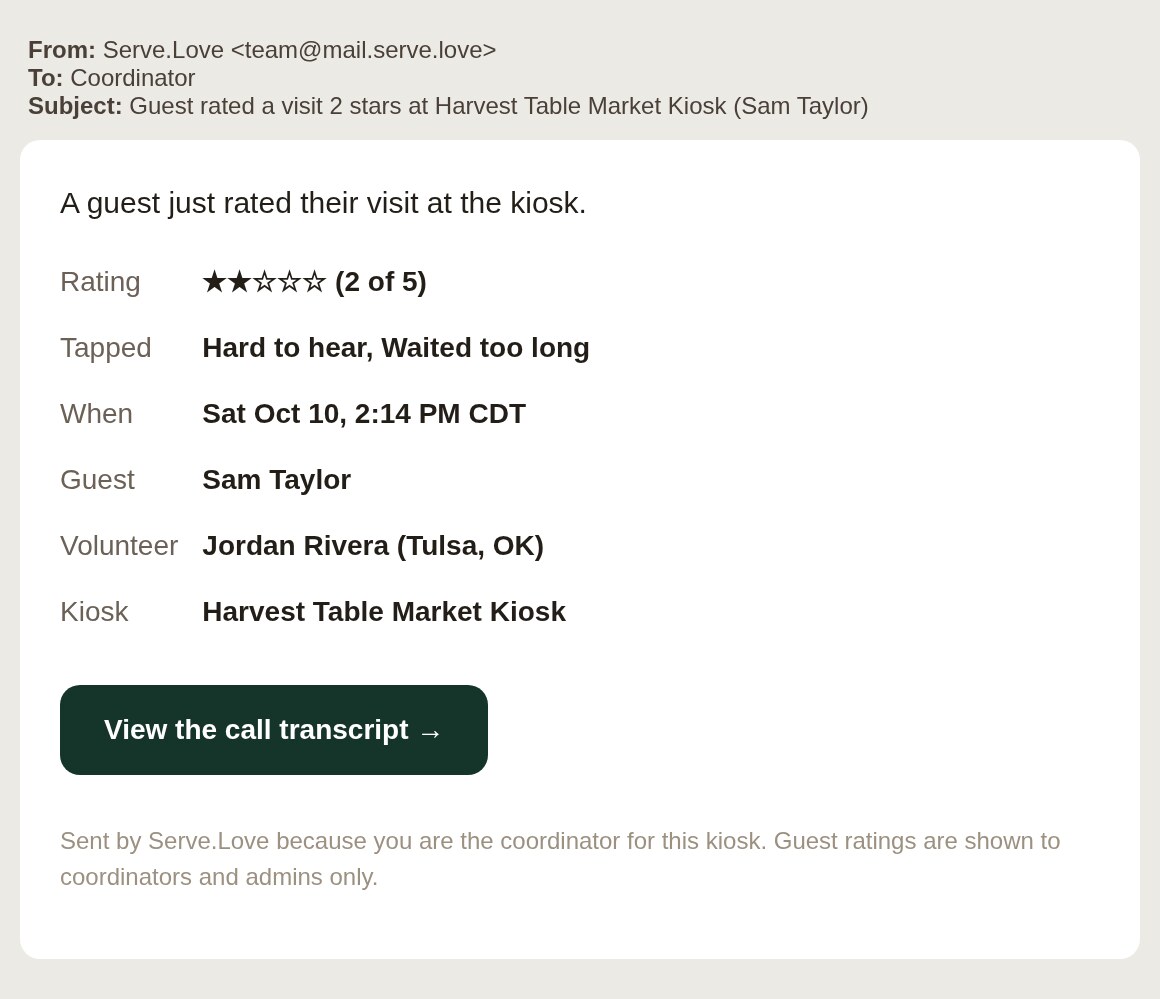
Low ratings too. Sent for a one or two star rating, or when a guest says a locker didn't open. Visible to coordinators and admins only, never to the volunteer.

Good to know

English and Spanish

The home board and the menu switch with one tap, and calls show live captions.

Works without a volunteer

Supplies and leaving a message are always available, even when no one is on shift.

Ratings stay with coordinators

If a machine turns ratings on, they go to coordinators and admins, never to the volunteer who took the call.