See how it works
Step-by-step walkthroughs with real screens from Serve.Love. What your volunteers see, what your team sees, and what happens in between.
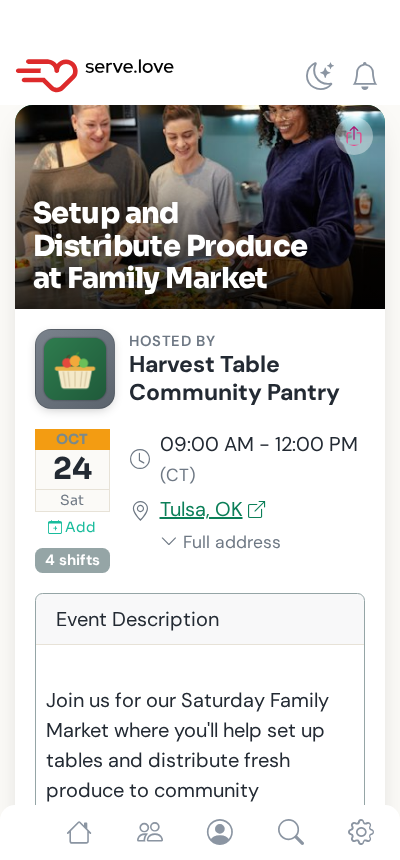
Volunteer Event Sign-Ups
How a nonprofit posts a volunteer opportunity, and how a neighbor signs up for it, end to end. Built so more of your community actually shows up: new volunteers, new donors, church groups serving together.
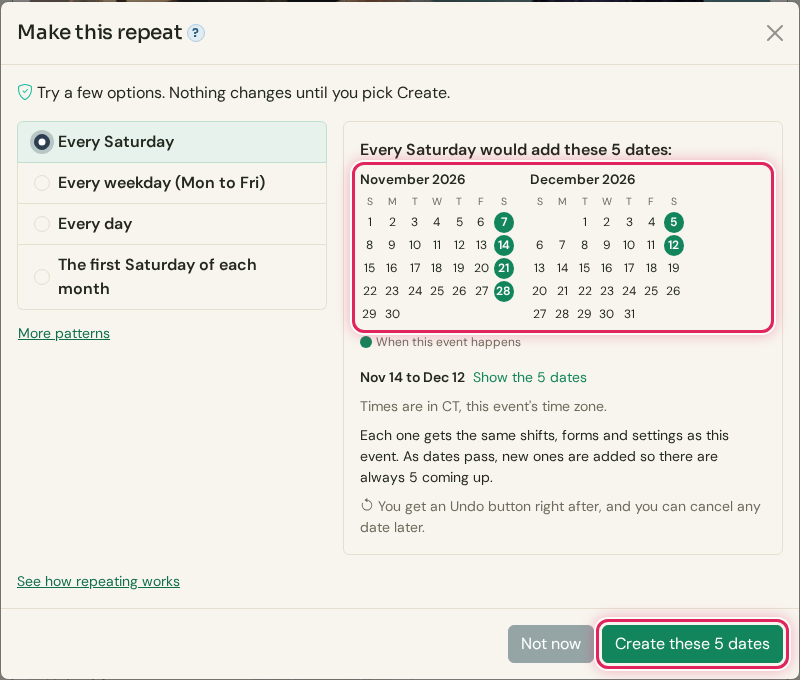
Repeating Events
How a coordinator turns one event into a weekly or monthly series, changes the dates still to come, and cancels or brings back dates. You see the exact dates before anything happens, and Undo is there after.
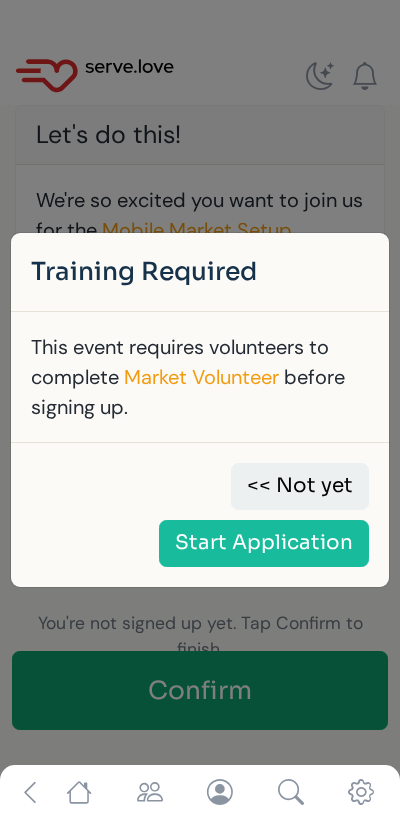
Volunteer Certifications
How a nonprofit sets up a certification (a short quiz, a signed agreement, a staff sign-off) and how it works for a volunteer at sign-up time. Untrained volunteers can't take a shift until they're certified, and nobody has to chase paperwork.
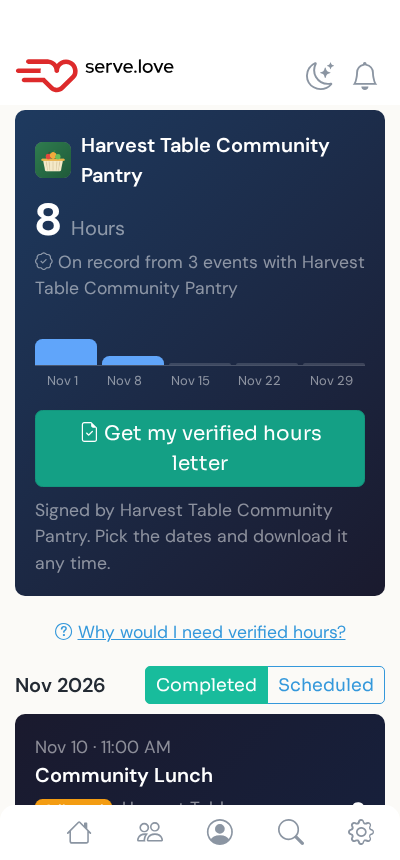
Verified Hours
A volunteer downloads a signed letter of the hours your organization approved, any time, for any dates, for a court or probation officer, a school, or a benefits office (SNAP, Medicaid). You turn it on once and name a contact. Each date on the letter carries the signature of the manager who approved it, so there is nothing extra to sign.
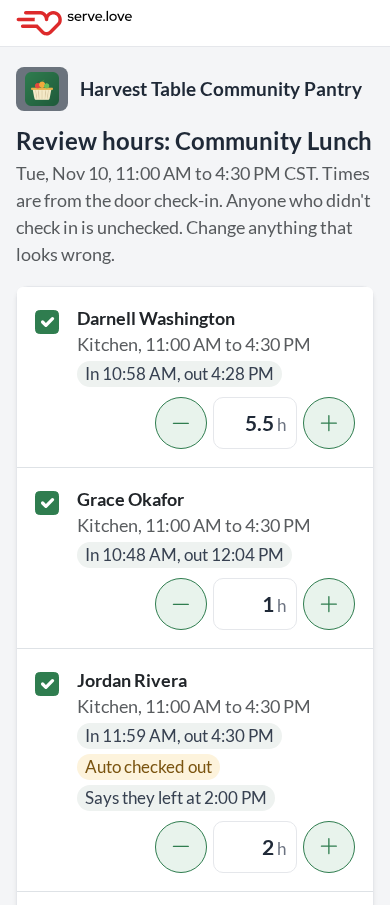
Verified Hours Approval
After each event, a manager confirms who came and how long they served, from one email and with no login. Volunteers don't have to ask for anything, and your reports show which hours are approved and which are still waiting. Below: every email the feature can send, and how approved hours become a signed letter when a volunteer needs one.
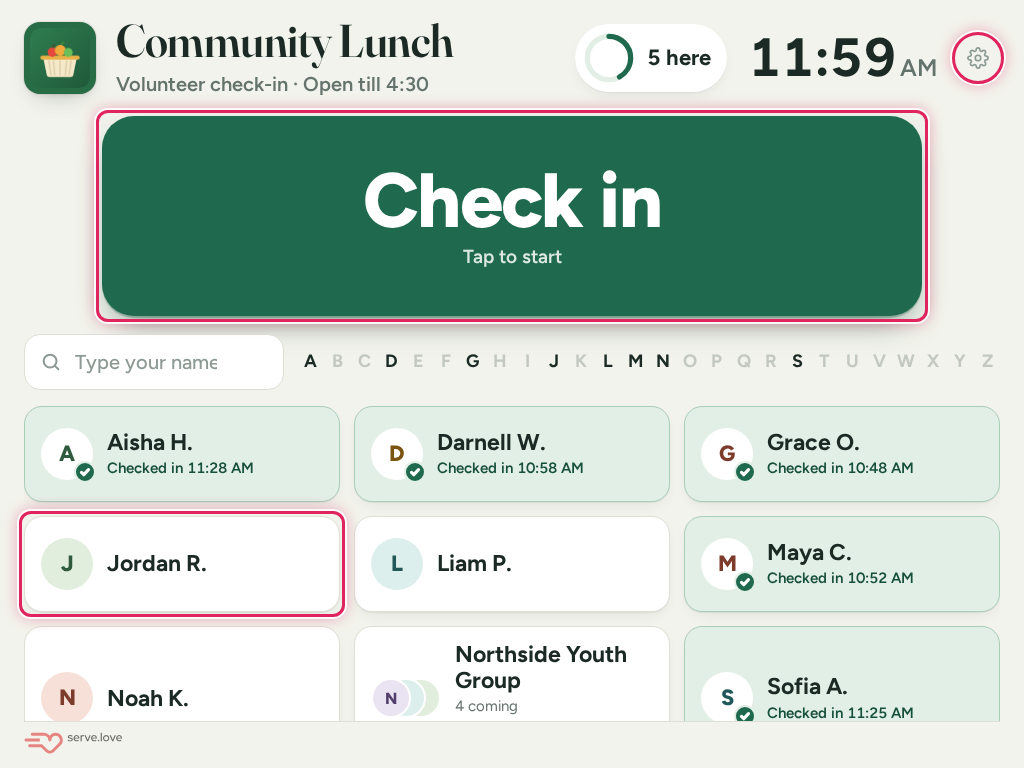
Set Up and Test Hours Approval
The steps to turn on hours approval and the door check-in iPad, then run one short test event from start to finish: sign someone up, check them in and out at the door, get the review email, approve. Plan on about 15 minutes of your time, plus waiting for the shift to end.
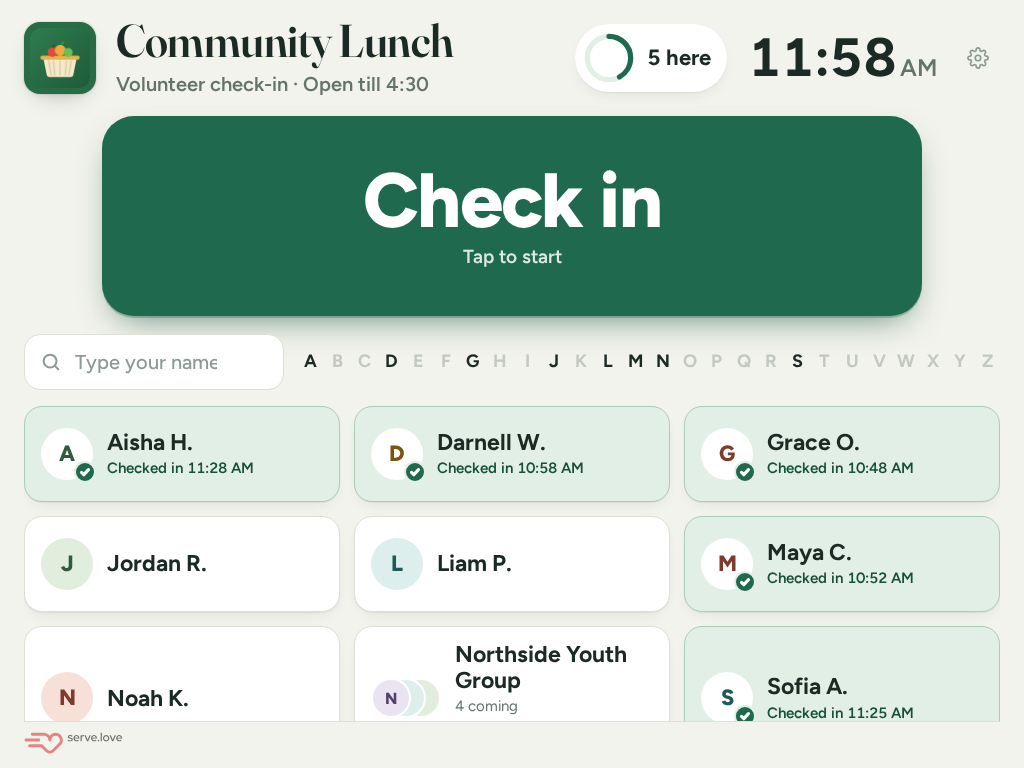
Door Check-In
Put a tablet at your volunteer door. Volunteers tap one big green button and check in with their phone number, then tap their name on the way out. You set it up once: one link for your whole organization, and the screen picks the event on now by itself.
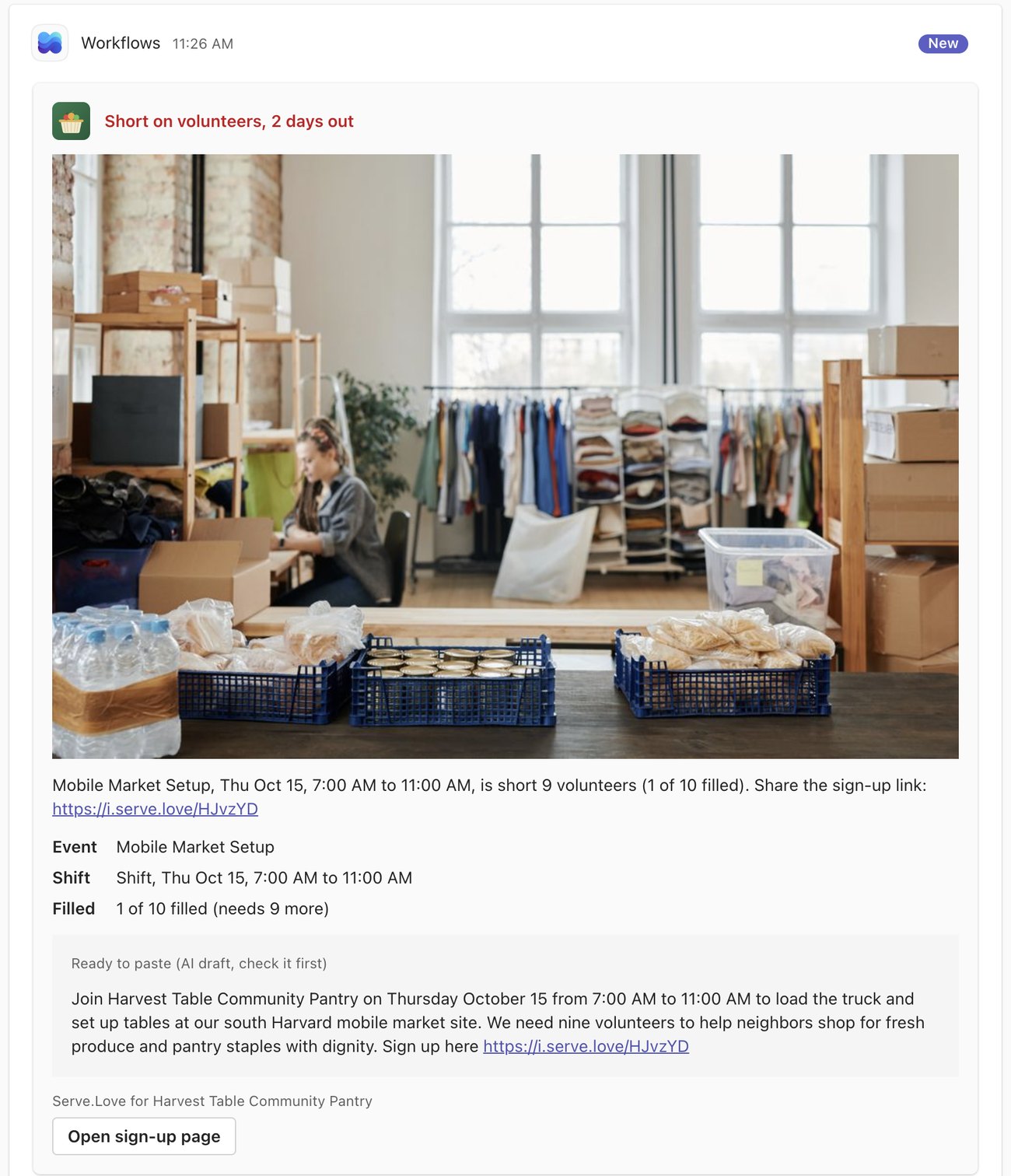
Team Chat in Teams, Slack and Google Chat
Your team hears about volunteer activity in the channel they already read: sign-ups, cancellations, a shift that is short two days out, a Monday summary. One link to copy, one page to fill in, nothing to install. Shown here with a demo organization, Harvest Table Community Pantry, in Microsoft Teams.
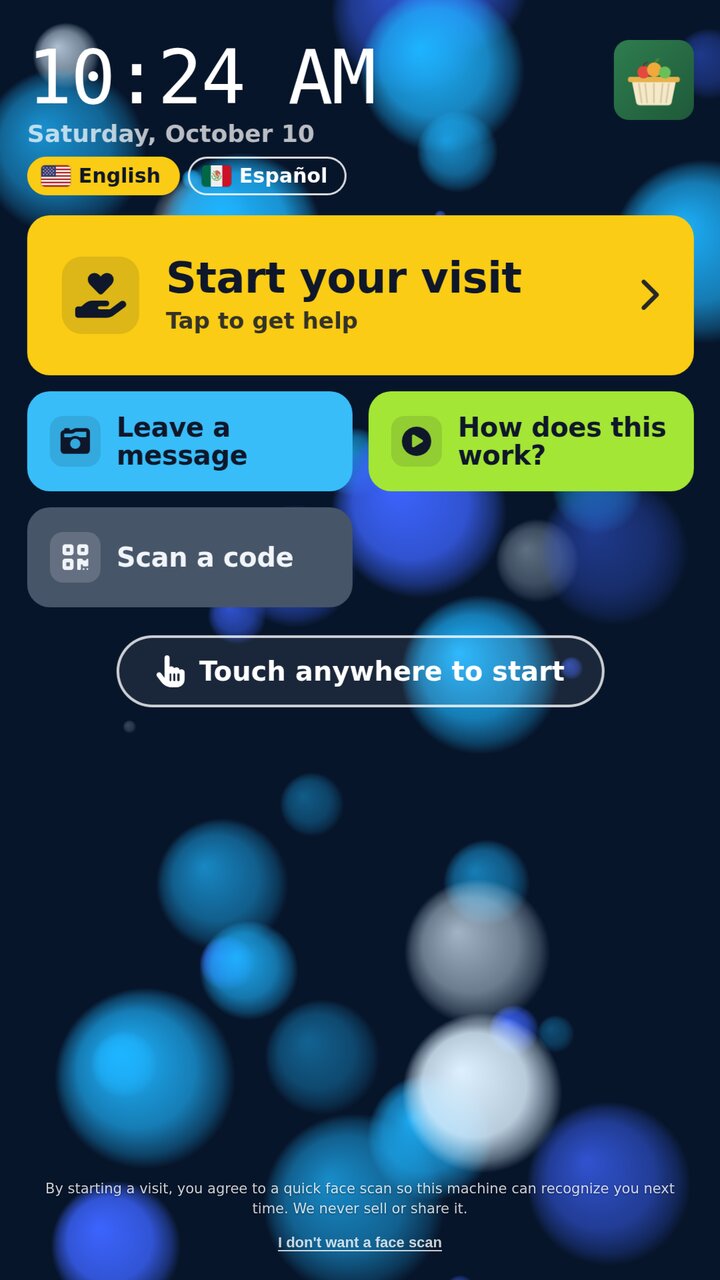
The BeSeen Machine Visit
A BeSeen Machine is a kiosk with lockers, set up outside a church, a food pantry, or a shelter. A neighbor walks up, talks by live video with a volunteer who could be across town or across the country, and the volunteer opens a locker with what they need: socks, a hygiene kit, a snack.
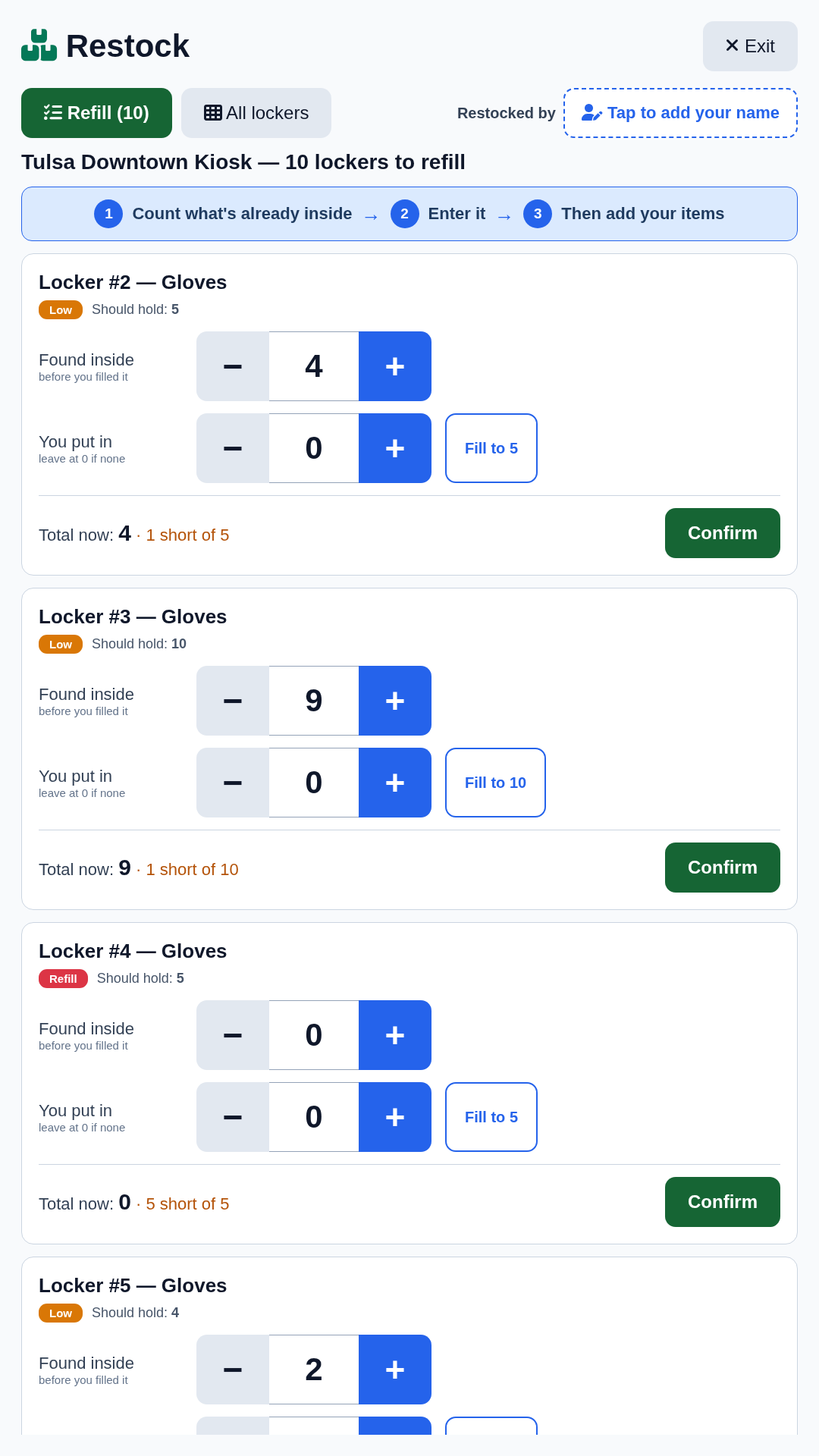
Restocking the Locker
How a volunteer refills the machine at the touchscreen, start to finish. The machine can't count for itself: the numbers you type are the numbers it keeps. So the whole job comes down to counting carefully, one locker at a time.
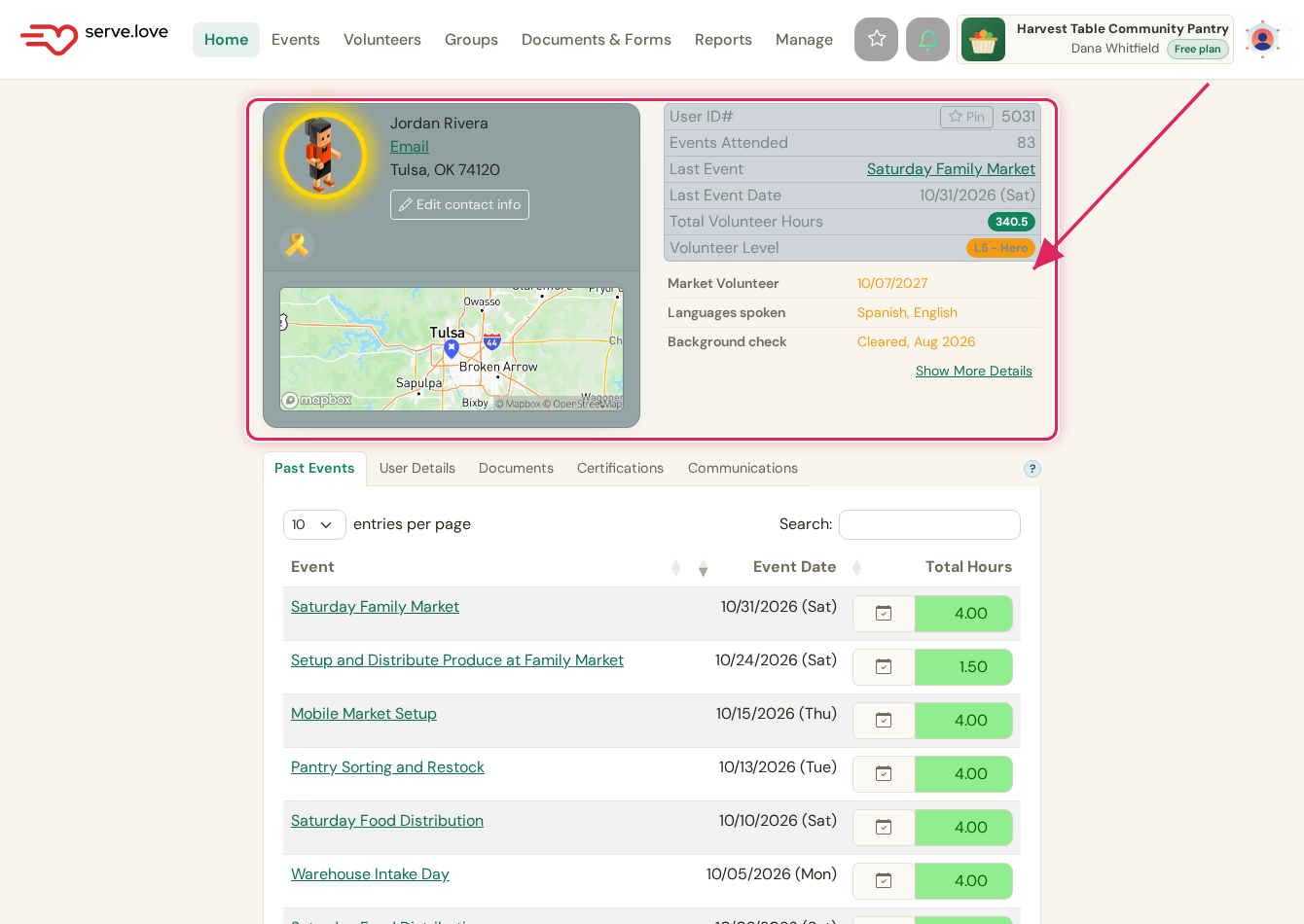
A volunteer's profile
Click any name on your Volunteers list and you get that person's whole history with you on one screen: their impact, every event they have worked, what they are cleared for, and your conversations. No digging.
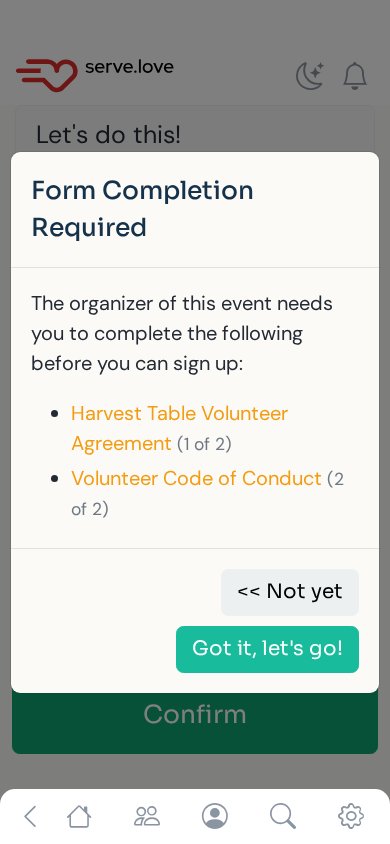
Require sign-off forms
The most common gate: make volunteers sign what you need, a Code of Conduct, a liability waiver, a photo release, before they can join an opportunity. Attach one form or several. Volunteers go through them in the order you set, then finish signing up. No certification needed.
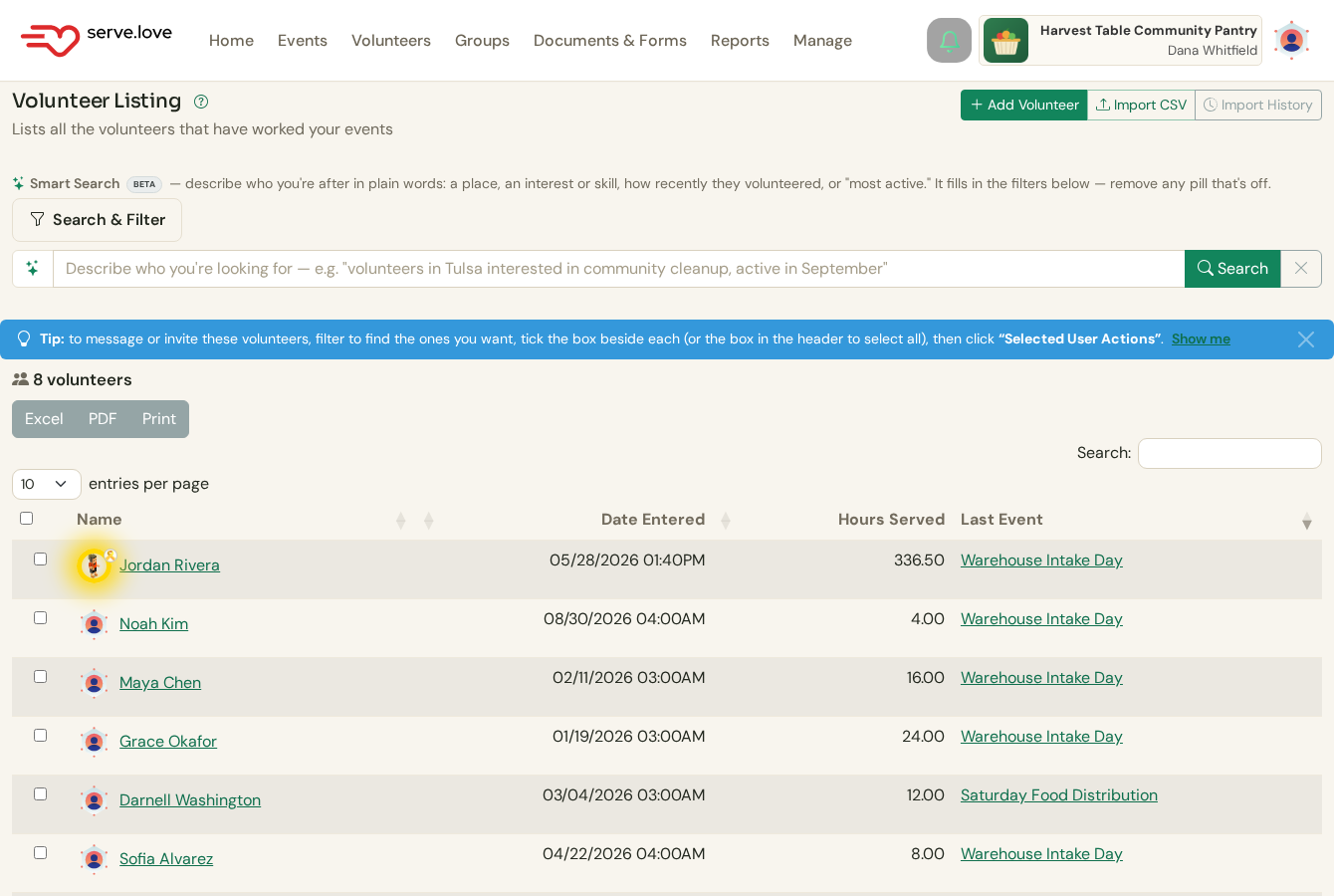
Know your volunteers
Every person who signs up for one of your opportunities lands in one list, automatically. No spreadsheet to keep, no roster to update. Here is what that list gives you, and how to find and grow it.
Want to see it with your own volunteers?
Book a 20 minute demo, or tell us what you need. We're a small team that actually responds.