Serve.LoveAll walkthroughsTalk to usBook a demo

Serve.Love · Door Check-In

Door Check-In

Put a tablet at your volunteer door. Volunteers tap one big green button and check in with their phone number, then tap their name on the way out. You set it up once: one link for your whole organization, and the screen picks the event on now by itself.

01

One link

One link for your organization. Nothing to set up per event, shift or day.

02

Phone number first

One big Check in button. A phone number finds the person, or adds them if they are new.

03

Times go to hours

Check-in and check-out times fill in the hours review. Forgotten check-outs get one email.

Set it upIn your dashboard, once
1Turn it on

Switch on Door Check-In

Go to Manage > Organization Settings > Event Settings and turn on Use Door Check-In.

Your check-in link and staff PIN show up right below the switch. Turning it off stops the link on every device.
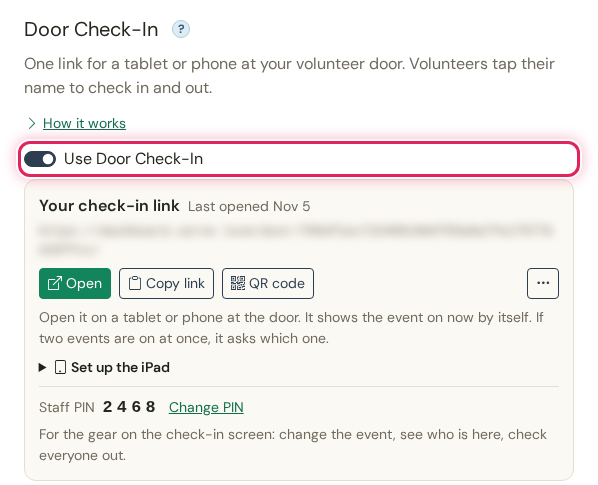
The Door Check-In card in Event Settings. The Use Door Check-In switch is on (outlined). Below it: Your check-in link (hidden here) with Open, Copy link and QR code, a folded Set up the iPad line, and Staff PIN 2468 with Change PIN.

Use Door Check-In, switched on. The link is blurred here.

2Get it onto the iPad

Open the link on the tablet

Use Open if you are on the tablet, Copy link to send it to yourself, or QR code to scan it with the tablet's camera. The same link is under More > Check-in screen on any event's page.

Set up the iPad has the steps: open the link in Safari, tap Share, then Add to Home Screen. Open it from the new Check-in icon and it fills the screen. Turn on Guided Access to keep the iPad on the check-in screen.

Setting up the iPad

Print the iPad setup sheet and keep it with the iPad. It covers the one-time setup, what to do each day, what volunteers tap, and quick fixes when something goes wrong, with a line to write your check-in link on. From the dashboard, the Printable iPad setup sheet link under Set up the iPad opens one with your own link and its QR code already on it.

Leave the tablet on the check-in screen. When we update the check-in screen, the tablet reloads itself overnight, once check-in is closed and nobody is using it.
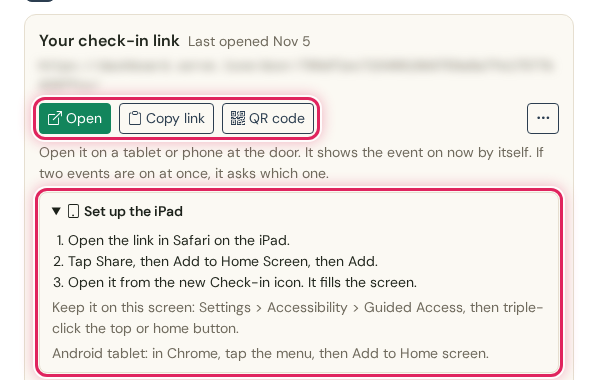
Your check-in link, with Open, Copy link and QR code buttons (outlined), and Set up the iPad opened (outlined): 1. Open the link in Safari on the iPad. 2. Tap Share, then Add to Home Screen, then Add. 3. Open it from the new Check-in icon. It fills the screen. Keep it on this screen: Settings, Accessibility, Guided Access, then triple-click the top or home button. Android tablet: in Chrome, tap the menu, then Add to Home screen.

Open, Copy link, QR code, and the iPad steps.

3Your choices

When check-in opens, and forgotten check-outs

Under Manage > Organization Settings > Verified Hours, the Shifts at the door card has Check-in opens: 1 hour, 30 minutes or 15 minutes before the start, or at the start time.

The same card has Email people who forgot to check out and ask what time they left. It is on unless you turn it off. See step 15.
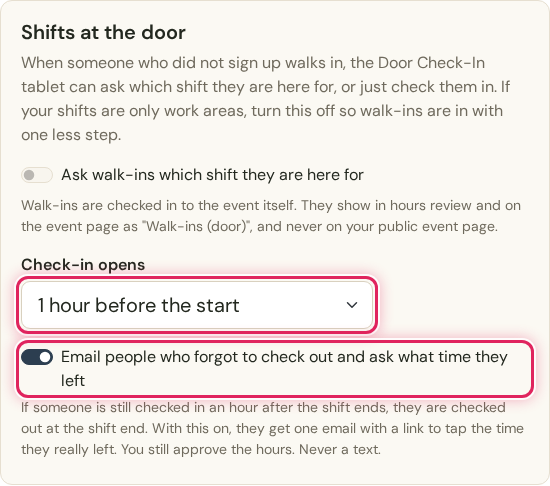
The Shifts at the door card: Ask walk-ins which shift they are here for (off), Check-in opens set to 1 hour before the start (outlined), and the switch Email people who forgot to check out and ask what time they left, turned on (outlined).

Check-in opens and the forgotten check-out email.

At the doorThe tablet, no login
4Before it opens

The next event, and when it opens

Nobody picks the event. Before check-in opens, the screen shows your logo, your name with Volunteer check-in under it, a big clock, and a card for the next event: its photo, its name and Opens at 12:30 PM.

Under that, the wait in plain words: in 32 minutes. It is left off when the event is 3 or more hours away. When check-in opens, the screen switches by itself.
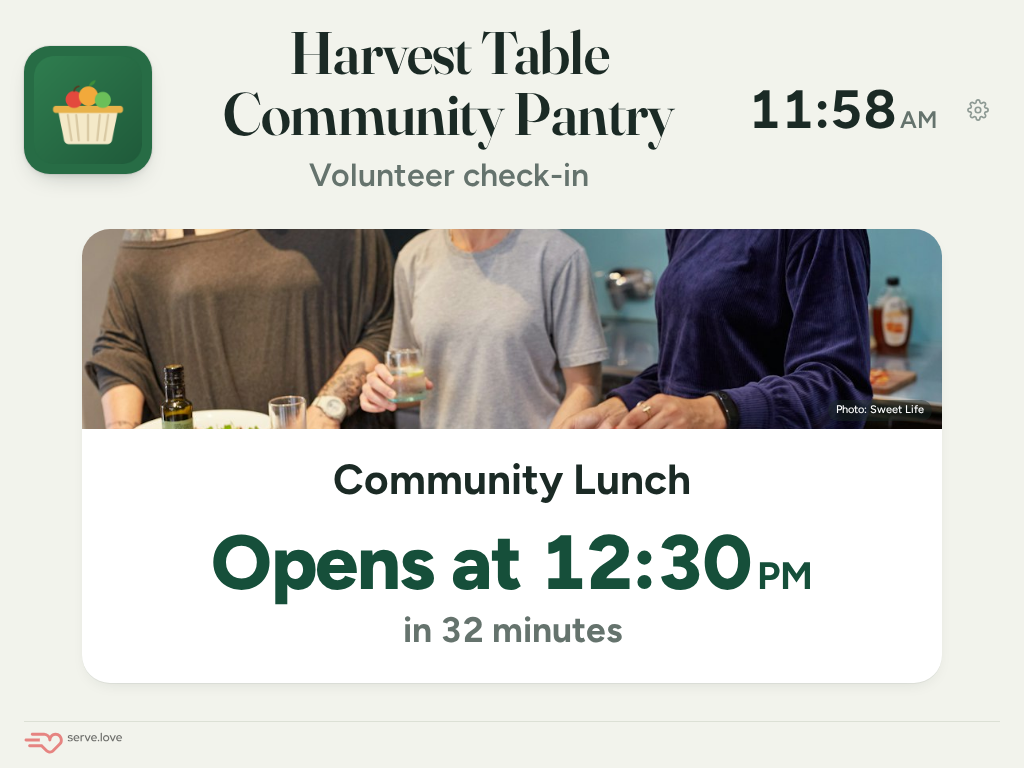
The waiting screen: the Harvest Table Community Pantry logo on the left, the name in the middle with Volunteer check-in under it, 11:58 AM on the right. A card with a kitchen photo, Community Lunch, Opens at 12:30 PM, in 32 minutes.

Community Lunch opens at 12:30. The countdown is in plain words.

5Check-in is open

One big green button

Once it opens, the top says the event, Volunteer check-in · Open till 4:30, and how many are here. Volunteers tap Check in.

Everyone who signed up is listed below as a backup, first name and last initial, with a search box and letters. If nobody signed up, the names are hidden and the button is all there is. Later in the day, people who are still here are under Heading out? Tap your name.
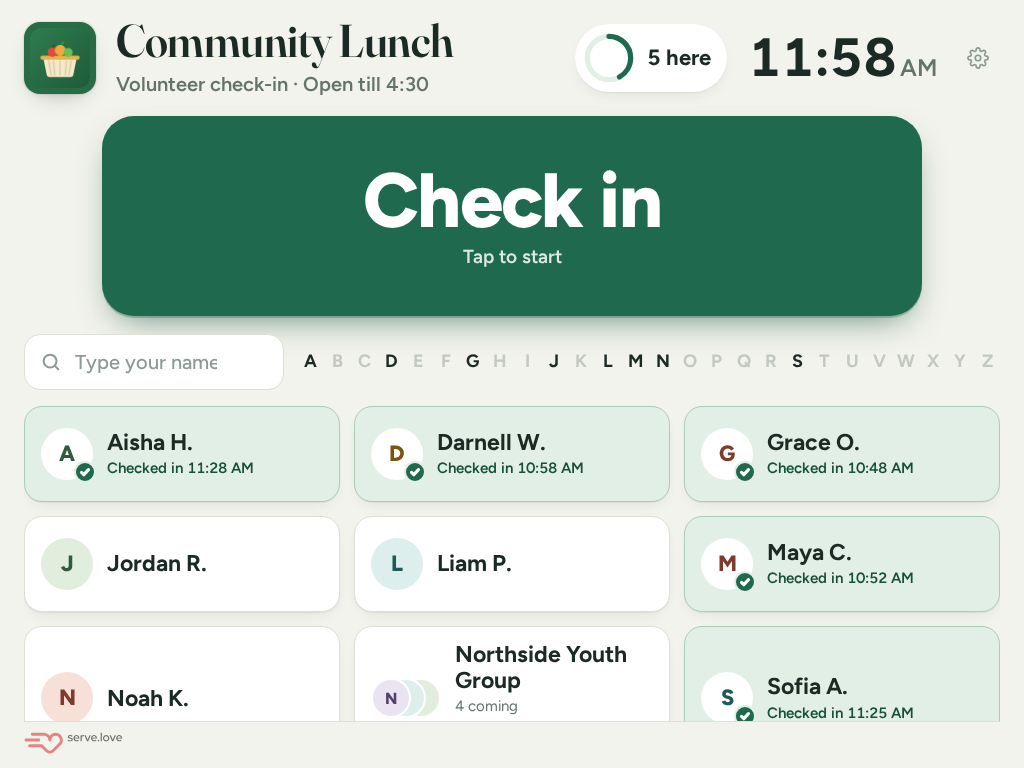
The open check-in screen: Community Lunch, Volunteer check-in, Open till 4:30, 5 here, the clock, a big green Check in button with Tap to start, a search box, letters A to Z, and name tiles. Aisha H., Darnell W., Grace O., Maya C. and Sofia A. are checked in (green). Jordan R., Liam P. and Noah K. are not yet. Northside Youth Group, 4 coming.

Check in on top, names below. Green tiles are checked in.

6Phone first

Type a phone number, tap Yes

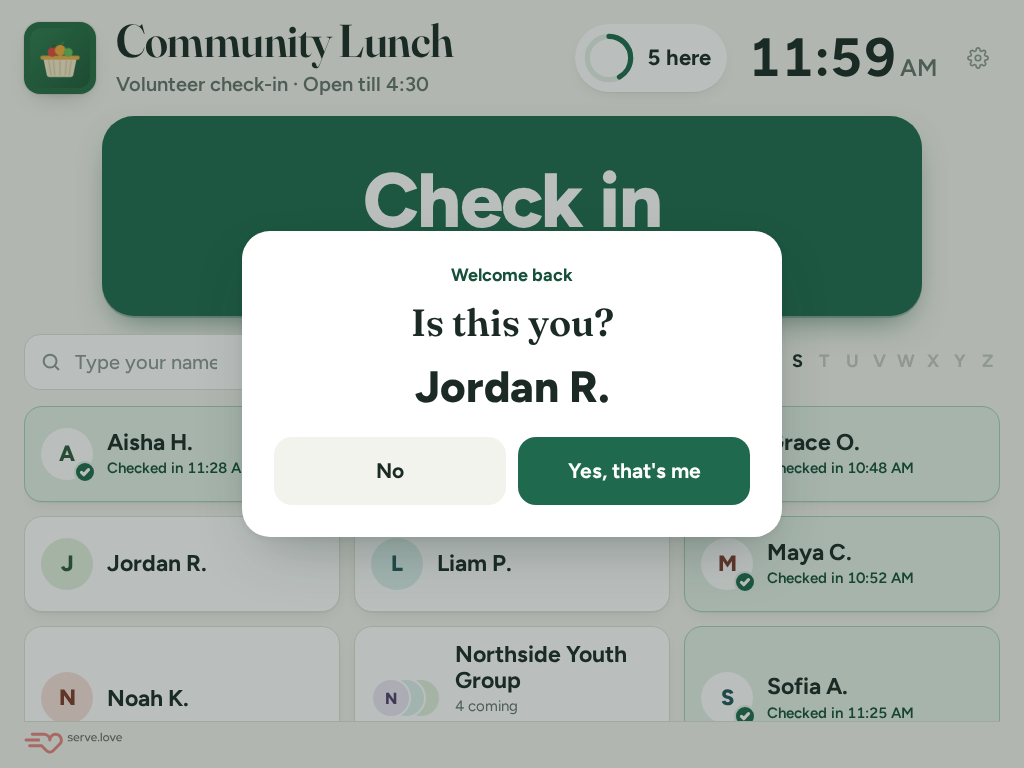
The button opens a number pad. After the last digit the tablet looks the number up and asks Is this you? Jordan R. Only the first name and last initial show. Use email works too.

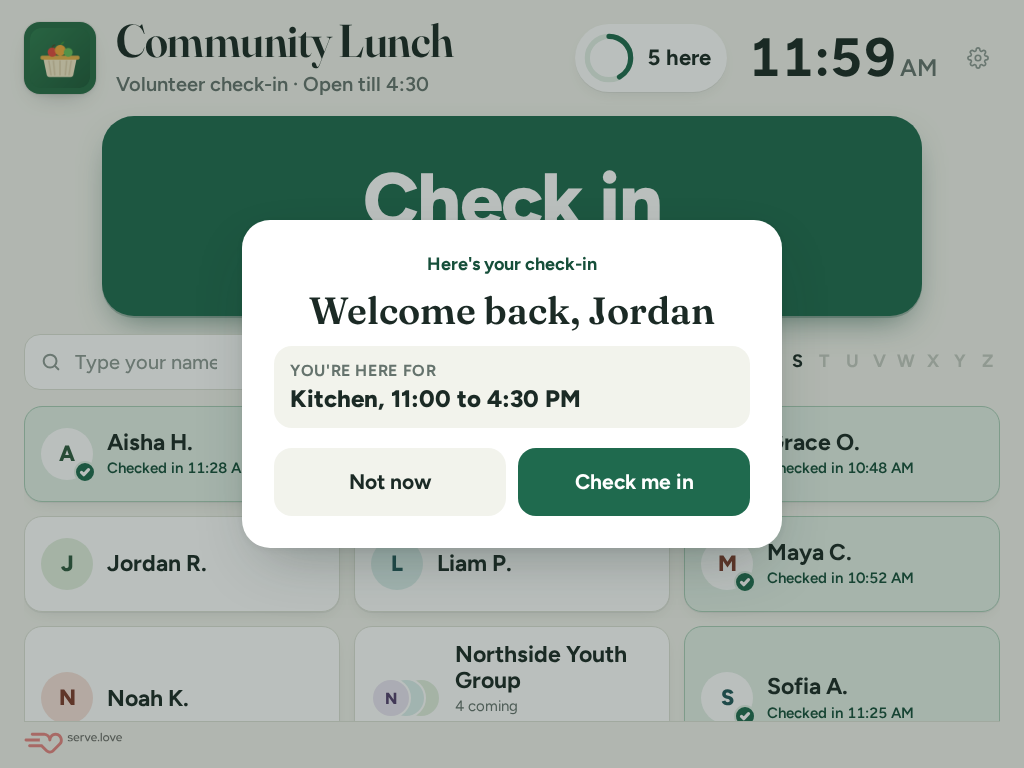
Then Here's your check-in shows the shift they are on, and Check me in finishes it.
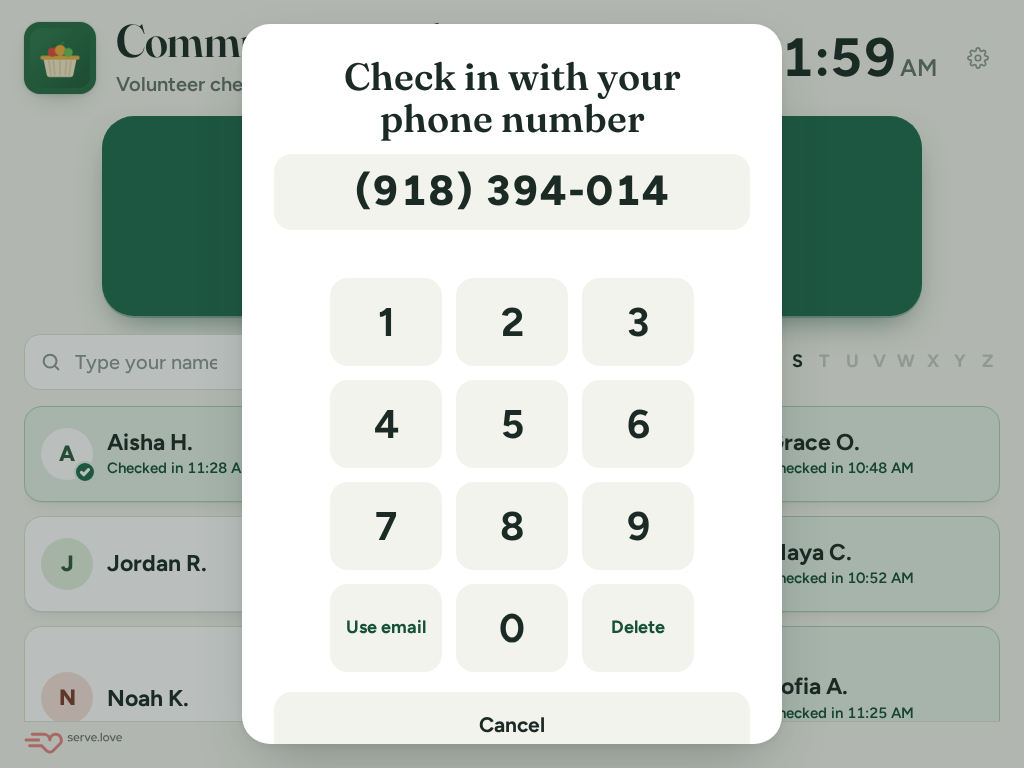
Check in with your phone number: (918) 394-014 typed so far, and a big number pad with Use email, 0 and Delete, and Cancel.
A big number pad.
Welcome back. Is this you? Jordan R. Buttons: No, and Yes, that's me.
Is this you? First name and last initial only.
Here's your check-in. Welcome back, Jordan. You're here for Kitchen, 11:00 to 4:30 PM. Not now and Check me in.
Here's your check-in: Kitchen, 11:00 to 4:30.
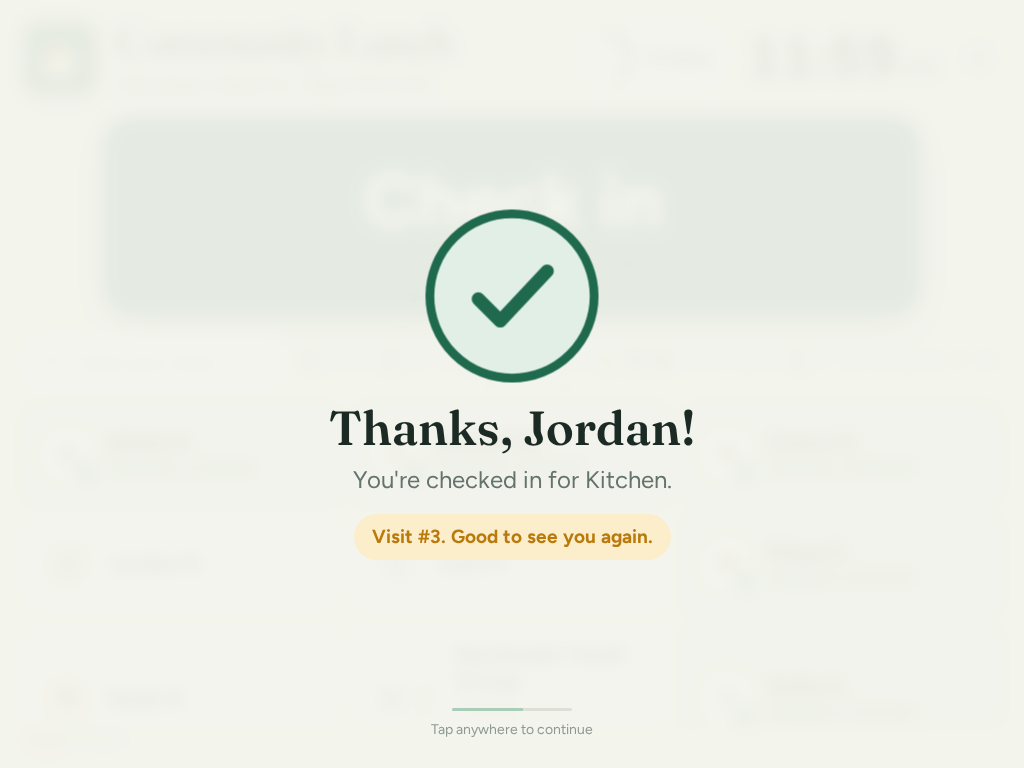
A check mark. Thanks, Jordan! You're checked in for Kitchen. Visit #3. Good to see you again. Tap anywhere to continue.
Thanks, Jordan! Checked in.
7New here

A number we don't know: three quick things

If the number isn't on file, the same flow asks for a first name, a last name and the phone they typed (email is optional), then checks them in. There is no separate "not on the list" button: everyone starts with Check in.
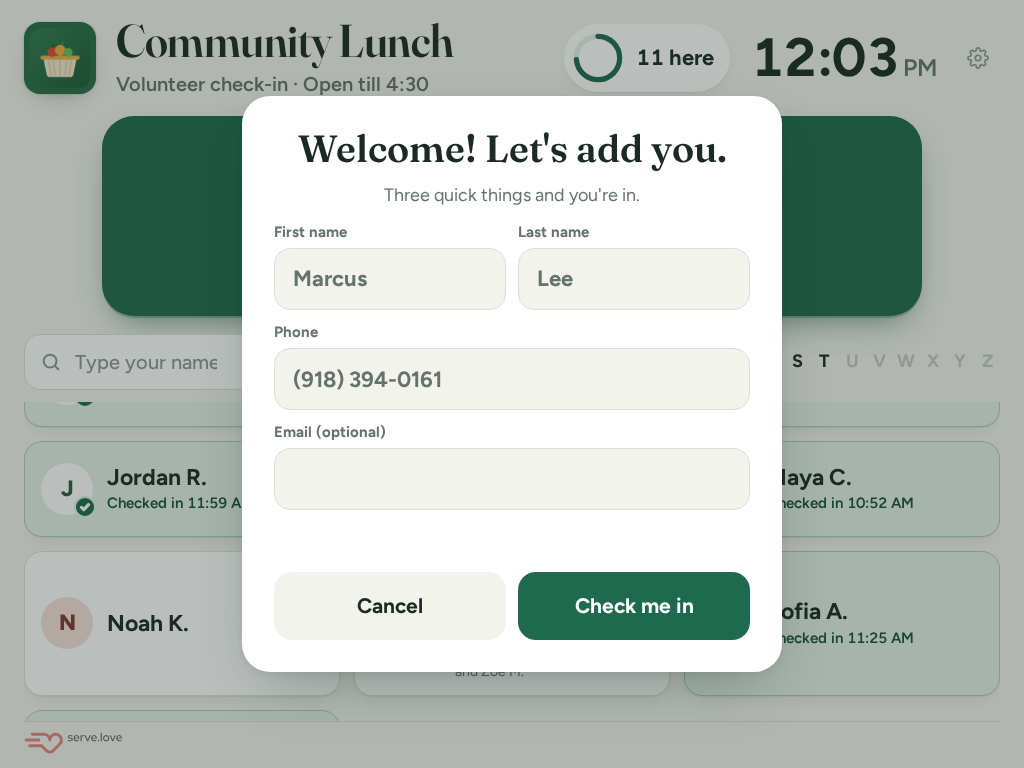
Welcome! Let's add you. Three quick things and you're in. First name Marcus, last name Lee, phone (918) 394-0161, email optional, and Cancel and Check me in.

Welcome! Let's add you. The phone is already filled in.

8Check out

Tap your name on the way out

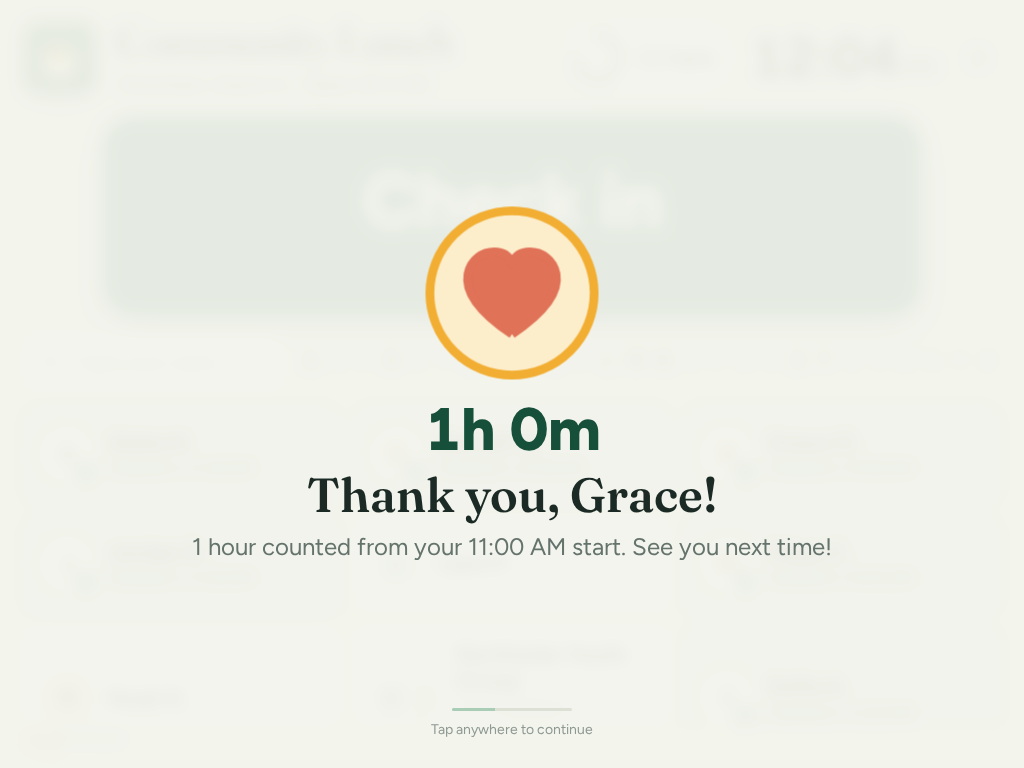
On the way out, they tap their name and press Check out. The thank-you shows the time that counts: from the shift start, not from an early arrival, rounded to the quarter hour. It is the same number the hours review uses.

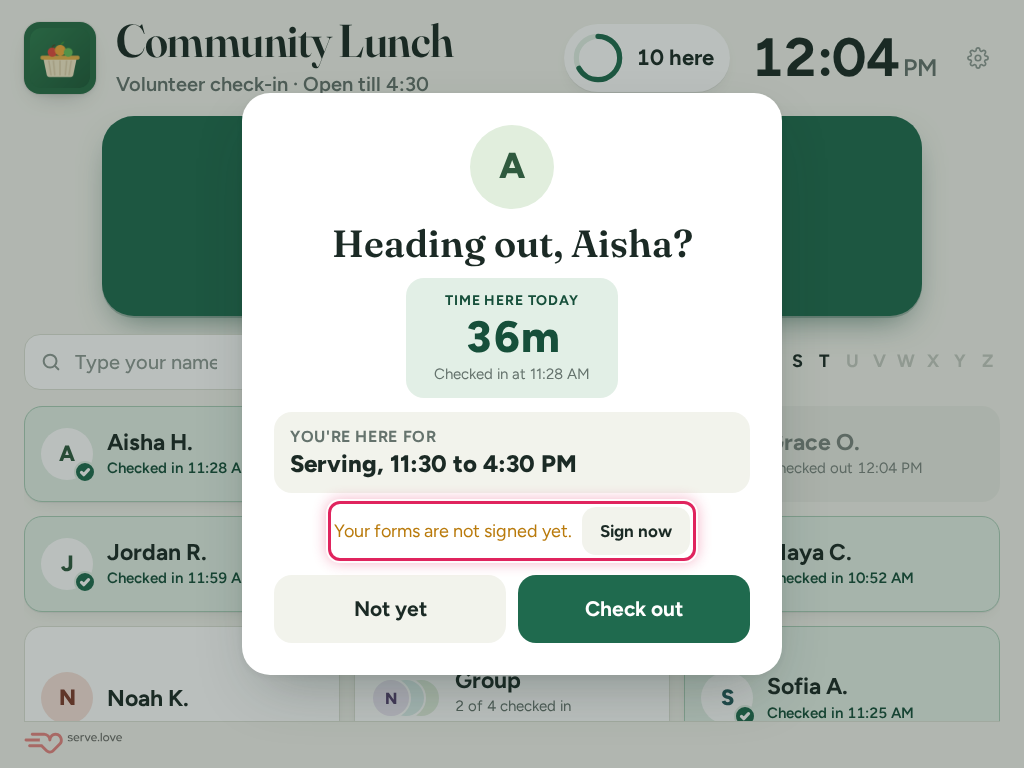
If one of the event's required forms is still unsigned, the check-out says Your forms are not signed yet with Sign now, and the form opens right on the tablet.
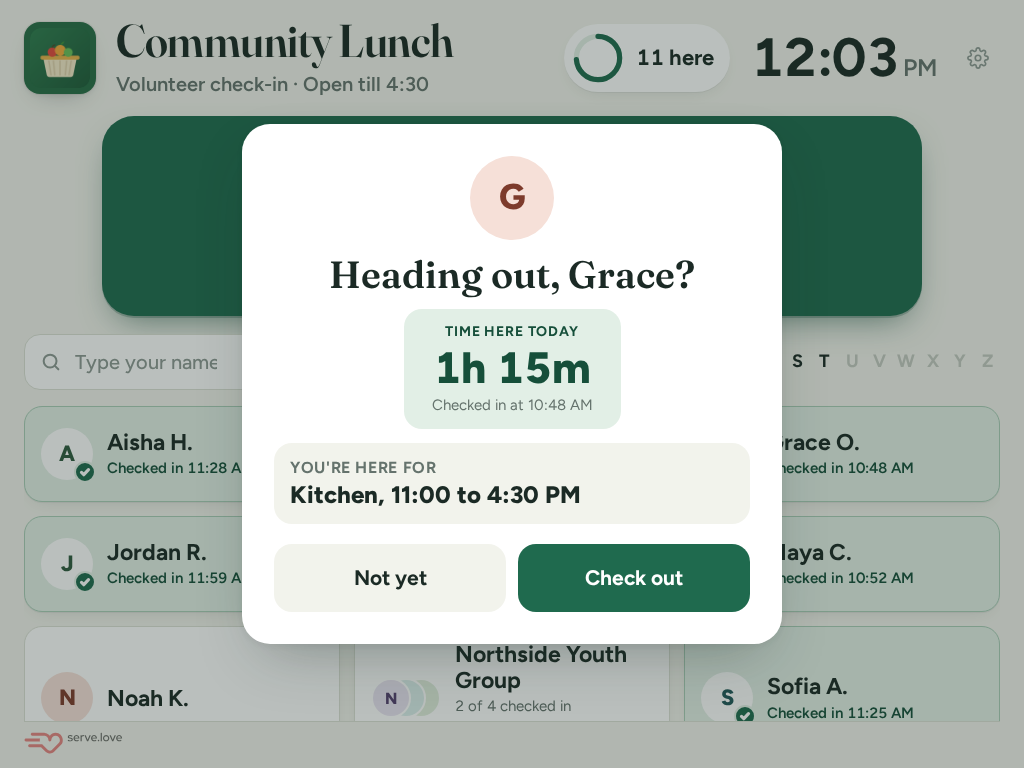
Heading out, Grace? Time here today 1h 15m, checked in at 10:48 AM. You're here for Kitchen, 11:00 to 4:30 PM. Not yet and Check out.
Heading out, Grace? One button.
A heart. 1h 0m. Thank you, Grace! 1 hour counted from your 11:00 AM start. See you next time!
Counted from her 11:00 AM start. She came at 10:48; the early minutes don't count.
Heading out, Aisha? Time here today 36m. You're here for Serving. The line Your forms are not signed yet with a Sign now button is outlined. Not yet and Check out.

Sign now when a required form is missing.

9Signed-up groups

Everyone in a group checks in as themselves

A group that signed up together has one tile, for example Northside Youth Group, 4 coming. Tapping it lists the names. Each person taps their own name, so everyone gets their own check-in, forms and hours.

Add someone is for a person who came with the group but isn't listed. They check in with their phone number and join the group.
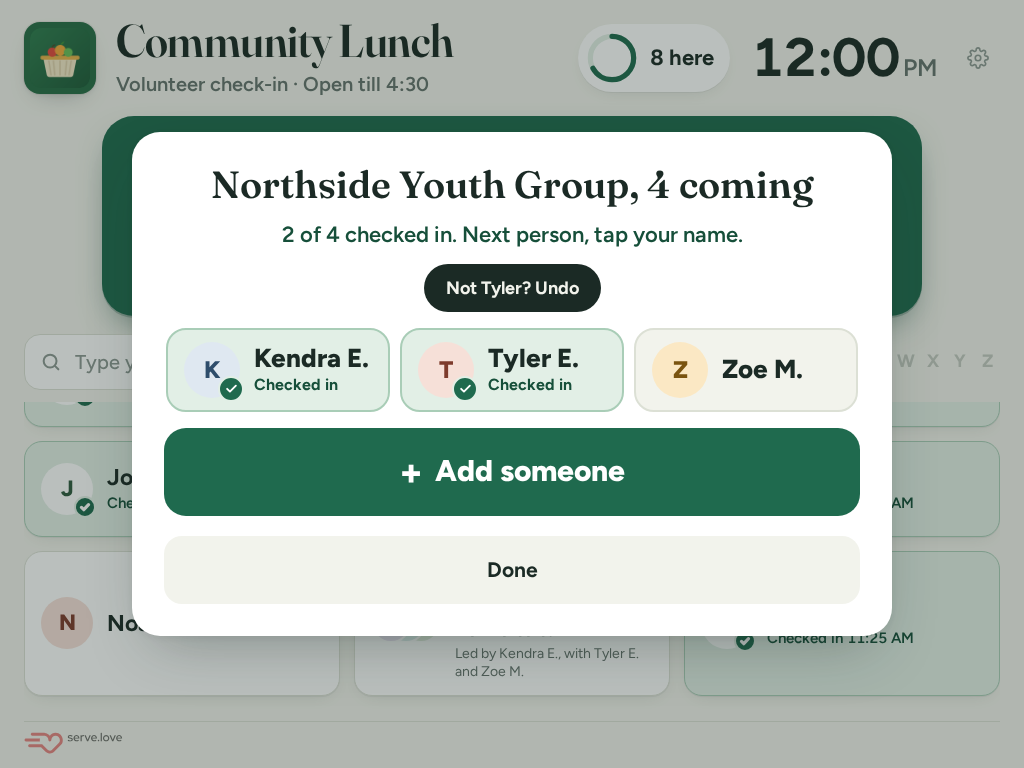
Northside Youth Group, 4 coming. 2 of 4 checked in. Next person, tap your name. Not Tyler? Undo. Kendra E. and Tyler E. checked in, Zoe M. not yet. A big green Add someone button and Done.

2 of 4 checked in. Zoe is next.

10Walk-in groups and kids

"Anyone with you?"

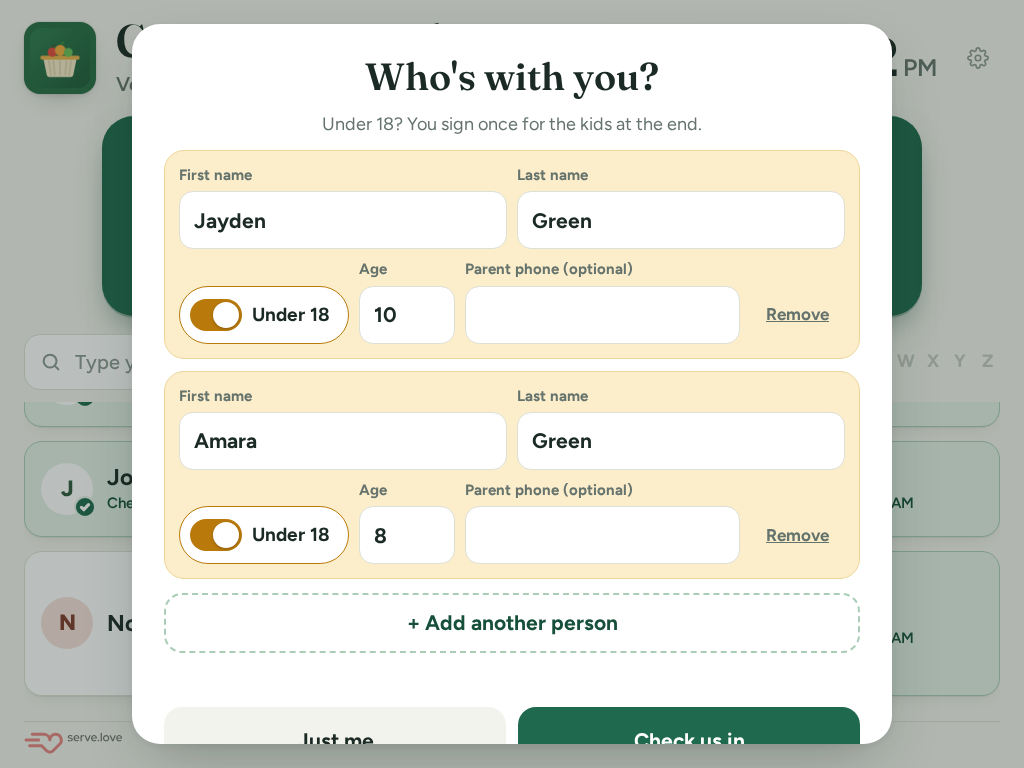
After someone checks in, the tablet asks Anyone with you? Just me is the big button. Add people with me opens a short list: names, an Under 18 switch and an age for kids.

Tasha came with two kids. She adds them, taps Check us in, and signs once for both. Everyone gets their own hours.
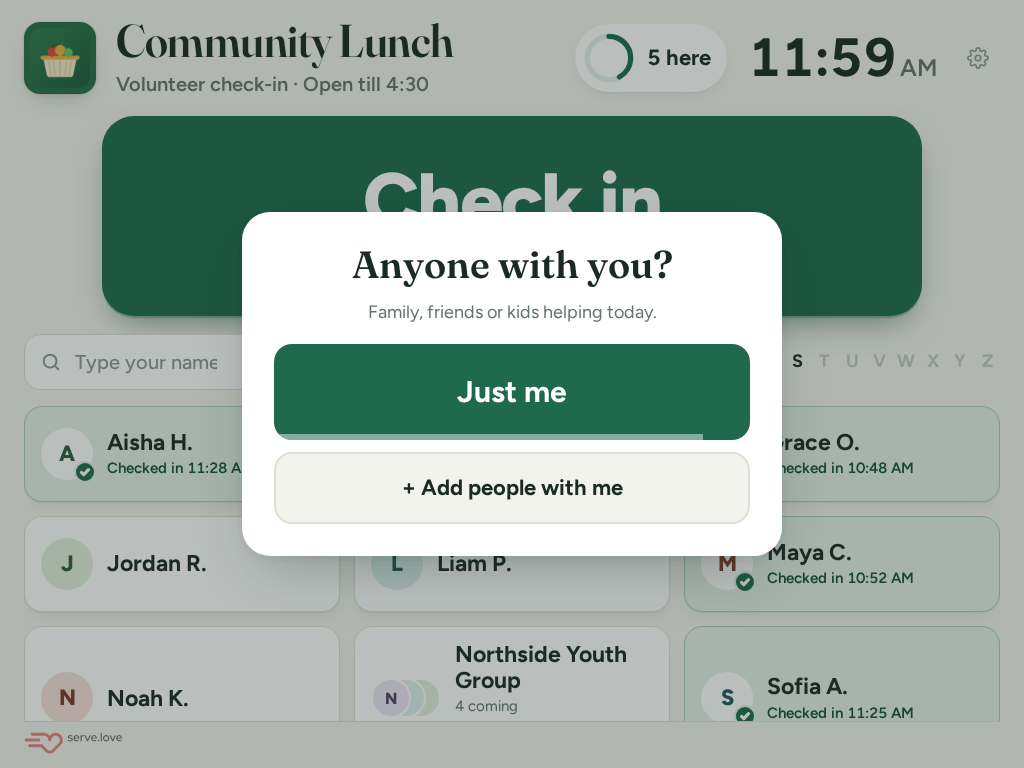
Anyone with you? Family, friends or kids helping today. A big green Just me button and + Add people with me.
Anyone with you? Just me is one tap.
Who's with you? Under 18? You sign once for the kids at the end. Jayden Green, Under 18, age 10, and Amara Green, Under 18, age 8, each with an optional parent phone. + Add another person.
Two kids, with their ages.
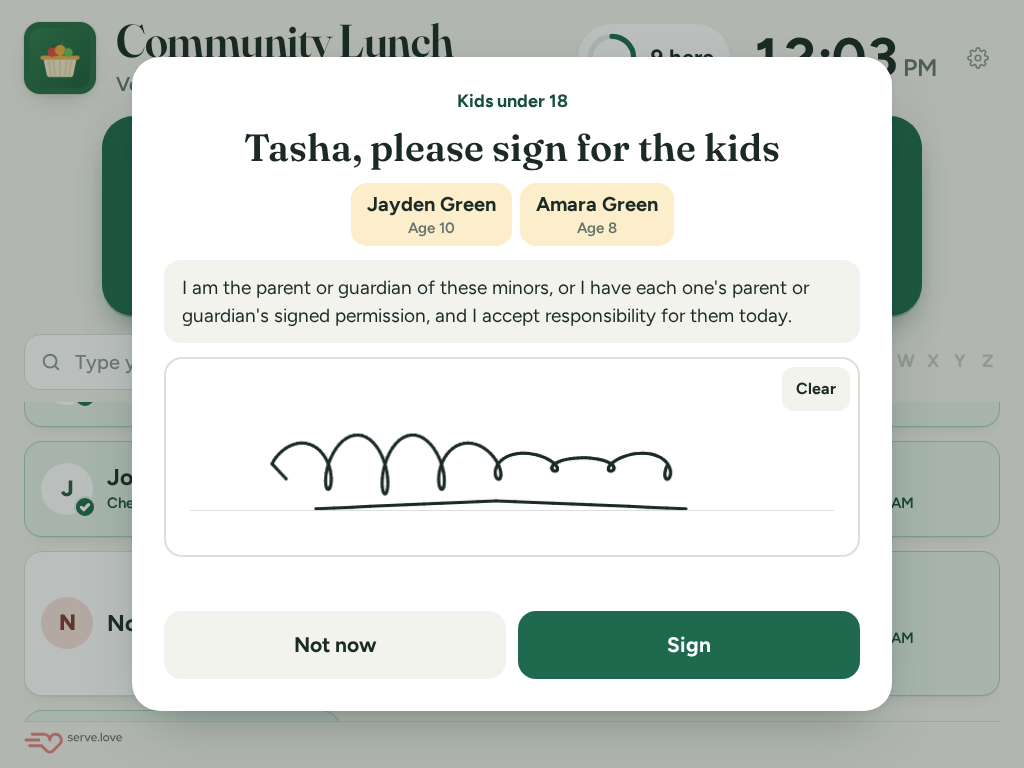
Kids under 18. Tasha, please sign for the kids. Jayden Green, age 10, and Amara Green, age 8. I am the parent or guardian of these minors, or I have each one's parent or guardian's signed permission, and I accept responsibility for them today. A signature pad with a signature, Not now and Sign.
One signature for both kids.
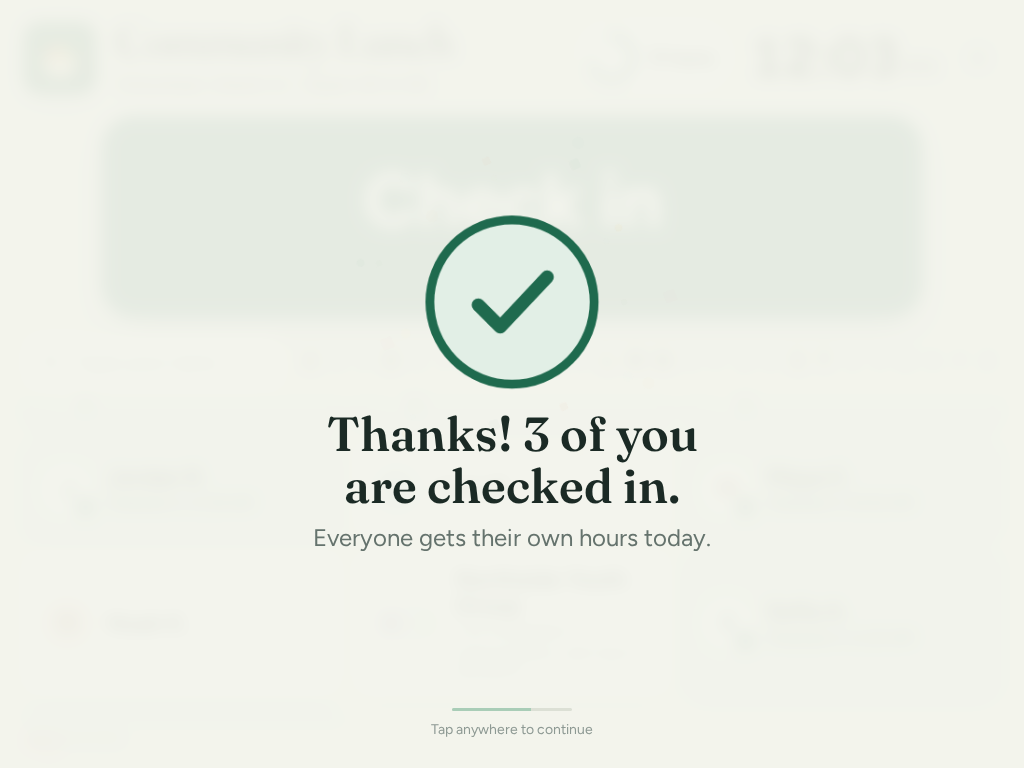
A check mark. Thanks! 3 of you are checked in. Everyone gets their own hours today.
3 of you are checked in.
11Your rules for kids

Groups and kids at the door

The Groups and kids at the door card in Verified Hours sets the rules: whether to ask Anyone with you?, who signs for kids under 18 (the group leader once, a parent at the tablet, or a parent who is in the group), whether a parent phone is required, the youngest age allowed, kids per adult, and the words the leader agrees to.
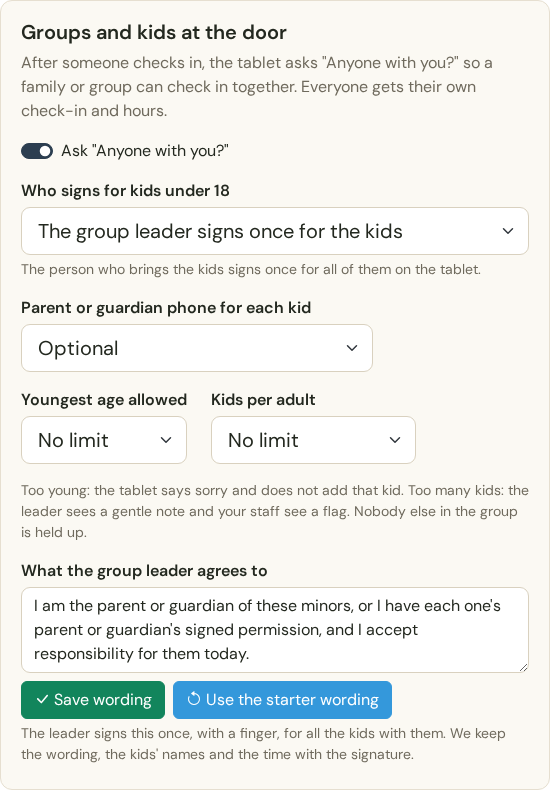
The Groups and kids at the door card: Ask Anyone with you? (on), Who signs for kids under 18: The group leader signs once for the kids, Parent or guardian phone for each kid: Optional, Youngest age allowed: No limit, Kids per adult: No limit, and What the group leader agrees to, with Save wording and Use the starter wording.

Your rules, in one card.

12Two events at once

"Which event is at this door?"

If two events are on at the same time, the screen asks once. The tablet remembers the answer until that event is over.
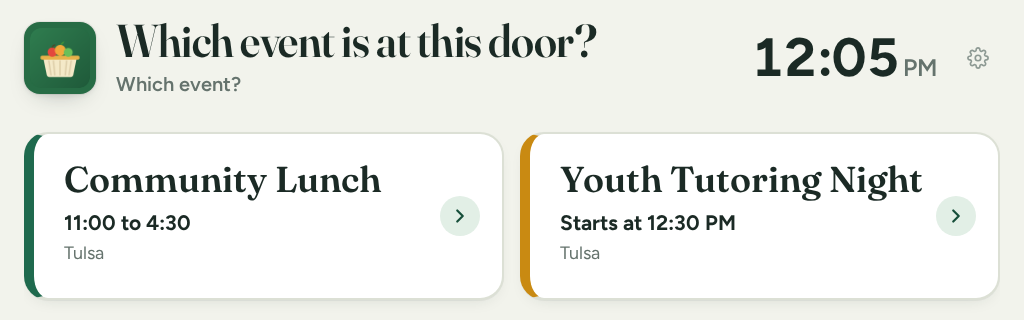
Which event is at this door? Two big buttons: Community Lunch, 11:00 to 4:30, Tulsa, and Youth Tutoring Night, starts at 12:30 PM, Tulsa.

One tap picks the event for this tablet.

Staff at the doorThe gear on the screen
13Staff tools

The gear, with your staff PIN

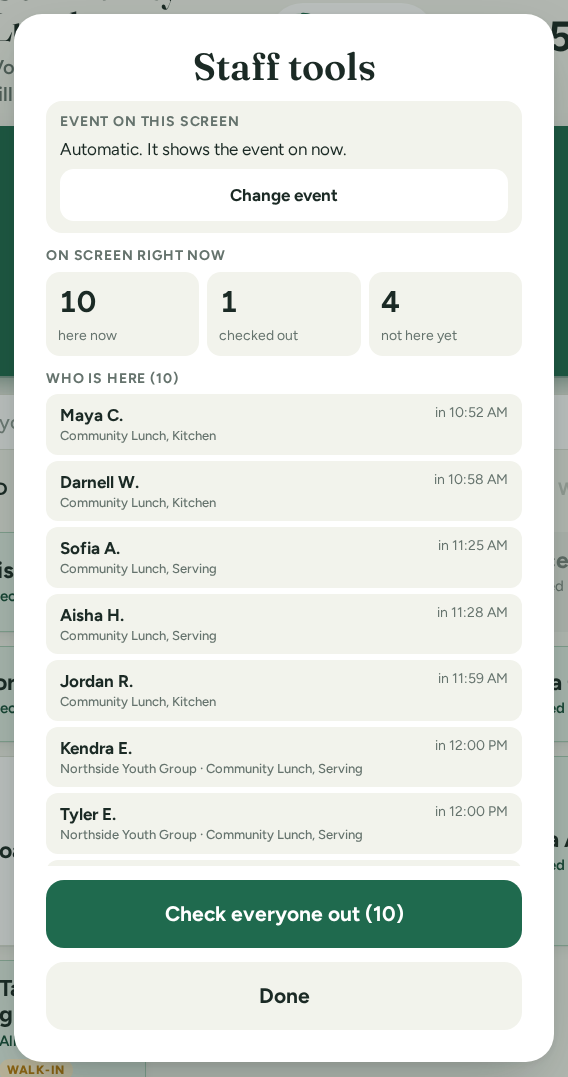
Tap the gear in the corner and enter the 4-digit staff PIN from the settings card. You see who is here now, who checked out and who hasn't come yet. Check everyone out is for the end of the day.

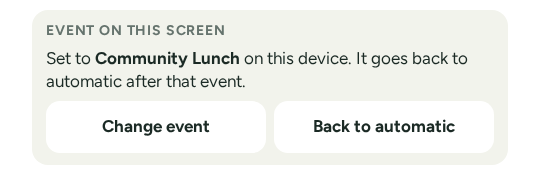
Event on this screen says Automatic. When two events are on, Change event sets this tablet to one of them, and Back to automatic undoes it.
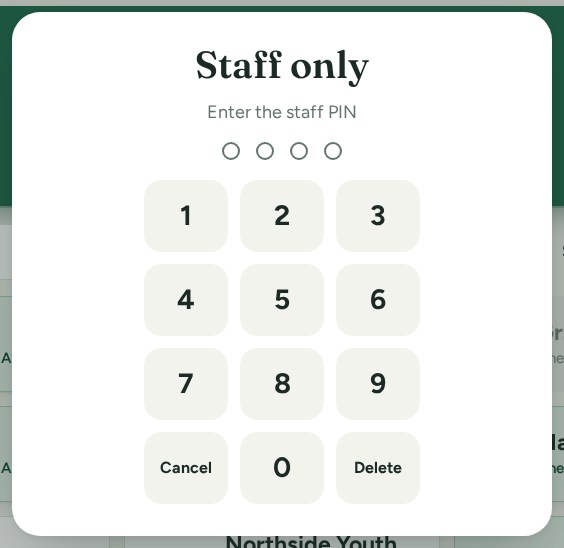
Staff only. Enter the staff PIN. Four empty dots and a number pad with Cancel and Delete.
Staff only: the 4-digit PIN.
Staff tools. Event on this screen: Automatic. It shows the event on now. Change event. On screen right now: 10 here now, 1 checked out, 4 not here yet. Who is here (10): Maya C., Darnell W., Sofia A., Aisha H., Jordan R., Kendra E. and Tyler E. of Northside Youth Group, each with their shift and check-in time. Check everyone out (10) and Done.
Staff tools. Who is here, and Check everyone out.
Event on this screen: Set to Community Lunch on this device. It goes back to automatic after that event. Change event and Back to automatic buttons.

Back to automatic shows once a tablet is set to one event.

After the eventIn your dashboard
14Who came

The event page shows the door

Under the event's name: At the door: 11 checked in · 10 still here · 3 walk-ins. On the volunteer list, each person has their in and out times and the hours counted, or Still here.

Walk-ins are listed under Walk-ins (door) with a walk-in tag. Kids have an under 18 tag and Signed for by Tasha Green.

The top of the Community Lunch event page: Edit Event, More and Pin. The line At the door: 11 checked in, 10 still here, 3 walk-ins, See who, is outlined.

At the door: 11 checked in. The link is under More > Check-in screen.
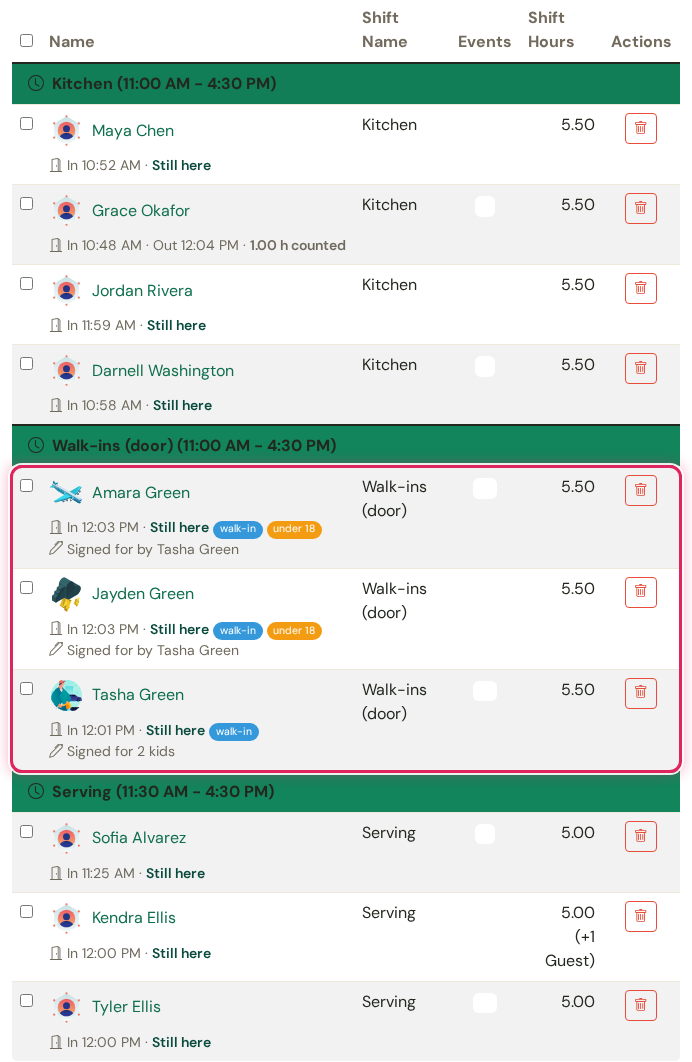
The volunteer list by shift. Kitchen: Maya Chen, In 10:52 AM, Still here. Grace Okafor, In 10:48 AM, Out 12:04 PM, 1.00 h counted. Jordan Rivera and Darnell Washington, Still here. Walk-ins (door), outlined: Amara Green and Jayden Green, walk-in, under 18, Signed for by Tasha Green; Tasha Green, walk-in, Signed for 2 kids. Serving: Sofia Alvarez, Kendra Ellis (+1 guest) and Tyler Ellis, Still here.

In, out, hours counted, under each name.

Forgot to check out?One email to the volunteer, no login
15What time did you leave?

Closed at the shift end, then one email

Anyone still checked in an hour after their shift ends is checked out at the shift's end time. If they have an email address, they get one email, Looks like you forgot to check out, never a text.

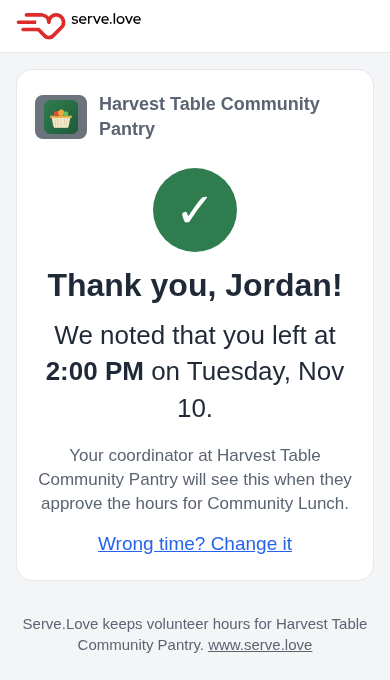
The button opens a page with no login and big time buttons, one for every half hour, plus I stayed till the end. One tap and it's noted. Jordan taps 2:00 PM. Your coordinator still approves the hours.
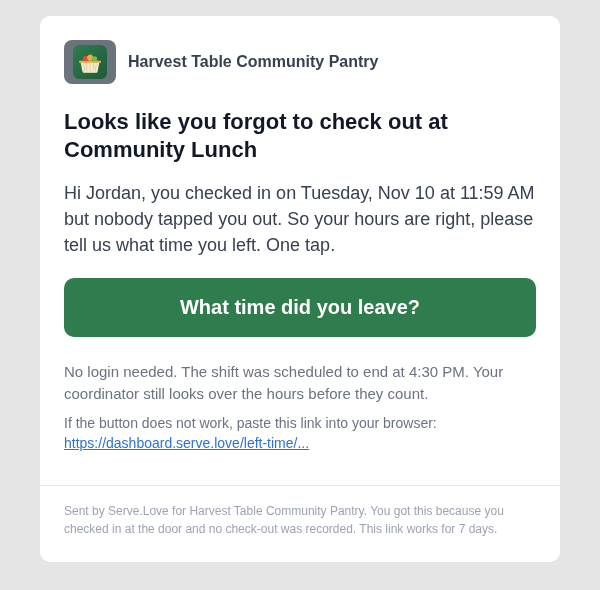
One email, one button.
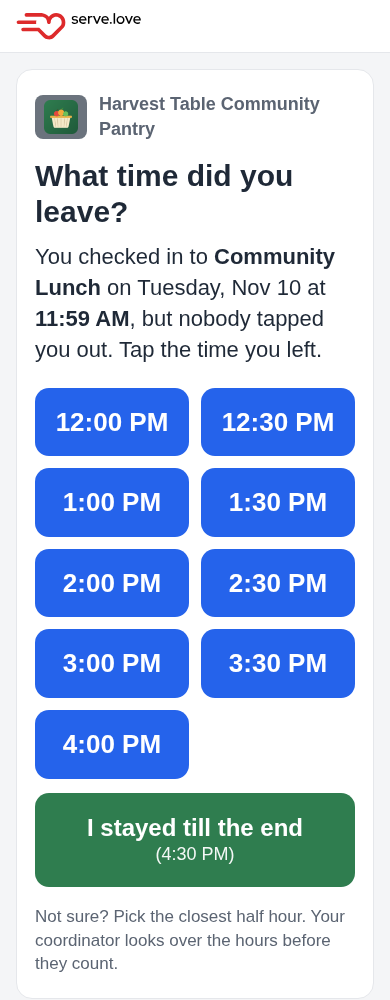
What time did you leave? You checked in to Community Lunch on Tuesday, Nov 10 at 11:59 AM, but nobody tapped you out. Tap the time you left. Blue buttons from 12:00 PM to 4:00 PM every half hour, and a green I stayed till the end (4:30 PM).
Big time buttons.
Thank you, Jordan! We noted that you left at 2:00 PM on Tuesday, Nov 10. Your coordinator at Harvest Table Community Pantry will see this when they approve the hours for Community Lunch. Wrong time? Change it.
Noted: 2:00 PM. Wrong time? Change it.
The hours reviewThe organizer's page, no login
16Hours

The hours review is filled in from the door

If you use hours approval, the review email links to a page that is already filled in. Everyone who checked in is ticked with the hours counted. Anyone who didn't check in starts unticked.

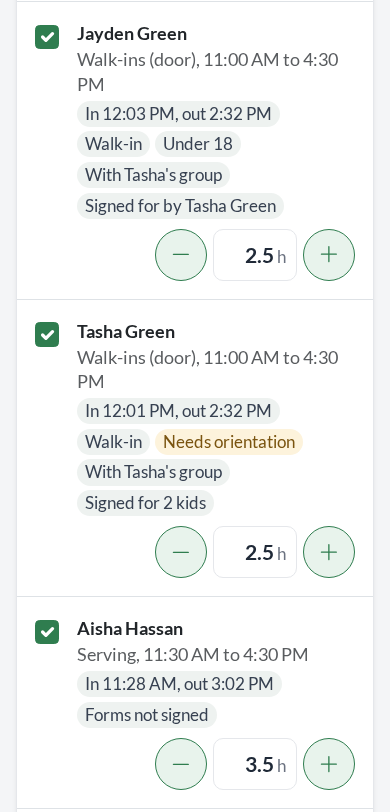
Notes say what happened at the door: Auto checked out and Says they left at 2:00 PM (Jordan's hours already use 2:00), Walk-in, Under 18, Signed for by Tasha Green, and Forms not signed. The organizer checks it and presses Approve and sign.

See Verified Hours Approval for the review itself.
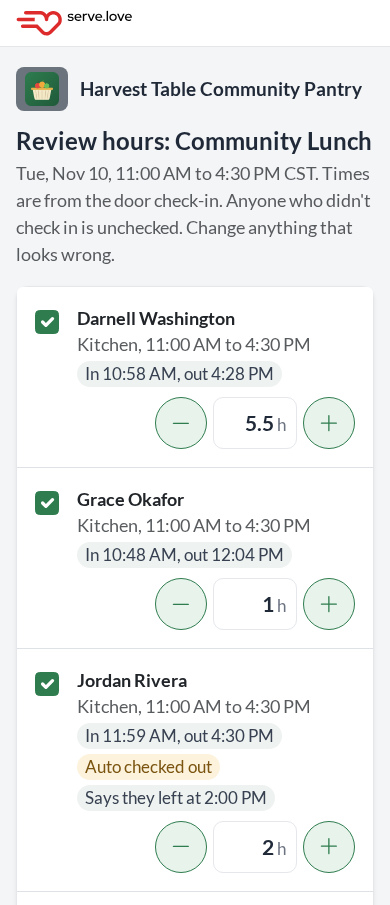
Review hours: Community Lunch, Tue, Nov 10, 11:00 AM to 4:30 PM. Times are from the door check-in. Darnell Washington, in 10:58 AM, out 4:28 PM, 5.5 h. Grace Okafor, in 10:48 AM, out 12:04 PM, 1 h. Jordan Rivera, in 11:59 AM, out 4:30 PM, Auto checked out, Says they left at 2:00 PM, 2 h.
Says they left at 2:00 PM: 2 hours, not 4.5.
Jayden Green, Walk-ins (door), Walk-in, Under 18, With Tasha's group, Signed for by Tasha Green, 2.5 h. Tasha Green, Walk-in, Needs orientation, With Tasha's group, Signed for 2 kids, 2.5 h. Aisha Hassan, Serving, in 11:28 AM, out 3:02 PM, Forms not signed, 3.5 h.
Walk-in, Under 18, Signed for by.