Serve.Love
Door Check-In · Keep this sheet with the iPad
Volunteer check-in iPad
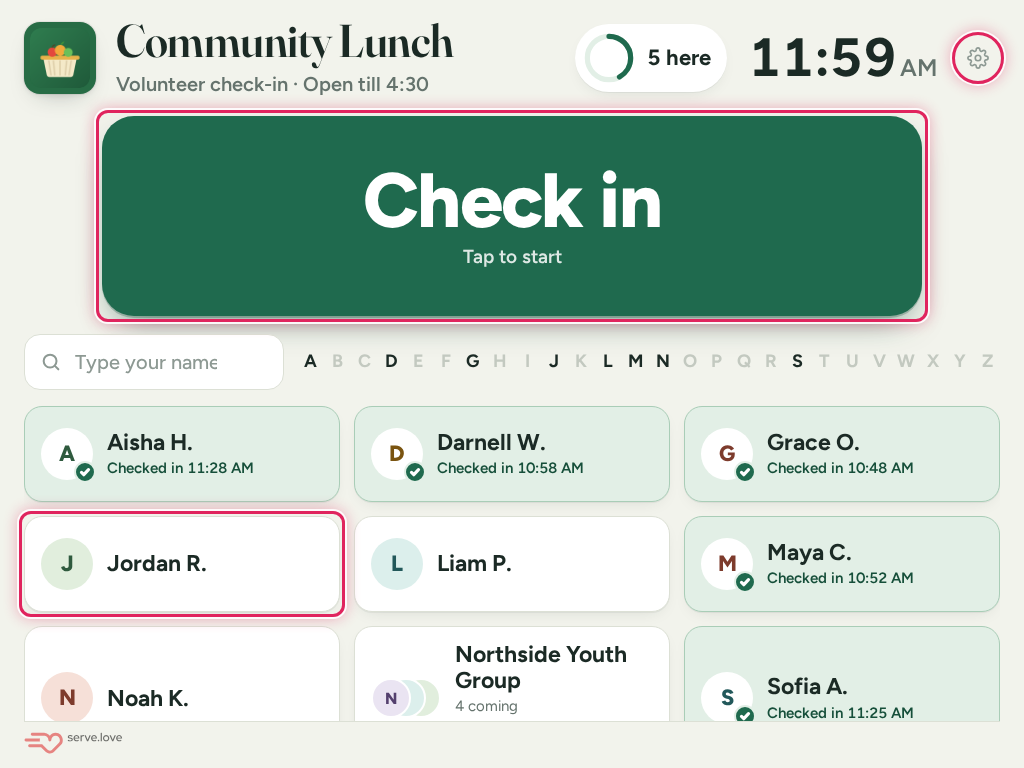
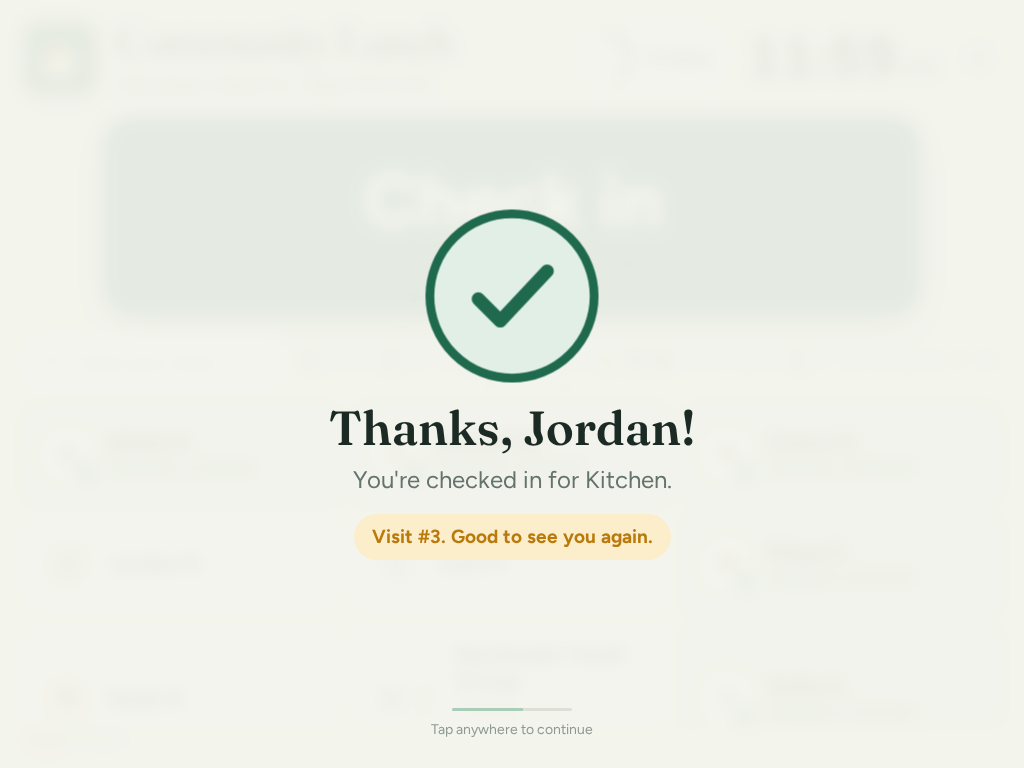
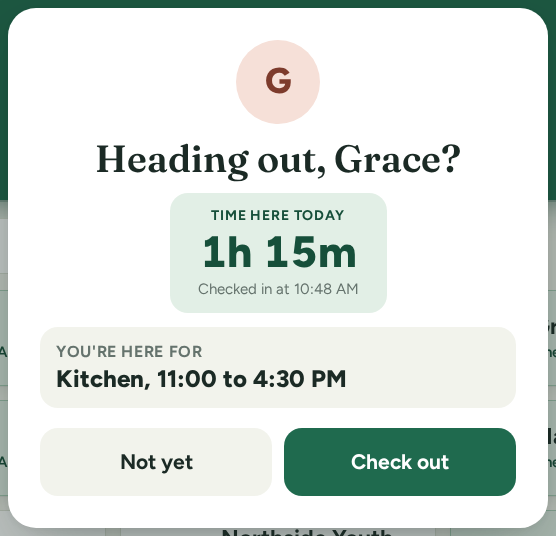
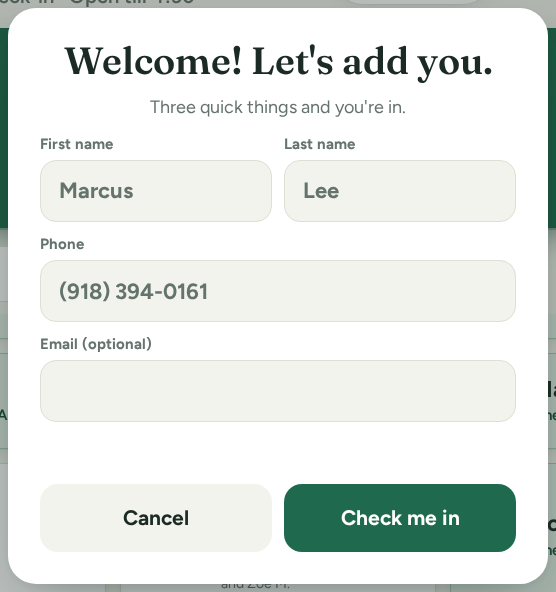
This iPad is your volunteer check-in station. Volunteers tap Check in when they arrive and tap their name when they leave.
Your check-in link:
Scan with the iPad camera to open it.
Find it in your dashboard: Manage, Organization Settings, Event Settings, Door Check-In.
One-time setup
About 5 minutesAOpen the link in Safari
Point the iPad camera at the QR code, or type the link into Safari.Type your check-in link into Safari. It is on the Door Check-In card in your dashboard, which can also print this sheet with a QR code.
BAdd it to the Home Screen
Then it opens full screen, like a kiosk.
CKeep it on and plugged in
Plug in the charger. Then Settings → Display & Brightness → Auto-Lock → Never.
DLock it to check-inOptional
Turn on Settings → Accessibility → Guided Access and set a passcode. Open the Check-in icon and triple-click the top button (or the Home button) to start. Triple-click again to stop.
EAndroid tablet instead?
Open the link in Chrome, tap the menu, then Add to Home screen. App pinning keeps it on the check-in screen.
Each day
- Tap the Check-in icon. It picks the event that's on now by itself. Check-in opens before a shift starts: an hour before, unless your organization picked 30 or 15 minutes, or the start time.
- Two events at once? It asks once which event is at this door.
- Need a different event? A coordinator switches it with the staff PIN. See "Switching the event."
Switching the event (staff)
- Tap the gear in the top corner.
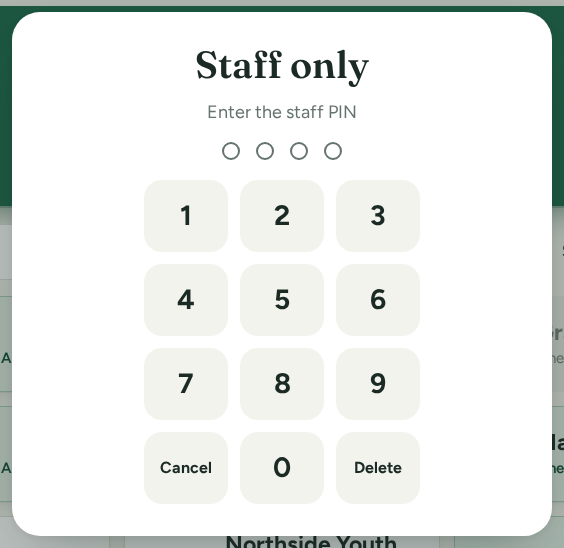
- Enter the 4-digit staff PIN.
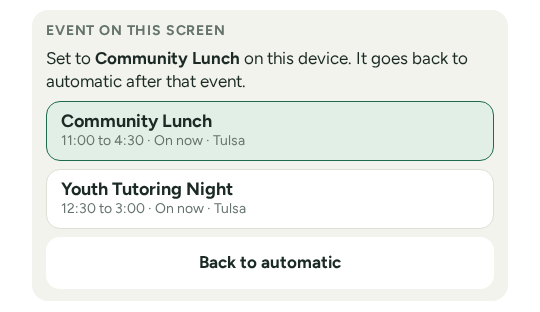
- Tap Change event, then the event at this door.
It stays on that event until it ends. Back to automatic lets it pick by itself again. The PIN is on the Door Check-In card in your dashboard.
What volunteers do