Serve.Love · Verified Hours
After each event, a manager confirms who came and how long they served, from one email and with no login. Volunteers don't have to ask for anything, and your reports show which hours are approved and which are still waiting. Below: every email the feature can send, and how approved hours become a signed letter when a volunteer needs one.
Ready to try it? Set up and test it in about 15 minutes.
The detailed walkthrough below has more screens. This is all of it at a glance.
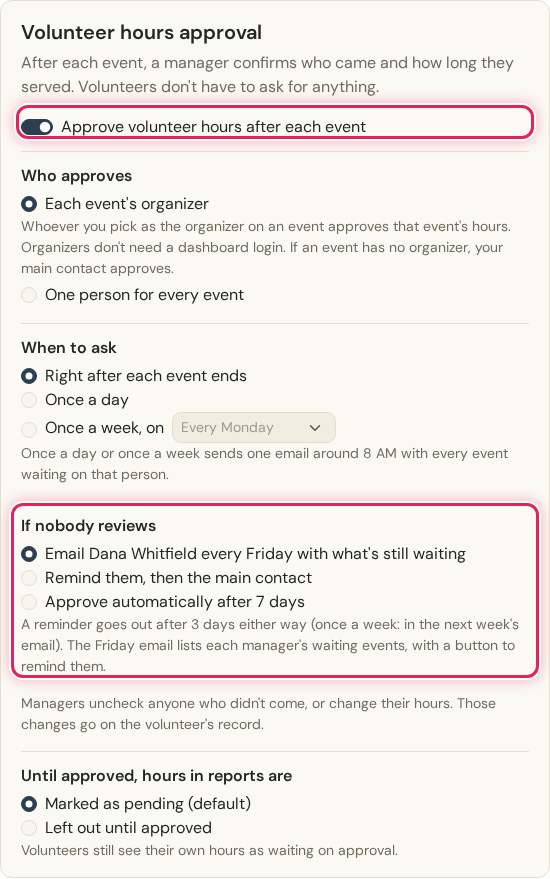
One switch in your settings. Each event's organizer approves its hours.
See this step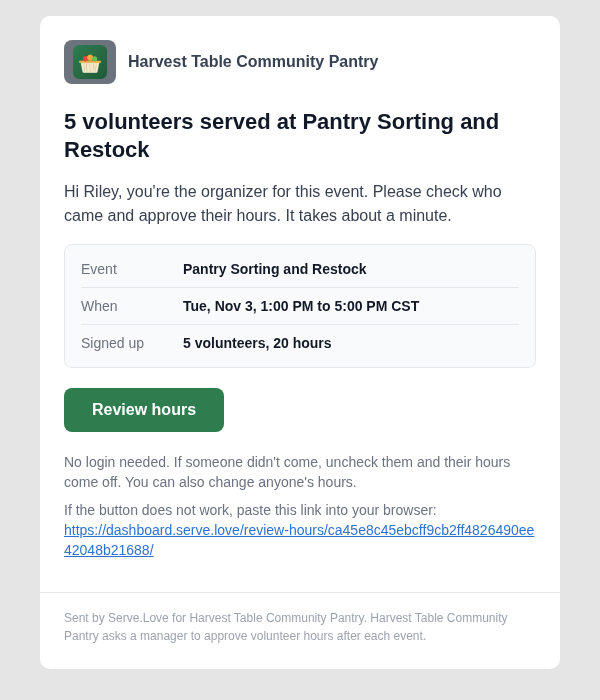
The organizer gets one email: who signed up, the hours, and a Review hours button.
See this step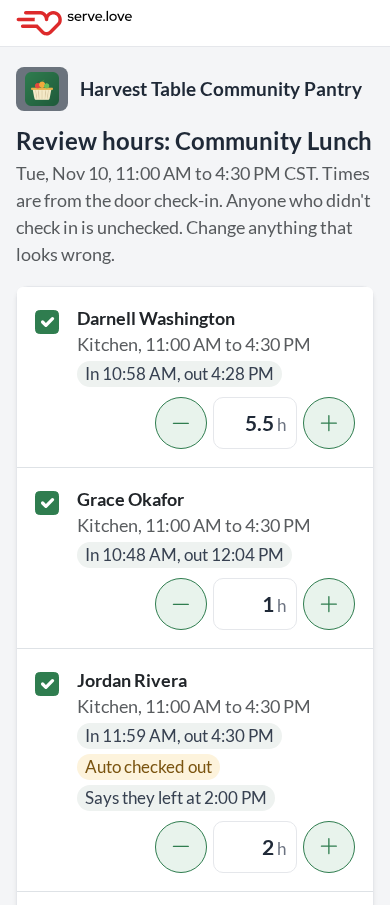
Everyone who came is checked. Fix any hours, then Approve and sign.
See this step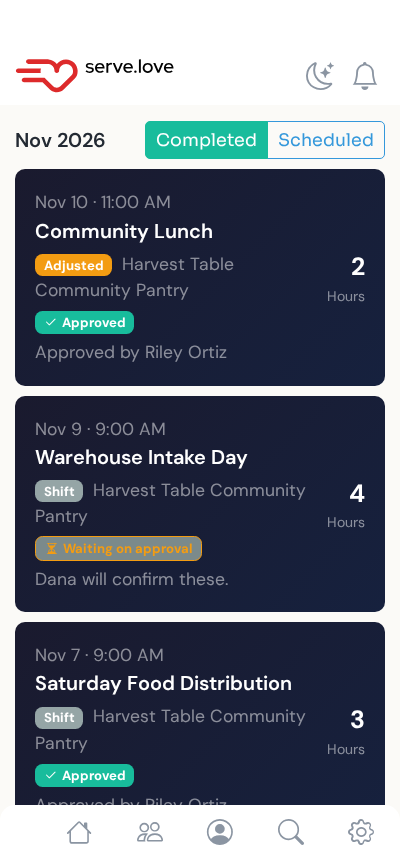
In the app, the shift says Approved, with who approved it.
See this stepEach event's organizer spends about a minute per event. Your main contact hears about anything still waiting once a week.
"Review hours" for one event, shortly after it ends. Tap the button.
Everyone who came is already checked. Uncheck no-shows, fix hours if someone left early, Approve and sign.
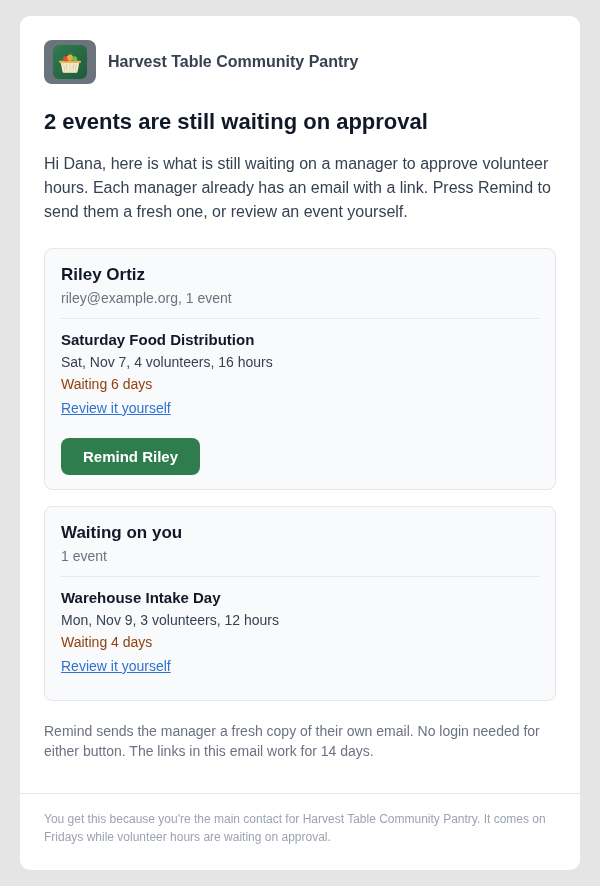
Your main contact sees what is still waiting, by manager, with a Remind button for each.
Everything else is automatic: the review email goes out when the event ends, a reminder follows after 3 days, and approved changes go straight onto each volunteer's record.
Some organizations count volunteer hours as an in-kind donation, report them to a funder, or just want a manager to say who really showed up. Shown here with a demo organization, Harvest Table Community Pantry: Dana Whitfield is the main contact, Riley Ortiz organizes events, and Jordan Rivera is one of the volunteers.
Every event has a record of who approved its hours and when, with no-shows and changes listed.
Your reports can mark hours that are still waiting, or leave them out until they are approved.
Volunteers don't request anything. They just see their hours as waiting, then approved.
Go to Manage > Organization Settings > Verified Hours and turn on Approve volunteer hours after each event. Every choice on the card saves as soon as you pick it.
Who approves: each event's organizer (the default), or one person for every event. When to ask: right after each event ends, once a day in a single email around 8 AM, or once a week on the day you pick (also around 8 AM).
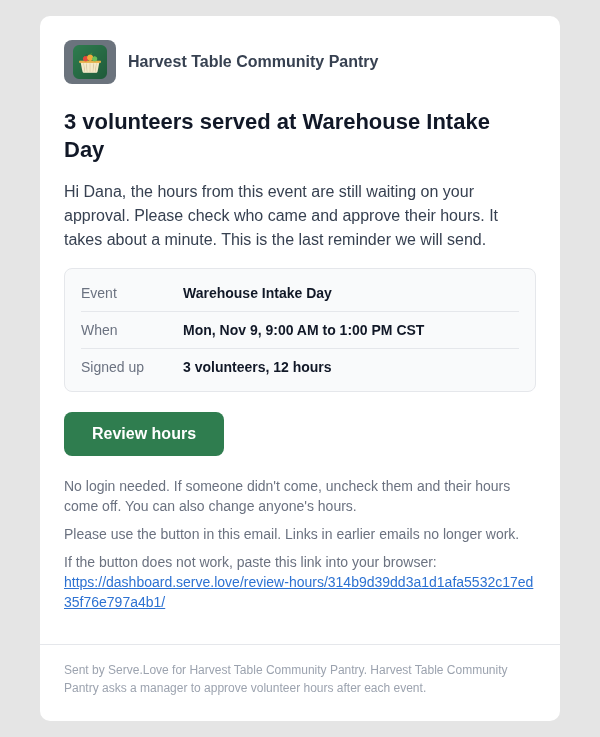
If nobody reviews: by default your main contact gets an email every Friday with what's still waiting. You can instead have the main contact take over after 7 days, or approve the hours automatically after 7 days. A reminder goes to the manager after 3 days either way.
Until approved, hours in reports are marked as pending (the default), or left out until approved.
Only events that end after you turn it on are reviewed. Nothing from before is sent.
The switch and the Friday default. The card names your main contact, here Dana Whitfield.
The organizer is the person who approves that event's hours, so the event form now requires one. The field reads Organizer (required). The organizer can be anyone on your team in Manage > Users, including people who never sign in to the dashboard.
Opening an older event that has no organizer shows Pick an organizer and the reason: They get the sign-up emails and approve its hours. If someone leaves your team, Manage > Users asks who takes over their events, and their waiting reviews move with them.
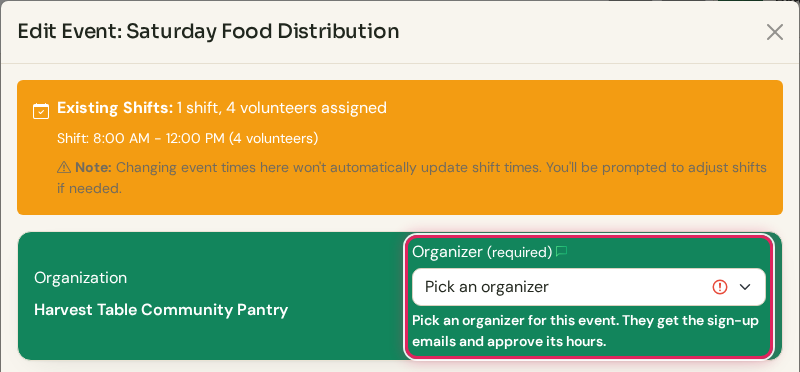
An event with no organizer yet. The form asks for one before it saves.
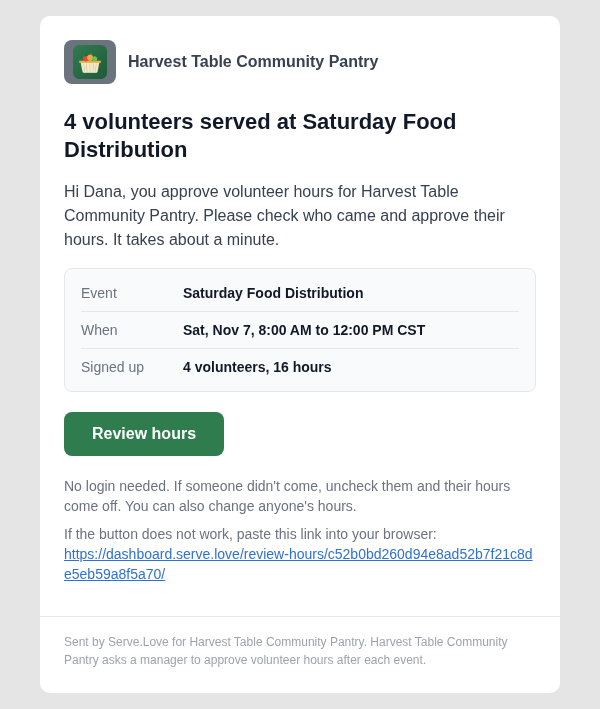
Once the event is over, its organizer gets one email: how many volunteers served, when, and the hours on record. One button: Review hours.
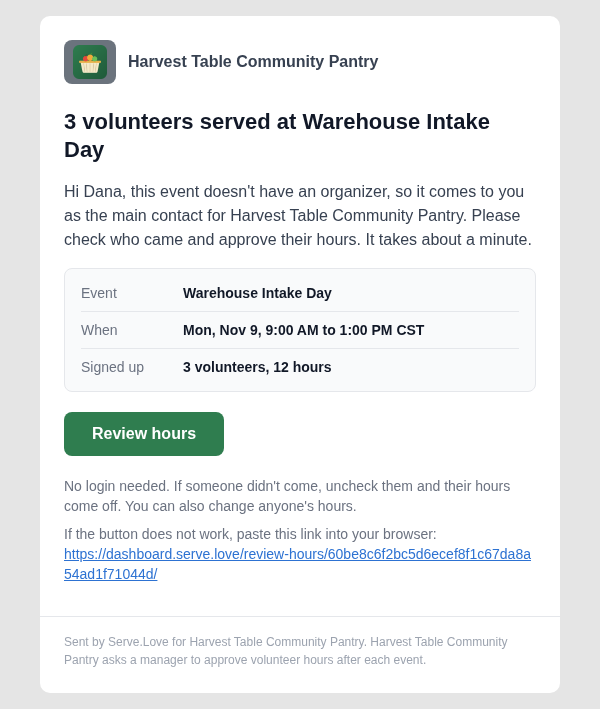
No login is needed. If the event has no organizer, your main contact gets the email, and it says why.
What lands in Riley's inbox. Subject: Review hours: Pantry Sorting and Restock, Tue Nov 3.
The button opens a page with each volunteer who signed up, their shift and their hours. Everyone who came starts checked. Uncheck anyone who didn't come, and use − and + to fix hours. The line at the bottom updates right away.
If you use Door Check-In, the hours come from the door times and anyone who didn't check in starts unchecked. Here, Community Lunch: Jordan was Auto checked out and then told us he left at 2:00, so the page shows Says they left at 2:00 PM and 2 hours. Other notes you may see: Walk-in, Under 18, Signed for by and Forms not signed. See Door Check-In.
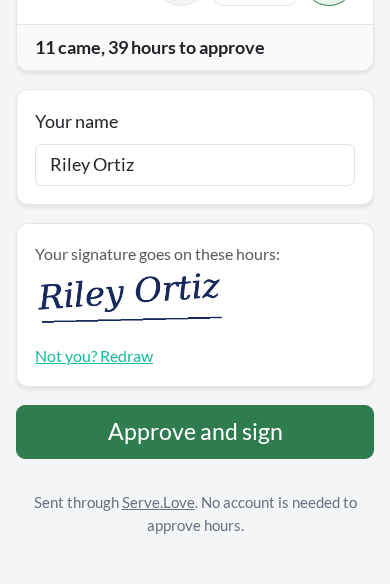
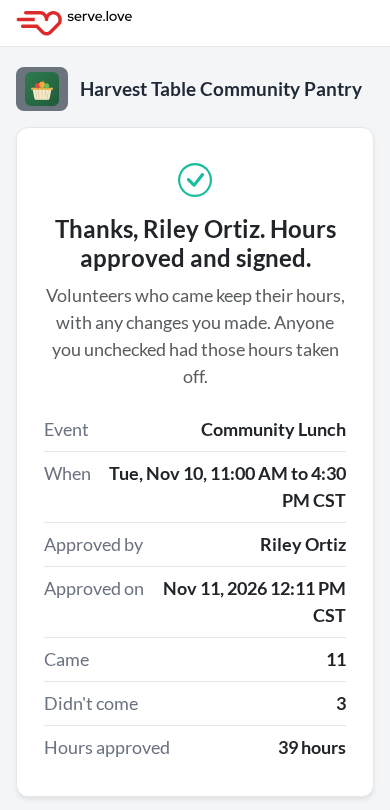
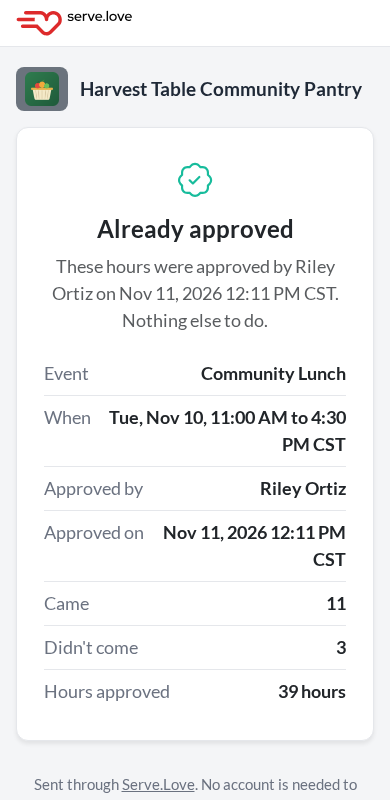
The organizer's name is already filled in from the email. The first time, they draw their signature with a finger or mouse; after that it is filled in, with Not you? Redraw. They press Approve and sign and the page confirms it: who approved, when, how many came, how many didn't, and the hours approved.
The signature goes on those hours. If you turn on verified hours letters, it is printed next to each date on the volunteer's letter, so nobody signs letters one by one. Opening the link again shows Already approved, so nobody approves twice.
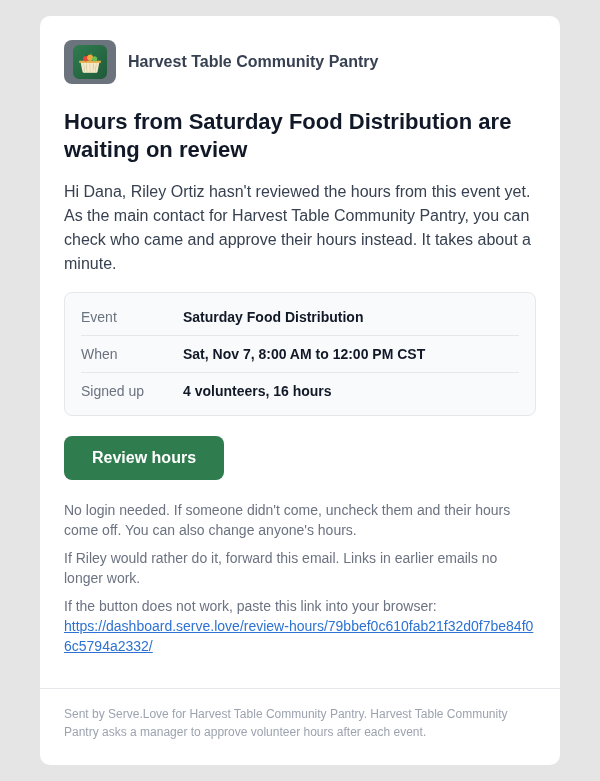
If an organizer hasn't reviewed after 3 days, they get a reminder with a fresh link. Links in earlier emails stop working, and the reminder says so.
On Friday afternoon your main contact gets one email listing every event still waiting, grouped by manager. Remind Riley sends Riley a fresh copy of their own email. Review it yourself opens the same review page, and Riley's link keeps working too. Events where the main contact is the reviewer come last, under Waiting on you. Nothing waiting, no email.
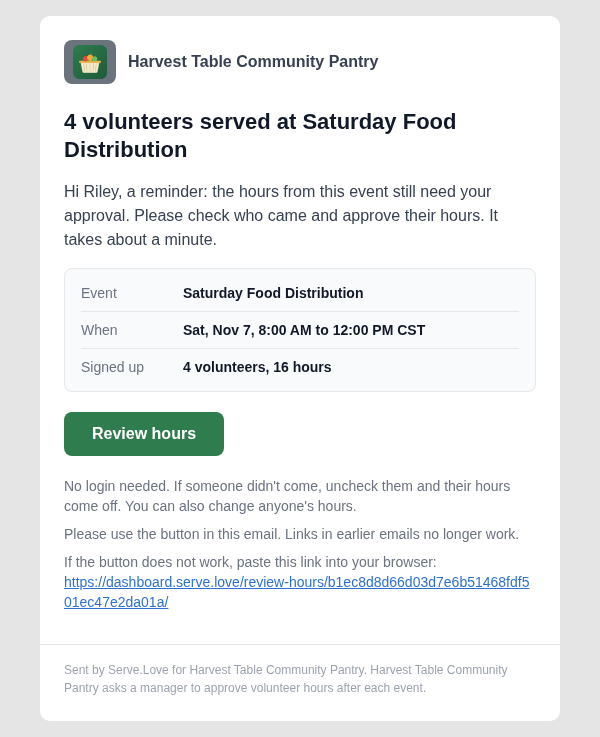
Which emails go out depends on the choices on the settings card. This is the complete list. Each one comes from your organization's name via Serve.Love, and each Review hours button opens the review page, with no login.
| Who gets it, and when | Shown | |
|---|---|---|
| Review hours | The event's organizer, shortly after the event ends. | Step 3 |
| Review hours, no organizer | Your main contact, when the event has no organizer. It says why it came to them. | Below |
| Review hours, one approver | The one person you picked under "One person for every event". | Below |
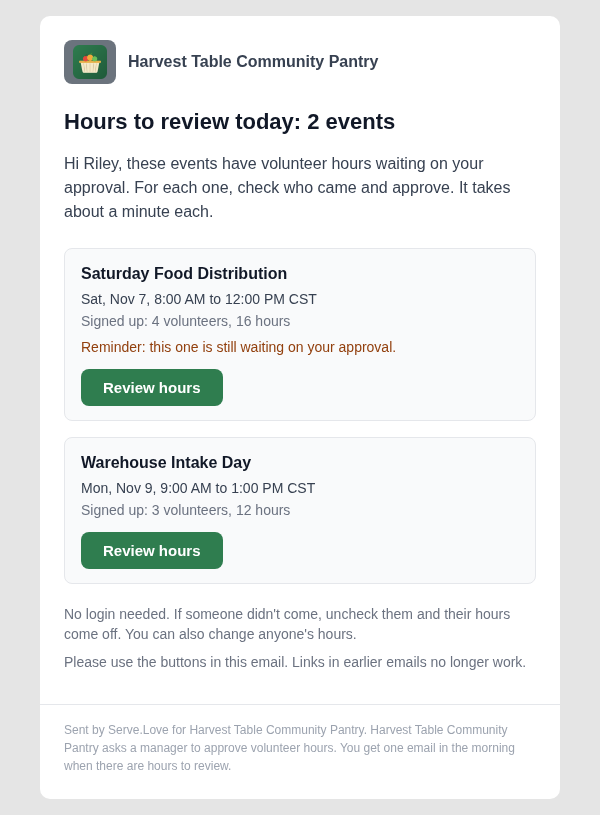
| Hours to review (once a day or once a week) | Each reviewer, between 8 AM and noon: every morning when "When to ask" is "Once a day", or on the org's chosen day when it is "Once a week". Reminders ride along in the next list. One event gets the plain Review hours email instead. | Below |
| Reminder | The reviewer, 3 days after the first email, with a fresh link. | Step 6 |
| Still waiting on approval (Friday) | Your main contact, Friday from 3 PM, when something has waited at least 12 hours. The default for "If nobody reviews". | Step 6 |
| Hours waiting on review (day 7) | Your main contact, who takes over the review, when "If nobody reviews" is "Remind them, then the main contact". | Below |
| Last reminder (day 7) | The reviewer, on that same setting, when the main contact is already the reviewer. | Below |
Sent again on request: Resend email on the event page sends the reviewer a fresh Review hours email. Remind in the Friday email sends the manager a fresh reminder, or one list if several events are waiting on them. When someone leaves your team and their events move to a new person, that person gets the Review hours email right away.
Approving hours sends no email to anyone, including the volunteers. They see the result in the app (step 11). Approve automatically after 7 days sends nothing either: the hours are approved quietly and marked "Approved automatically". Review now on the event page opens the review page for you without sending anything.
On the event's Volunteers tab, one line above the roster says who the hours are waiting on and since when. Review now makes you the reviewer and opens the review page in a new tab. Resend email sends the organizer a fresh link.
Once approved, the line says who approved and how many came. The roster shows the approved hours: Aisha at 0.00, Grace at 3.00.
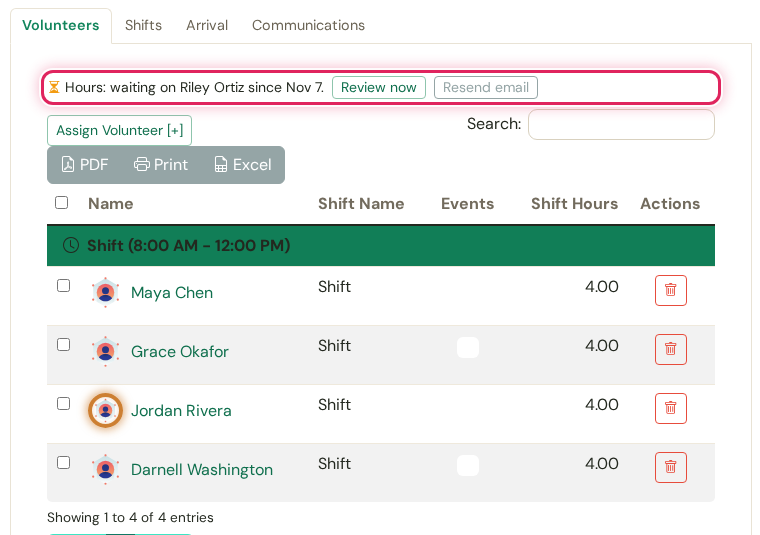
Waiting: Saturday Food Distribution, on Riley since Nov 7.
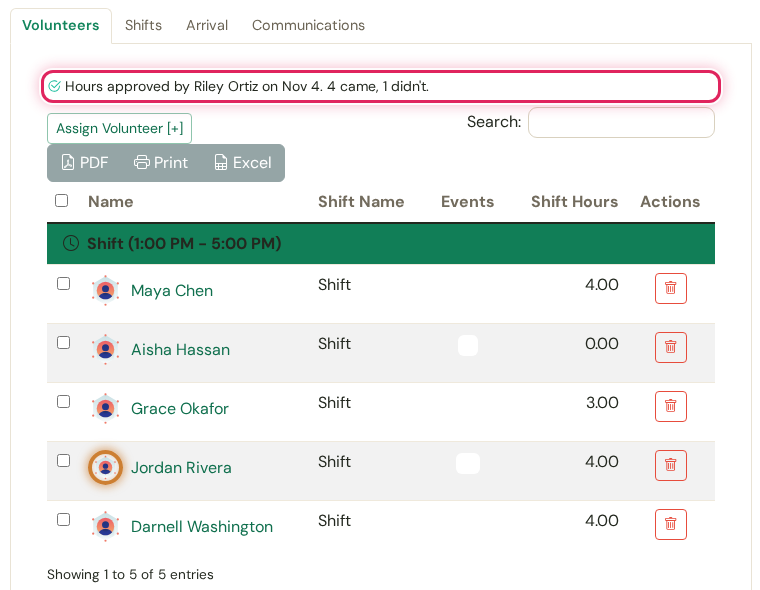
Approved: Pantry Sorting and Restock, 4 came, 1 didn't.
The top of Reports shows Hours waiting on approval with the number of events. It opens the Hours approval report, which is also listed under Hours & Value.
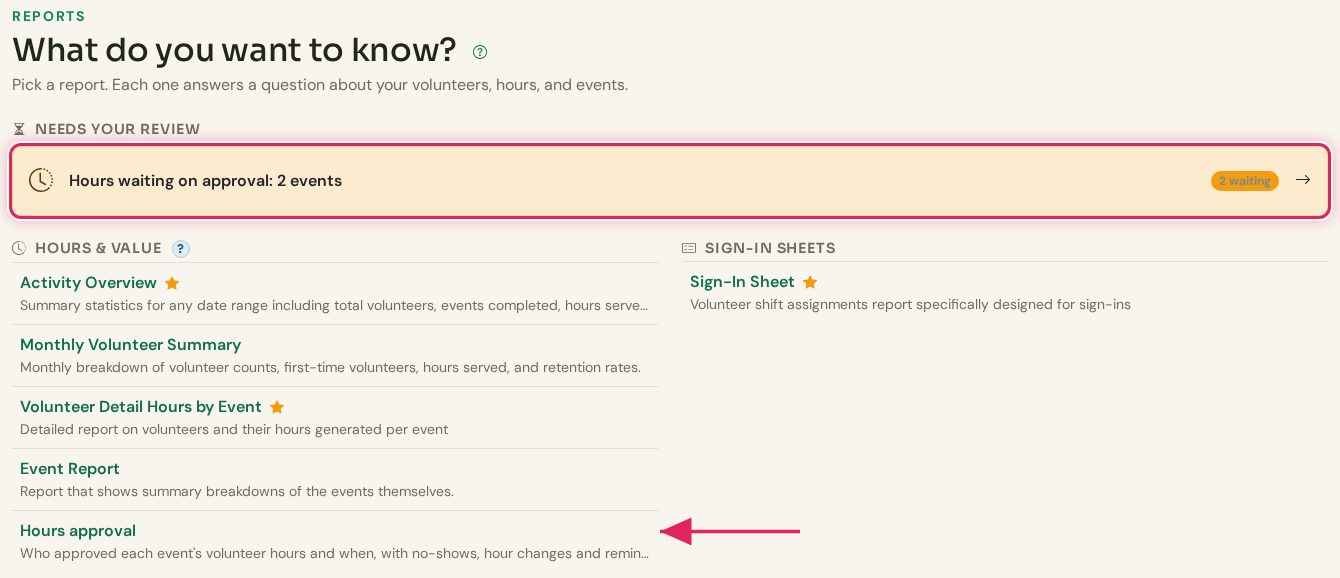
Needs your review: 2 events waiting.
The Events tab lists each event with its organizer, status, scheduled and approved hours, no-shows, hour changes, and who approved it and when. It also keeps the approver's email and how many reminders went out. A line above the table sums it up.
The Volunteers tab has one row per volunteer per event: came or not, scheduled hours, approved hours and the change. Both tabs export to Excel, PDF or print, for in-kind donation and audit questions.
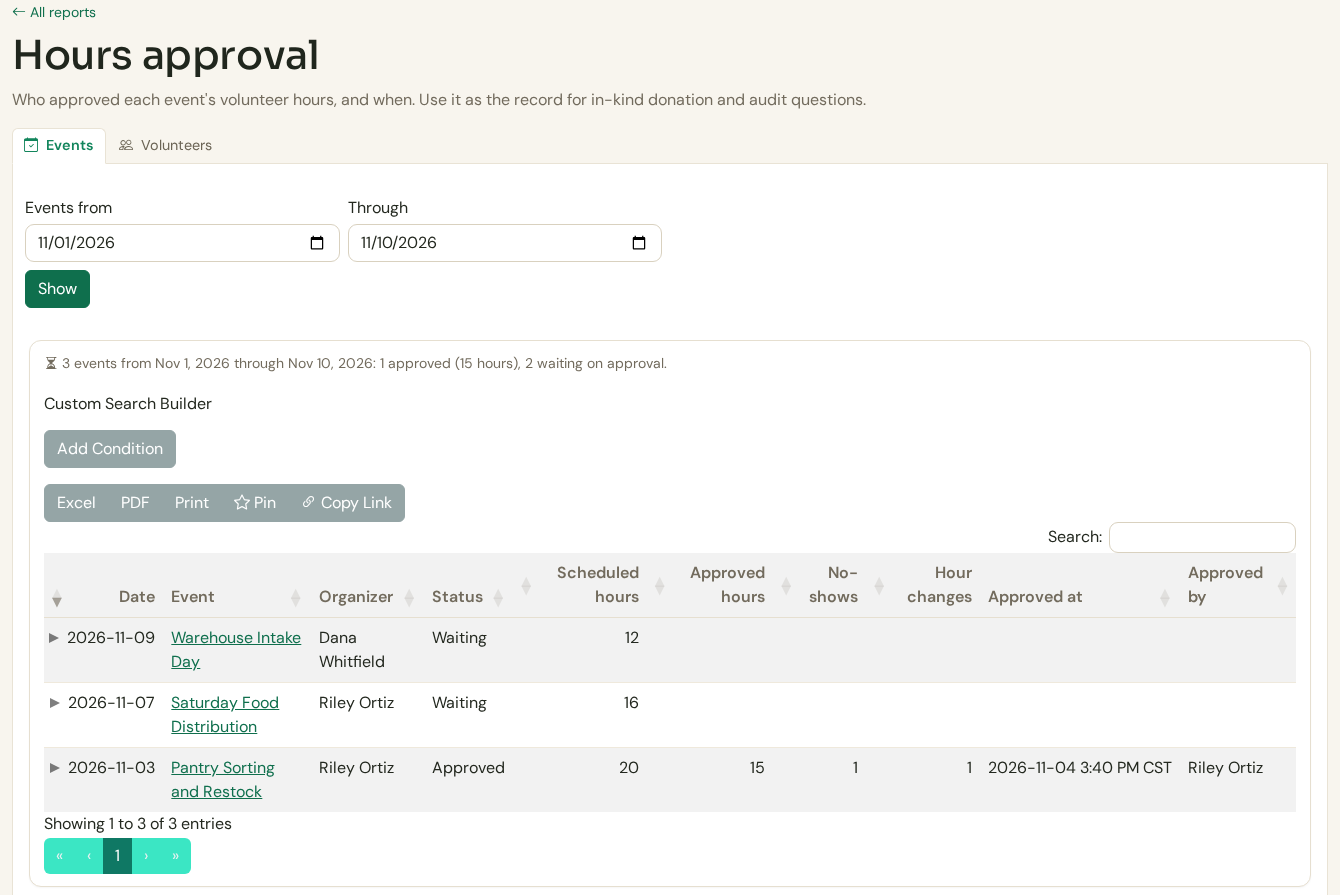
Events: 1 approved, 2 waiting.
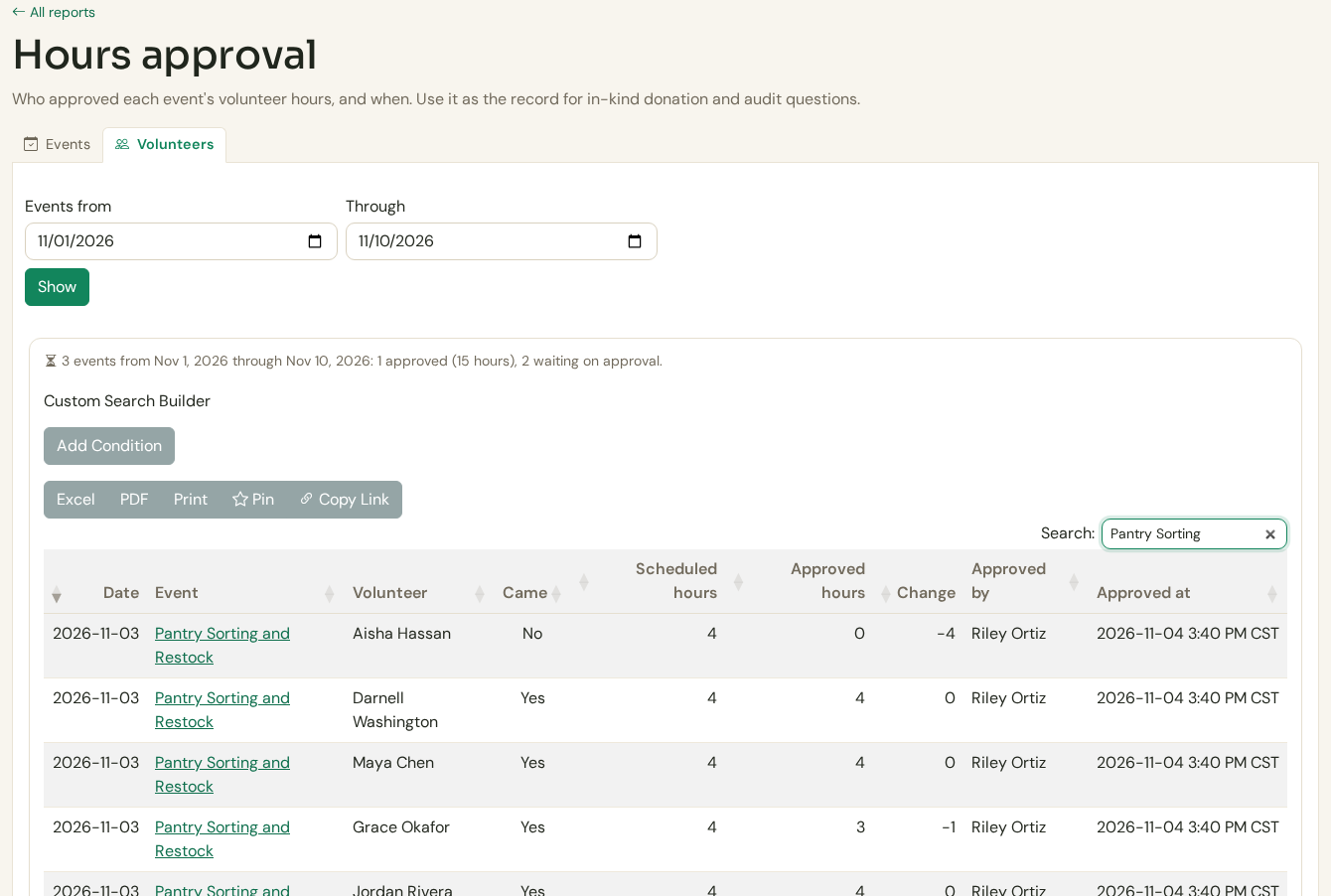
Volunteers: the Pantry Sorting rows, one no-show and one change.
On My Hours, each reviewed shift carries a status. While it waits, it says Waiting on approval and who will confirm it, by first name: Dana will confirm these. Once approved, it says Approved and who approved it.
When some hours are waiting, the organization's card breaks them down: Approved hours: 8 and Waiting on approval: 3. Hours from events that ended before your organization turned approval on show as Not reviewed.
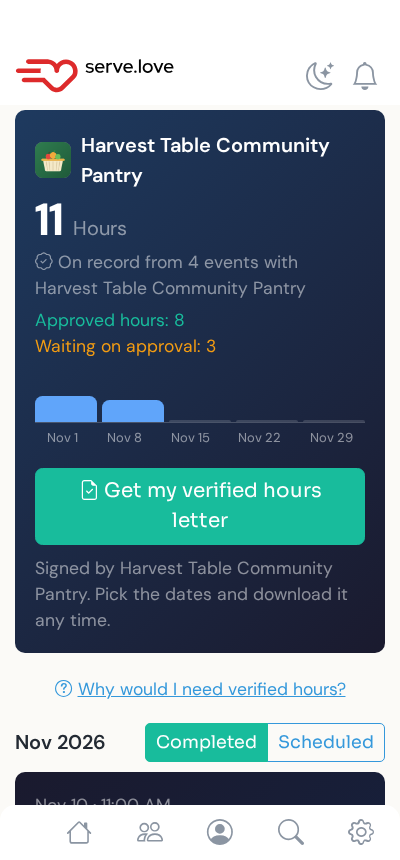
Tapping a shift opens My shift, with the hours on record and the same status underneath. When a manager changed the hours, the change is listed too.
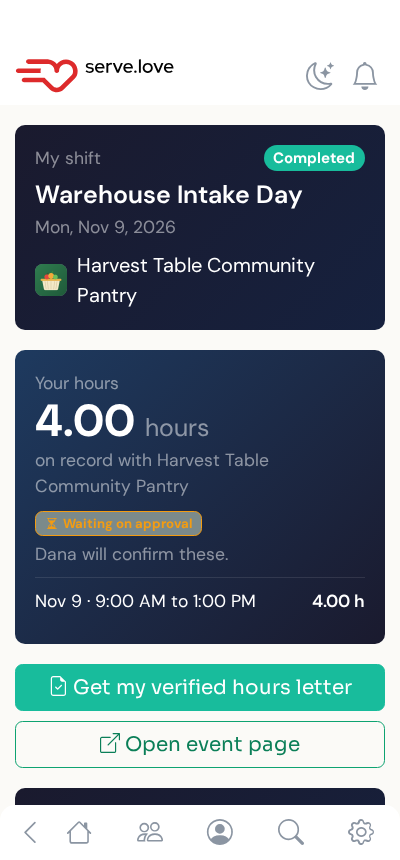
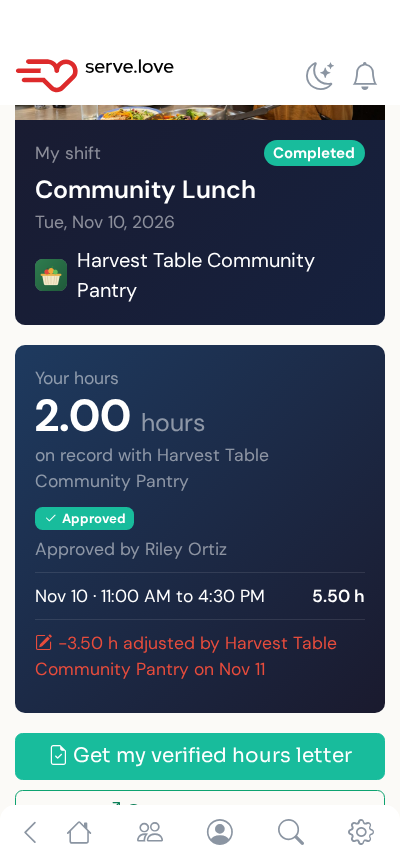
Approval doesn't send the volunteer a document. What a manager approves, unchecks or changes goes on the volunteer's record. With Verified hours letters turned on, the organization's card in the app has Get my verified hours letter.
The volunteer picks what it is for (court or probation, school, or a benefits office) and which dates, and downloads it. Nobody at your organization has to do anything: the letter lists only approved hours, and hours still waiting are left off.
Hours letters are a separate switch on the same Verified Hours tab. The full letter flow is in Verified Hours.
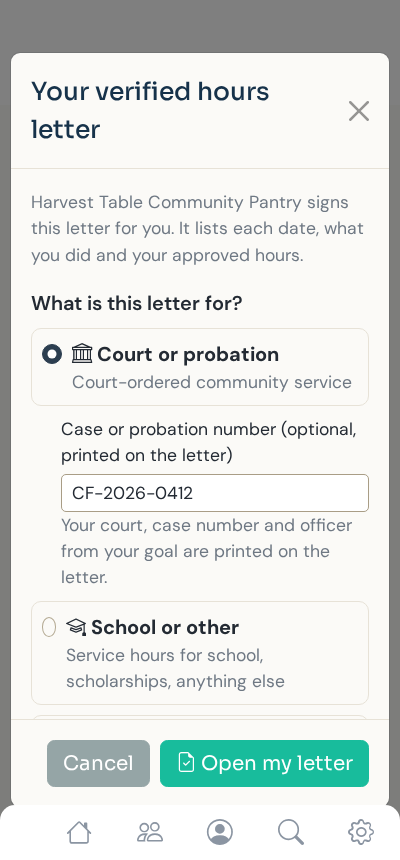
The letter is built on the spot: your letterhead, addressed To the Court or Probation Office with the program, case number and officer, then every date, activity and approved hours. The Approved and signed by column carries Riley's signature from step 5.
It ends with your organization, the date, your contact, and a verification code anyone can check online.
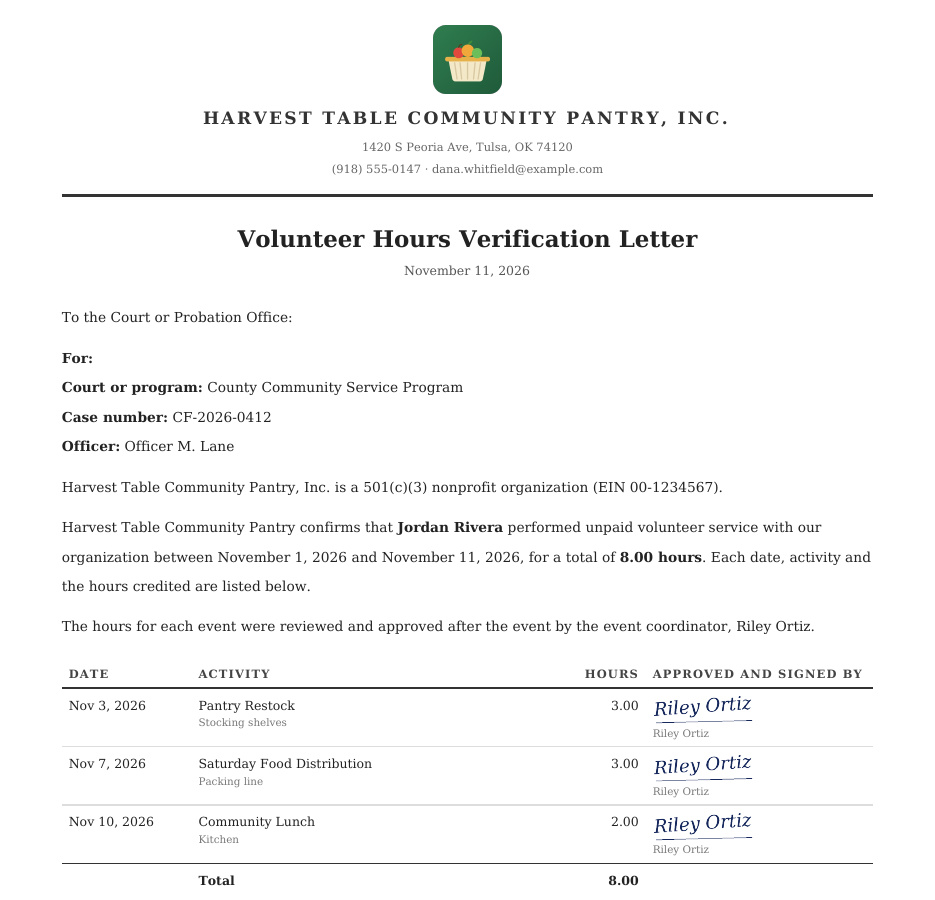
Community Lunch at the approved 2.00 hours, signed by Riley.
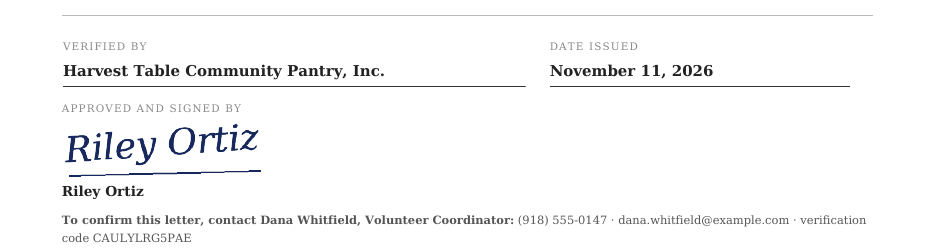
Your contact and the verification code.
Only events that end after you turn it on are reviewed. Nothing from before is sent.
Organizers approve from the emailed link. No login, no password.
If everyone came, approving is all there is. Uncheck no-shows and change hours as needed.
A reminder after 3 days, and a Friday list for your main contact with a Remind button for each manager.
Hours still waiting are marked as pending, or left out until approved.
The Hours approval report shows who approved each event, when, and every change, ready for Excel.
Review requests, the morning list, reminders, the Friday list and the day 7 takeover. Approving sends no email.
Waiting or approved, on each shift. Nothing to sign or reply to.
With hours letters turned on, volunteers download a letter of their approved hours. Your approval signature is on each date, so there is nothing else to sign.
 Serve.Love