Serve.Love · Verified Hours
A volunteer downloads a signed letter of the hours your organization approved, any time, for any dates, for a court or probation officer, a school, or a benefits office (SNAP, Medicaid). You turn it on once and name a contact. Each date on the letter carries the signature of the manager who approved it, so there is nothing extra to sign.
The detailed walkthrough below has more screens. This is all of it at a glance.
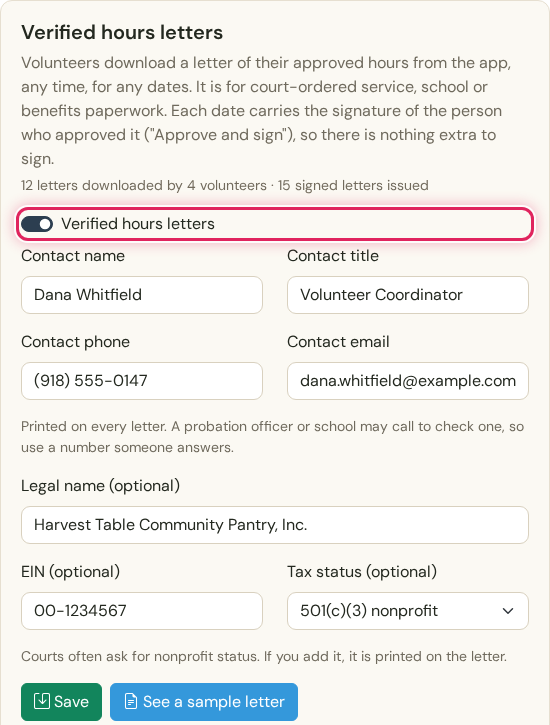
One switch in your settings, and the contact printed on every letter.
See this step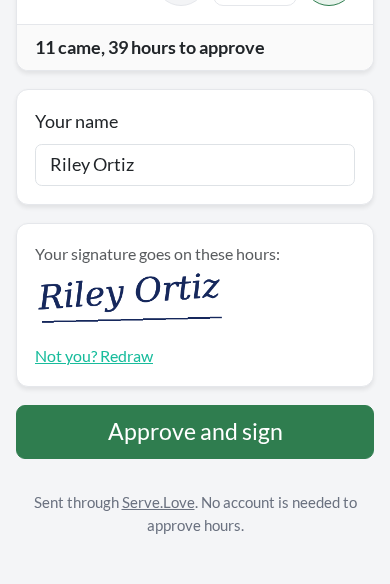
After each event, the organizer approves the hours. Their signature goes on those hours.
See this step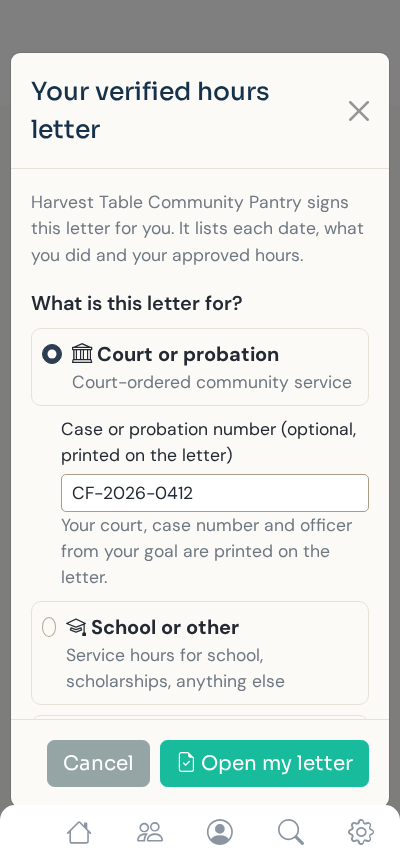
In the Serve.Love app, they pick what it is for and which dates. Nobody has to ask you.
See this step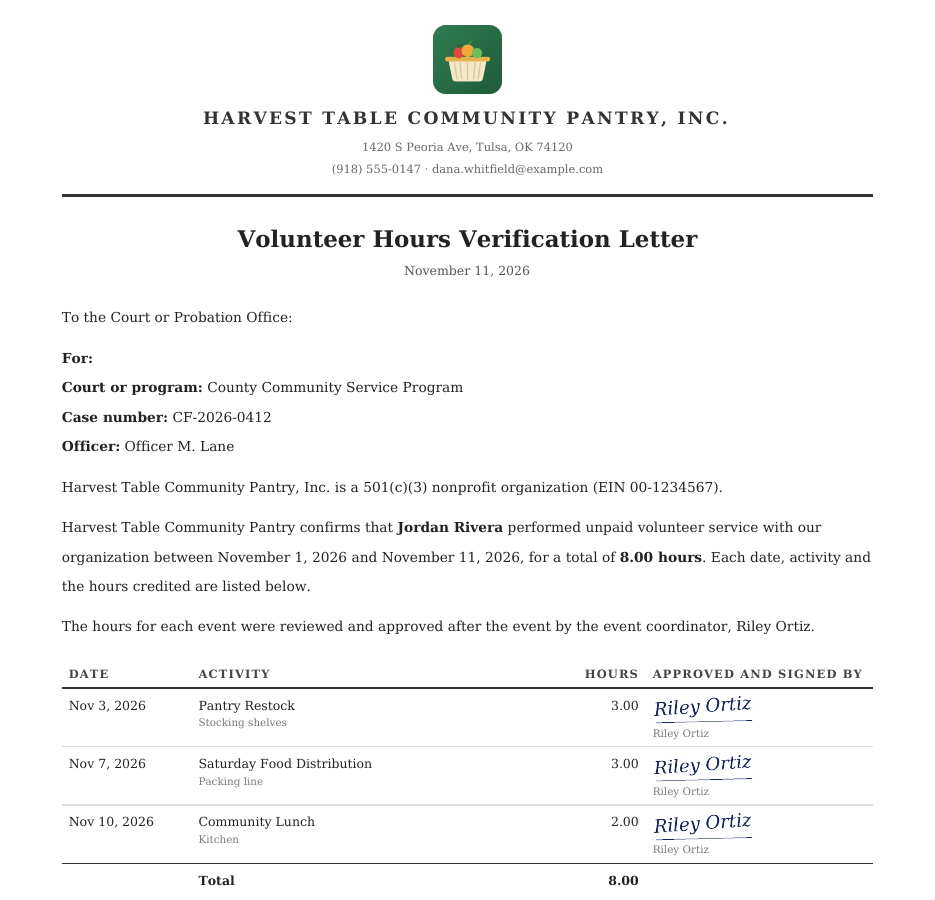
On your letterhead, signed on each date, with a code anyone can check online.
See this stepApproving each event's hours, which you already do with hours approval. Letters need nothing else.
The letter only lists hours a manager approved. Hours still waiting on approval are left off, and the letter says so.
Shown here with a demo organization, Harvest Table Community Pantry, and a demo volunteer, Jordan Rivera. Jordan has 40 hours of court-ordered community service to finish by December 31.
Community service ordered by a court or probation. The letter is addressed to the court or probation office and can carry the program, case number and officer.
Service hours for graduation, clubs and scholarship applications, for any date range the volunteer needs.
Programs like SNAP, Medicaid and TANF can require a set number of hours of work, school or volunteering. The office wants a letter from the organization.
Go to Manage > Organization Settings > Verified Hours. Letters are built from approved hours, so hours approval is on the same tab. Turn on Verified hours letters.
Fill in the contact printed on every letter: name, title, phone and email. A probation officer or school may call to check a letter, so use a number someone answers. Legal name, EIN and tax status are optional. See a sample letter shows what volunteers will get.
The card keeps a count, here 12 letters downloaded by 4 volunteers.
One switch. The contact goes on every letter.
After each event, its organizer gets the usual hours review email. The page lists who came and their hours. At the bottom: Your signature goes on these hours.
They draw it the first time. After that it is filled in, and Not you? Redraw is there if someone else is approving. Approve and sign is the only signing anyone does. How the review works: Verified Hours Approval.
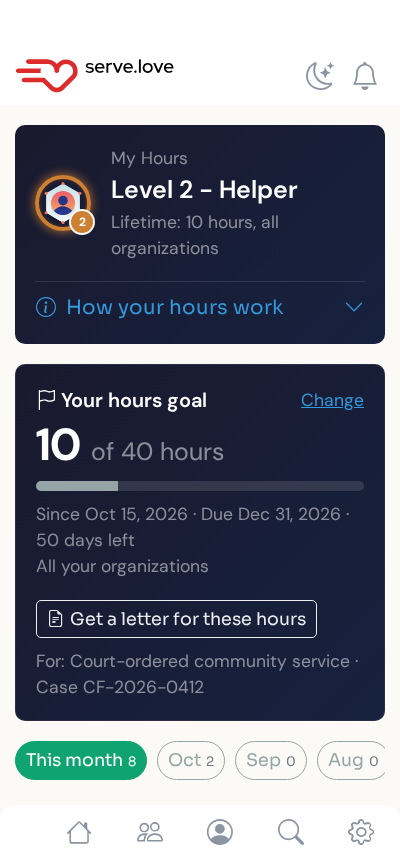
My Hours shows the volunteer's own goal across every organization they serve with. Jordan's reads 10 of 40 hours, due December 31, with Get a letter for these hours and the court case number underneath.
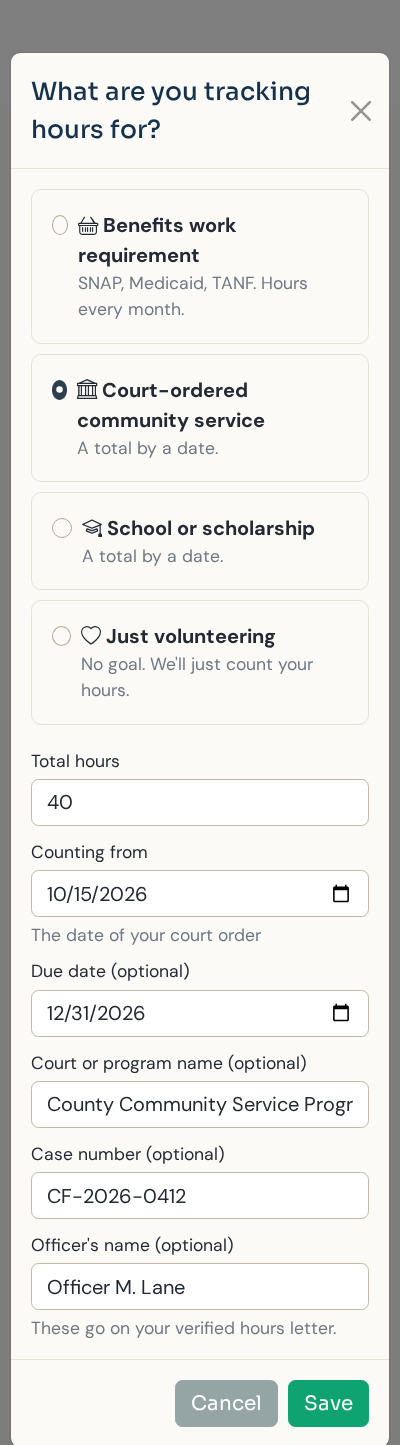
The volunteer picks a goal once: a benefits work requirement (hours every month), court-ordered community service or school or scholarship (a total by a date), or just volunteering.
For court, they can add the court or program, the case number and the officer's name. Those go on the letter. With no goal, the app just counts hours.
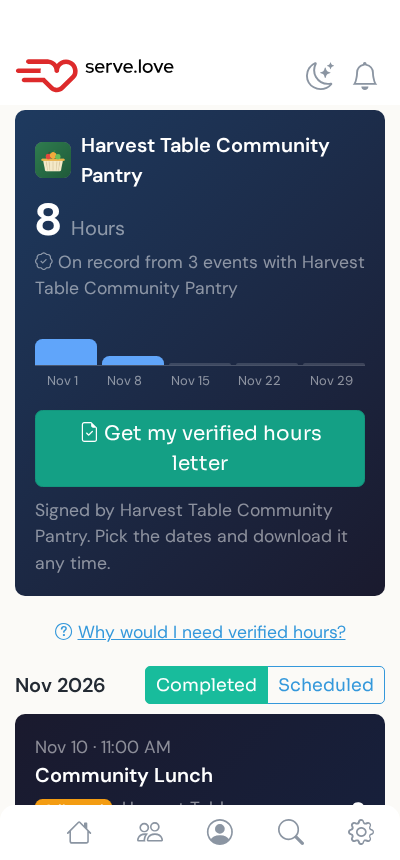
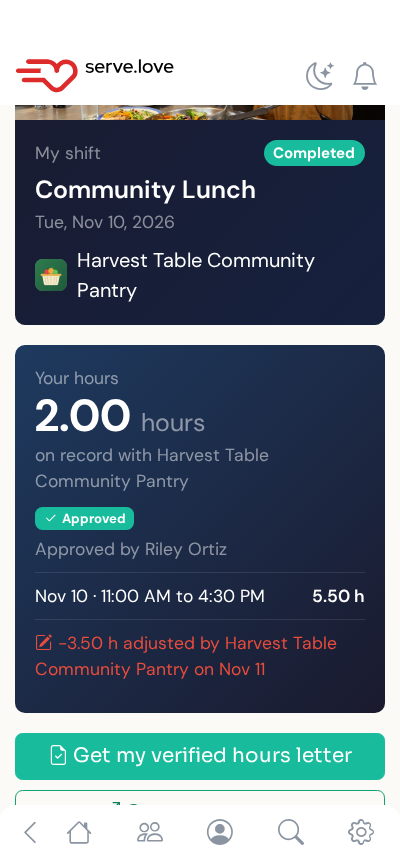
Each organization gets its own card: the hours on record with you, a weekly chart, and a big Get my verified hours letter button: Signed by Harvest Table Community Pantry. Pick the dates and download it any time.
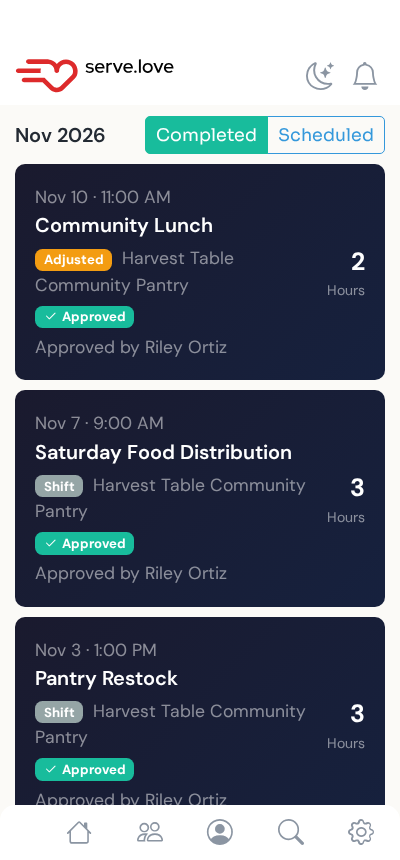
Below it, each shift says Approved and who approved it. Why would I need verified hours? explains it in plain words.
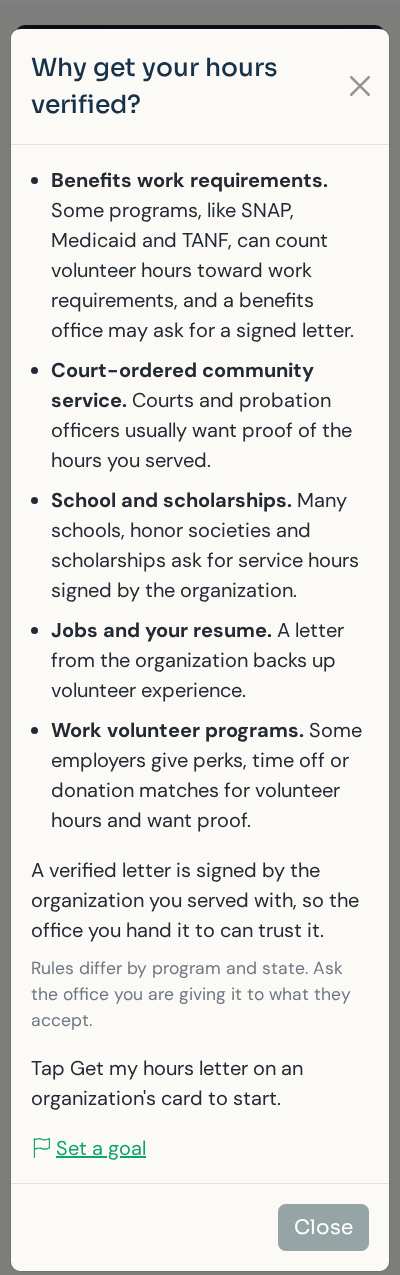
The link explains it in a few lines: benefits work requirements, court-ordered service, school and scholarships, jobs and a resume, and work volunteer programs.
It says a verified letter is signed by the organization they served with, so the office can trust it, and that rules differ by program and state, so they should ask the office what it accepts. The same button is on each shift's My shift page.
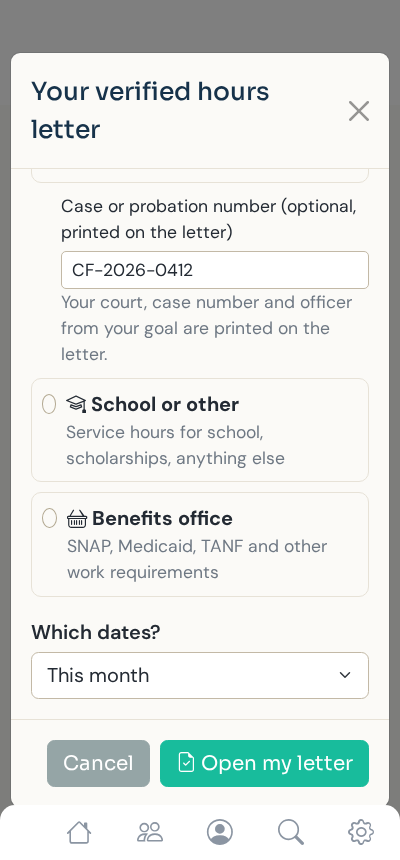
The button asks What is this letter for?: Court or probation, School or other, or Benefits office. For court, the case number from their goal is already filled in.
Which dates? This month, last month, all their hours, or dates they pick. Open my letter builds it right away. Nobody at your organization has to do anything.
On your letterhead, titled Volunteer Hours Verification Letter and addressed to the office the volunteer picked: here To the Court or Probation Office, with the court program, case number and officer.
It lists each date, the activity, the hours and, on each row, the signature of the person who approved it. Then your organization's name, the date, the approver's signature, your contact, and a verification code.
Each date, signed by the manager who approved it.
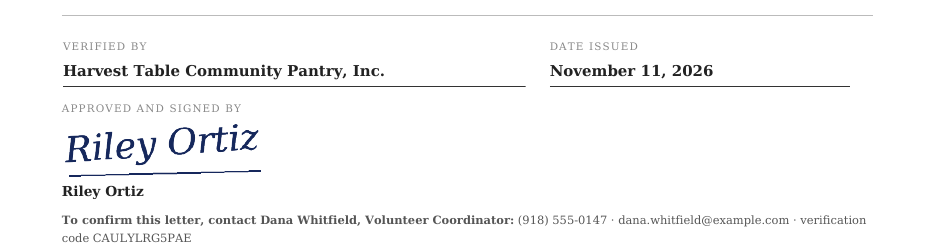
Your contact and the verification code.
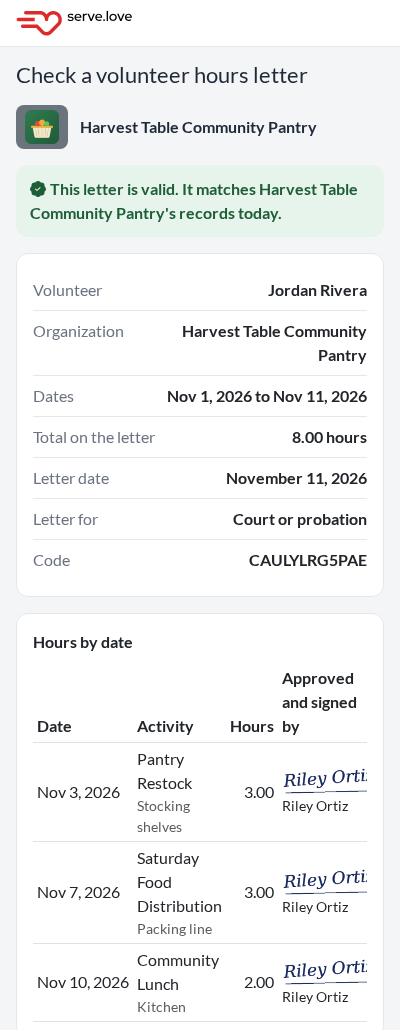
The letter ends with a link and its code. The page says This letter is valid. It matches Harvest Table Community Pantry's records today., with the volunteer, the dates, the total, what it is for, and the hours by date with who approved and signed each one.
Turn on verified hours letters once and name a contact. Volunteers only see the letter button for organizations that turned it on.
The signature from Approve and sign goes on each date. There is no request to answer and no letter to sign.
Hours still waiting on approval are left off the letter, and the letter says how many are waiting.
This month, last month, all their hours, or dates they pick. The volunteer downloads it whenever they need it.
Every letter has a verification code and a page that shows whether it matches your records.
The person you name is printed on every letter for a court or school to call.
Managers approving each event's hours? See Verified Hours Approval.
 Serve.Love