Serve.Love · Volunteers
Click any name on your Volunteers list and you get that person's whole history with you on one screen: their impact, every event they have worked, what they are cleared for, and your conversations. No digging.
Hours, level, last event, past events, certifications, signed documents, tags, and messages are all here and kept current. This is what you open before you call, assign, or thank someone.
Their contact details, total hours, and how far along their volunteering journey they are.
Certifications and every signed waiver or agreement, kept on file and classified.
Tag them with any detail, search your whole roster by it, and see every message.
The panel at the top is the quick read: total hours of service, their volunteer level, and the last event they worked. Below it, Past Events lists everything they have done with you and the hours each one earned, newest first. You never have to total a volunteer's time by hand.
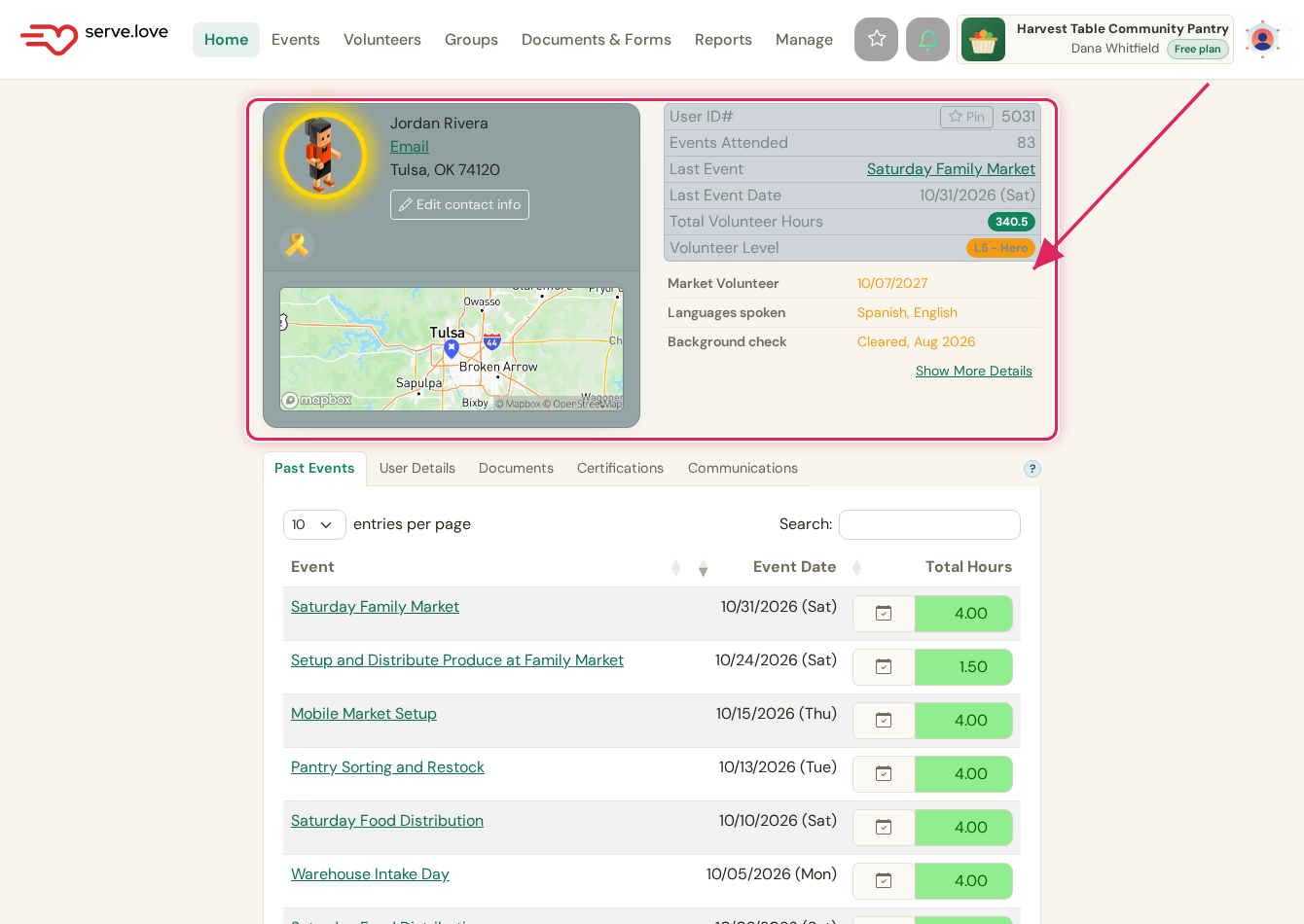
Jordan has served 340.5 hours across 83 events and is a Level 5 volunteer. Each past event shows the hours it counted for.
Volunteers › click a name › Past EventsThe Certifications tab shows every training or clearance this person holds: its status, when they earned it, when it expires, who reviewed it, and the documents they submitted. Assign a new one right here, and an expiry you set means the system reminds you before it lapses.
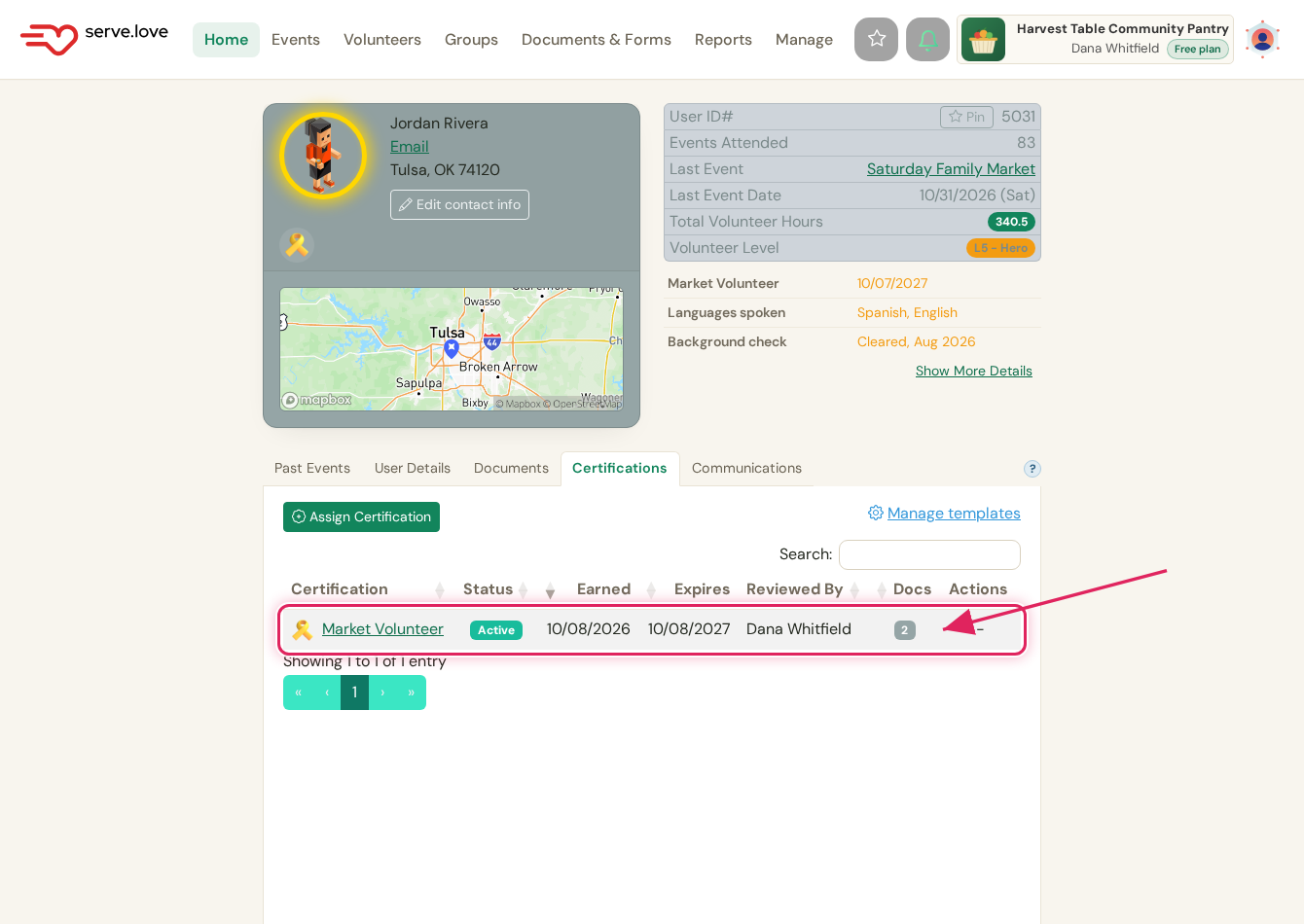
One row per certification. Active, earned and expiry dates, the reviewer, and the submitted docs, all in view.
The profile › CertificationsThe Documents tab keeps every file tied to this volunteer in one place: the agreements and waivers they signed at sign-up, their code of conduct, hours verification letters, and anything you upload. Each one is sorted by type, so a liability waiver, a background check, or a code of conduct is a glance away. When a volunteer signs a form during sign-up, the signed PDF lands here on its own.
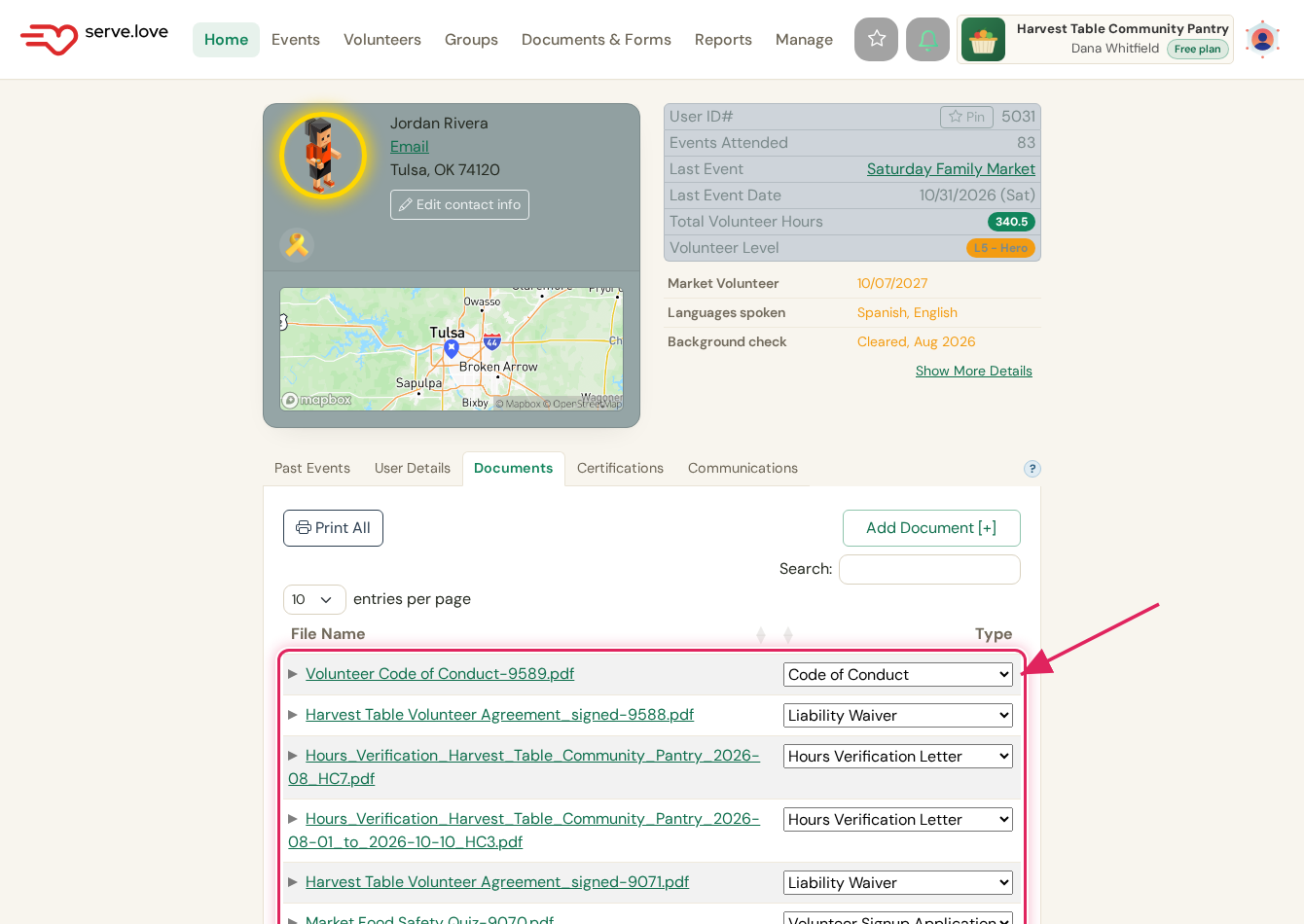
Signed and on file. Each document is classified by type. Print All for an inspection, or Add Document to upload one by hand.
The profile › DocumentsUnder User Details you keep the things that make a volunteer the right fit: languages they speak, whether they are background-checked, the work they like, if they can drive for a delivery, even a shirt size. These are your own fields, so add as many as you want. On a long profile, the Search Details box filters straight to the one you are after.
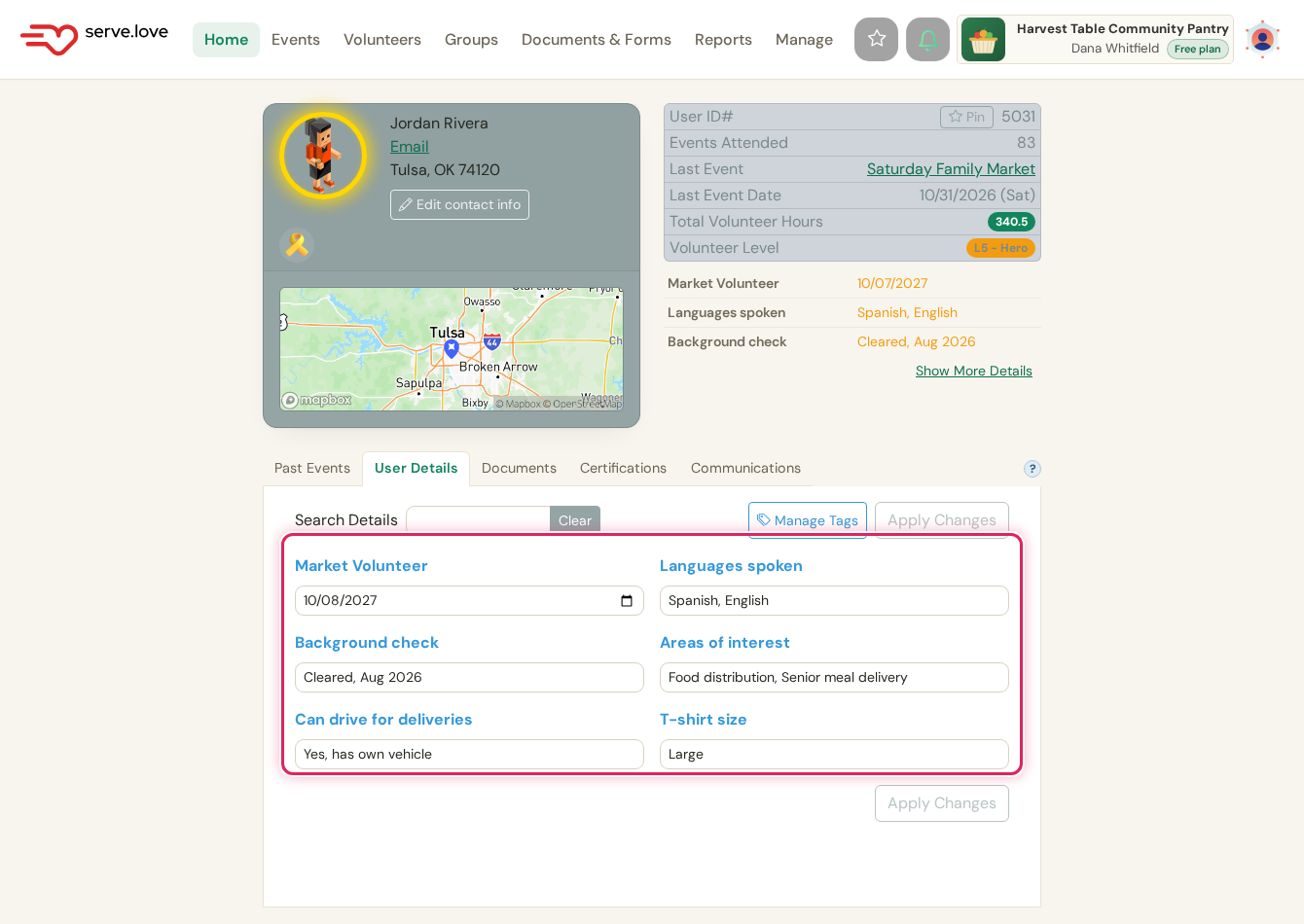
Jordan speaks Spanish and English, is background-checked, and can drive for deliveries. Every field is yours to define.
The profile › User DetailsThe payoff: every detail you record becomes a filter across your whole roster. Open the Volunteers list, expand Detail Search, and pull up exactly who you need, say everyone who speaks Spanish, is background-checked, or can drive for a delivery. The hour you spend tagging people pays off every time you need to staff an event.
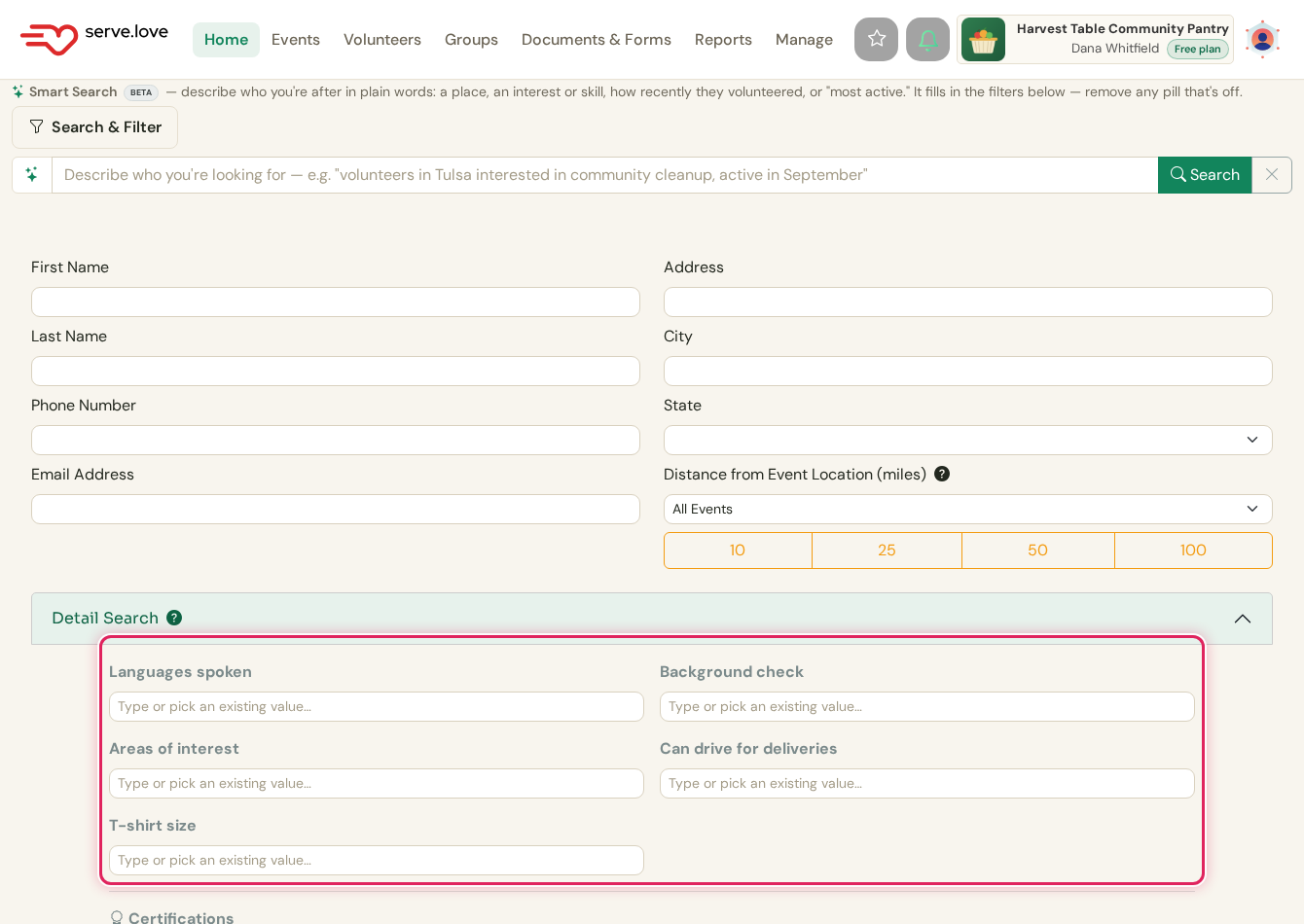
Every tag is a filter. The details you set on a profile show up here as search fields across all your volunteers.
Volunteers › Search & Filter › Detail SearchThe Communications tab is the dated record: every form request and agreement, when it went out and when they completed it, and the messages that have gone back and forth. When someone asks "did this volunteer ever sign our waiver?", the answer is one glance, with a date and a status.
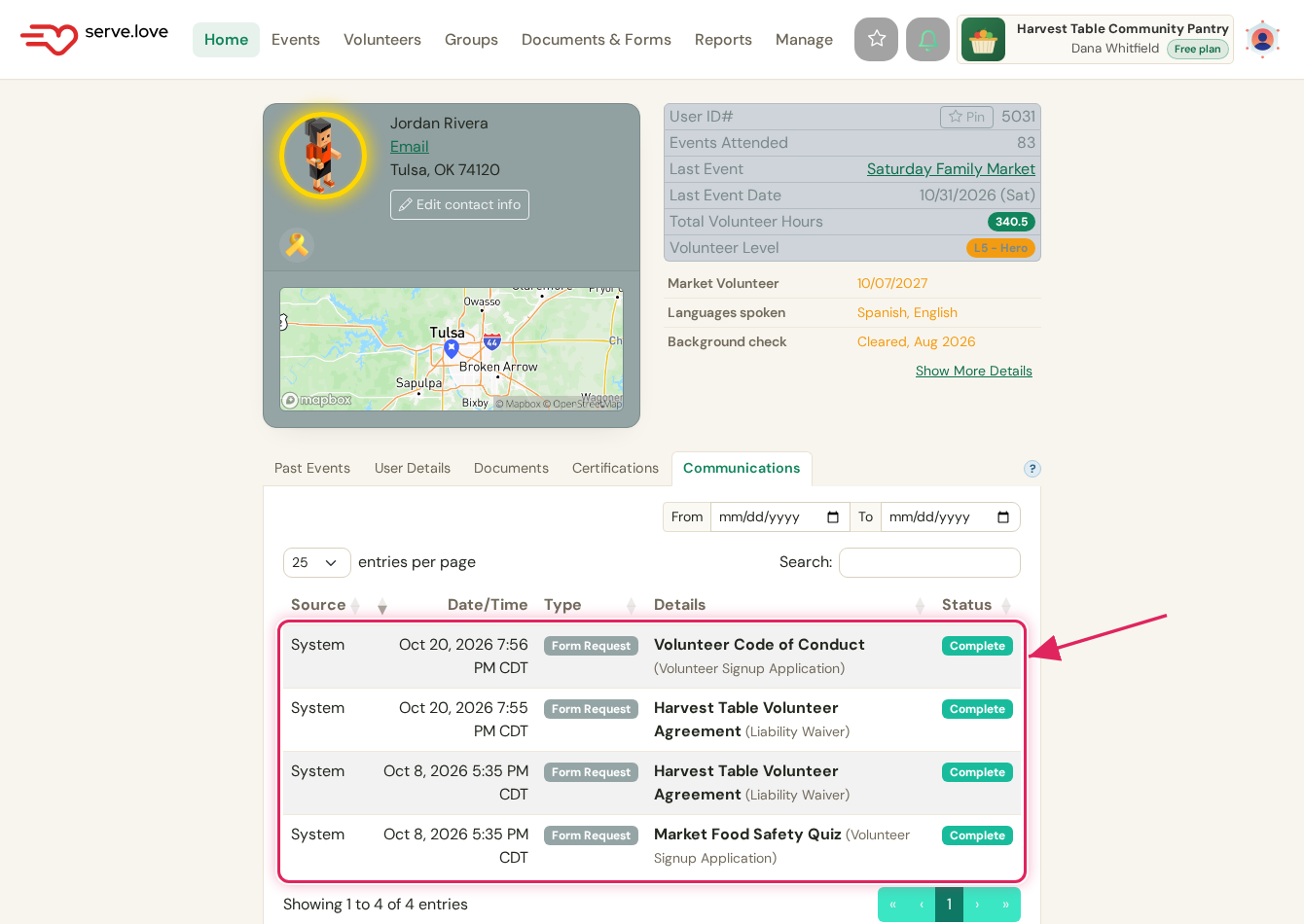
Forms, agreements, and messages, each stamped with a date and marked Complete. Filter by date range or search the list.
The profile › CommunicationsA volunteer's profile ties together the rest of what you set up.
Every profile opens from a name on your Volunteers list. Filter the list, open the person, act.
The hours here are the same ones a volunteer can share for verified hours, and the clearances come from the certifications you build.
 Serve.Love