Smart Locker · Volunteer training
How a volunteer refills the machine at the touchscreen, start to finish. The machine can't count for itself: the numbers you type are the numbers it keeps. So the whole job comes down to counting carefully, one locker at a time.
Count what's already inside, enter it, then add your items. In that order, every locker.
Each Confirm saves that one locker right away. There is no "save all" button to forget.
Typed a wrong number? Tap Edit on that row and correct it before you tap Done.
Bring your items (and your restock sheet, if you were given one). On the machine's home screen, tap Scan a code. That opens the restock screen.
Your coordinator prints a restock sheet from the dashboard (the Start Restock Run button). It has a QR code and a short code. Hold the QR code up to the camera and the machine loads your list.
With a sheet, the machine opens the doors that need refilling for you as soon as it reads the code.
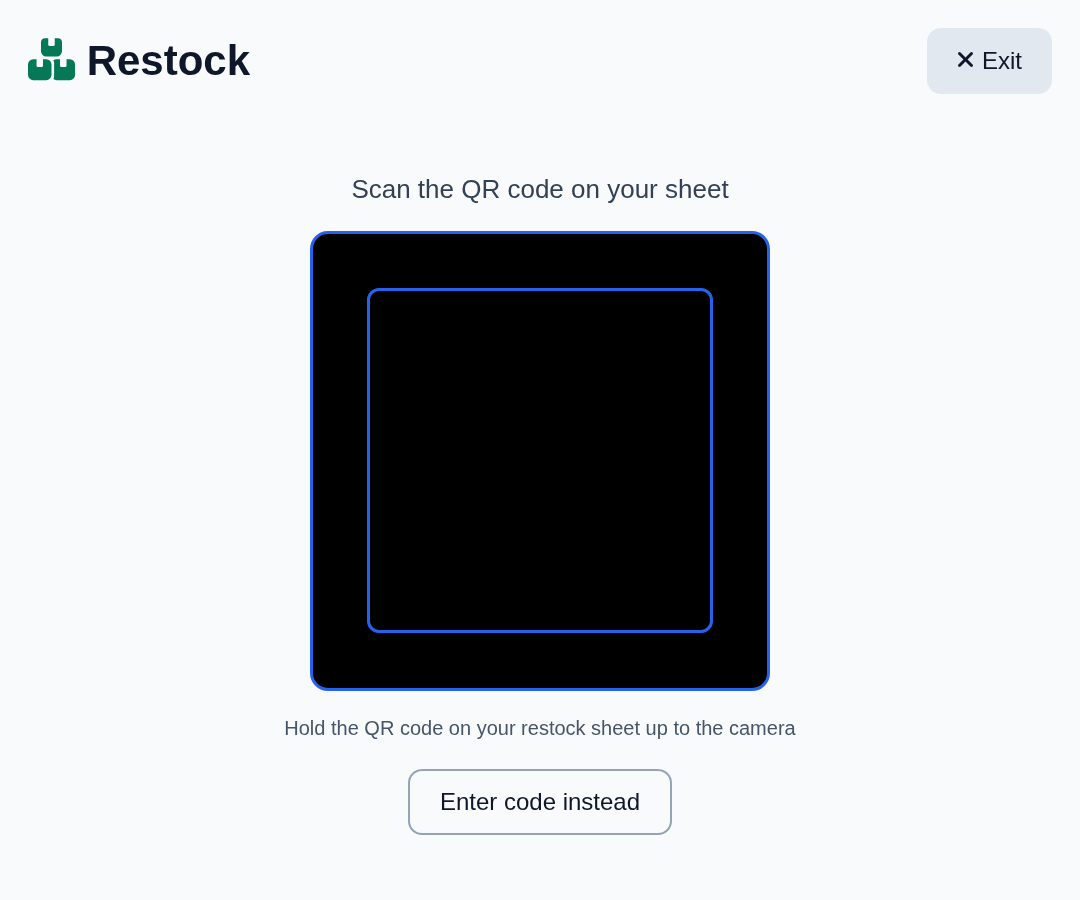
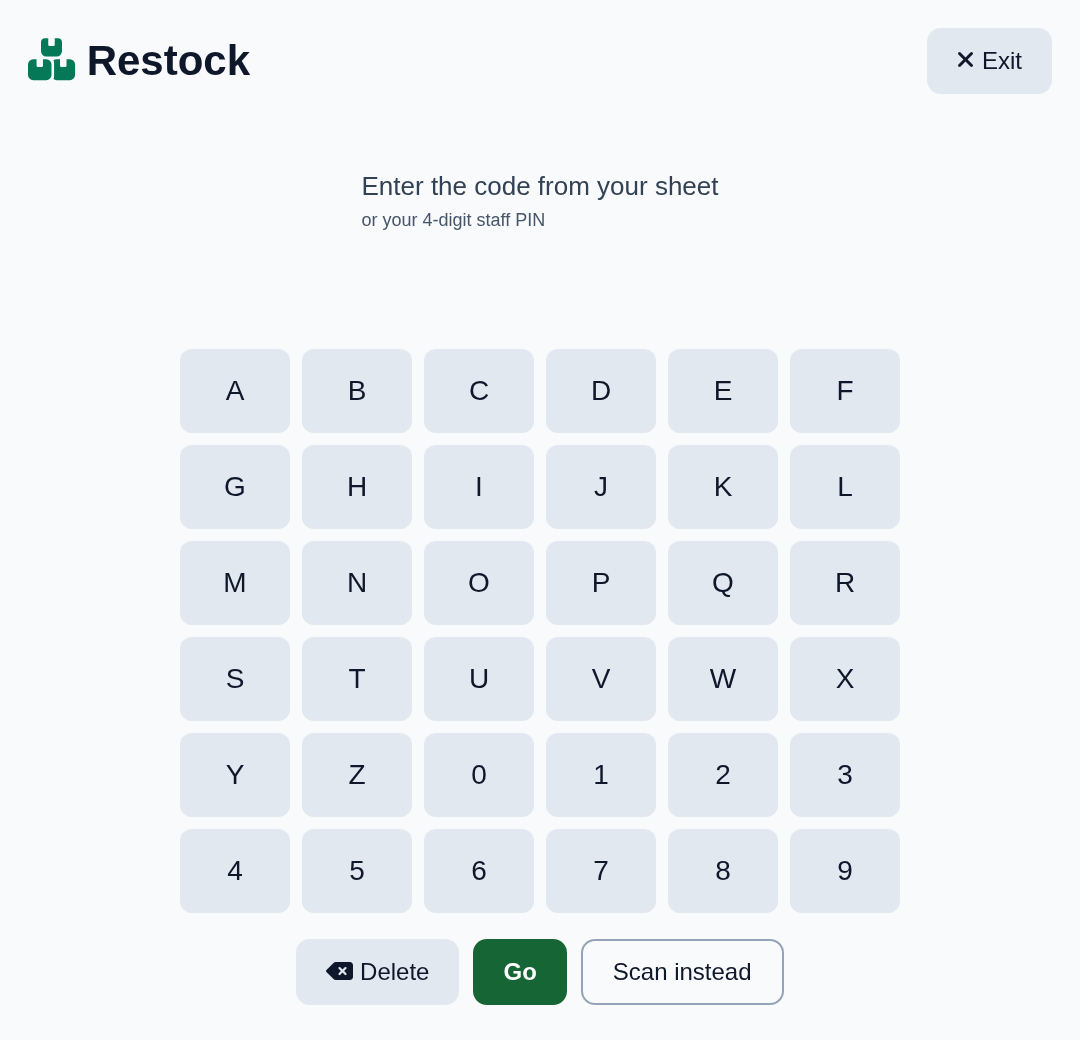
If the camera won't read the sheet, tap Enter code instead and type the short code printed on it, then Go.
Staff can type their 4-digit staff PIN instead, with no sheet at all. A PIN opens no doors by itself: you start on the All lockers view and open each locker by tapping it.
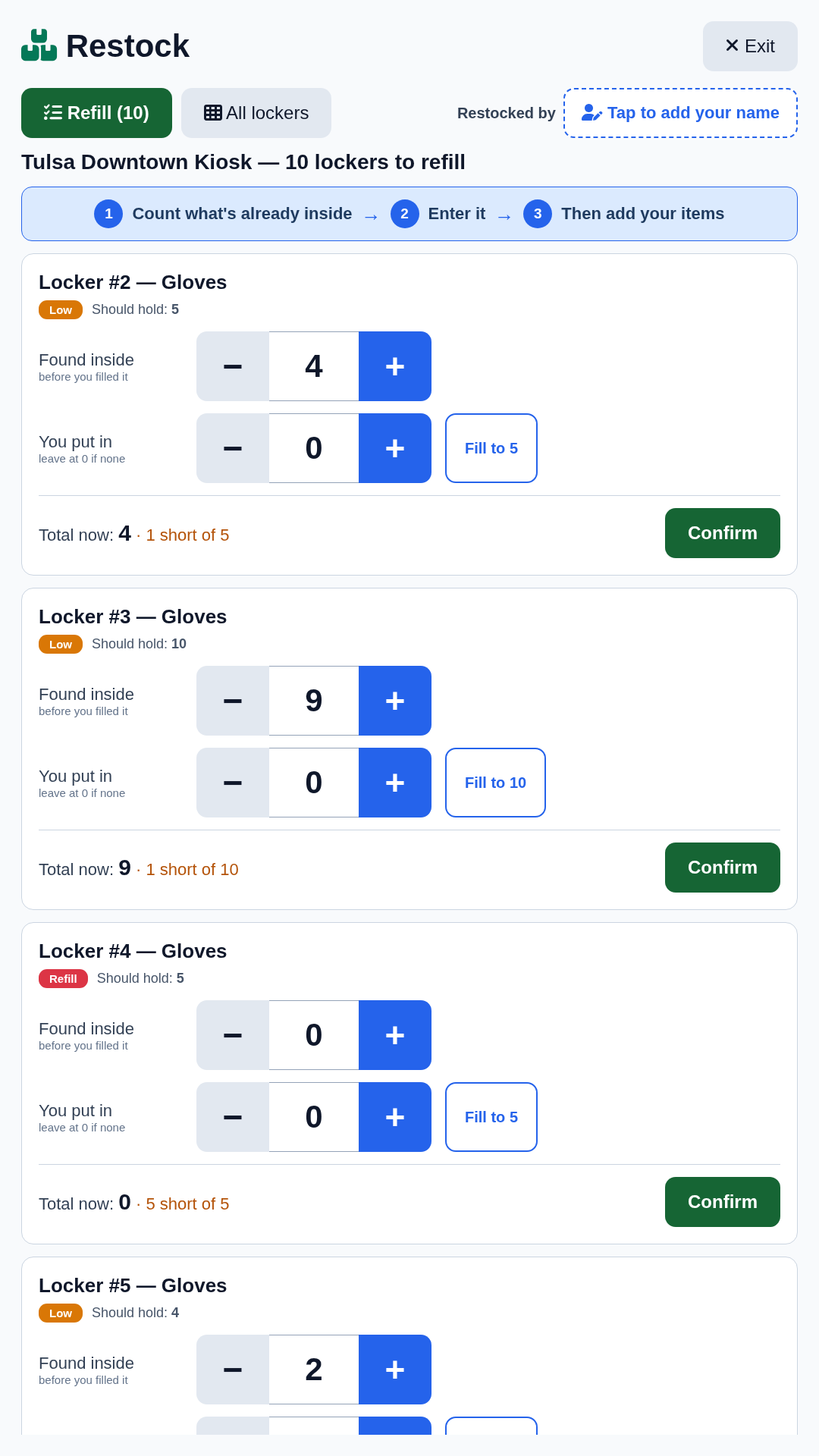
The Refill tab lists each locker that needs attention, with what it should hold. The tag says why it's on the list:
Refill is empty. Low is below full. Recount was opened since the last restock, so the count may be off. Check means the sensor and the count disagree: look inside.
The blue banner at the top is the one rule. Read it every time.
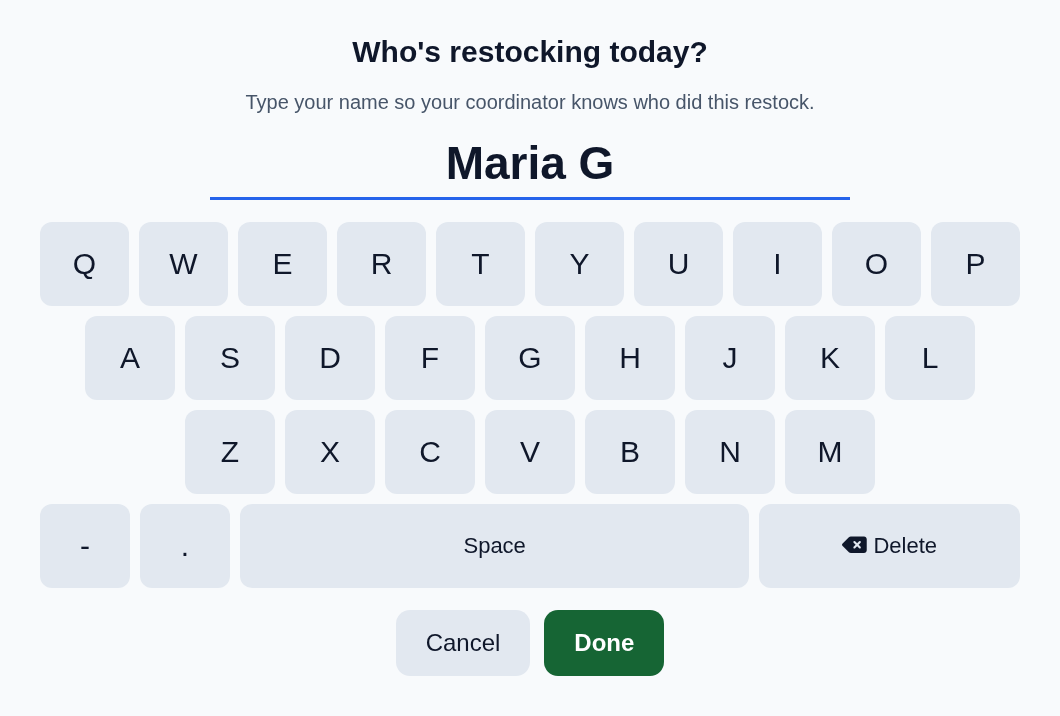
At the top of the screen is Restocked by. Tap Tap to add your name and type your name on the on-screen keyboard, then Done. If you forget, your first Confirm asks for it before it saves.
Your name shows at the top for the rest of the restock. Typed it wrong? Tap your name to fix it. Your coordinator sees it on the Restock Sessions report.
Open the locker and count what's already there before you add anything. Set Found inside to that number. It starts on the machine's last guess; use − and + if it's wrong.
Now put your items in and set You put in to how many you added. Topping it right up? Fill to 5 does the math for you. Total now shows what the locker will hold.
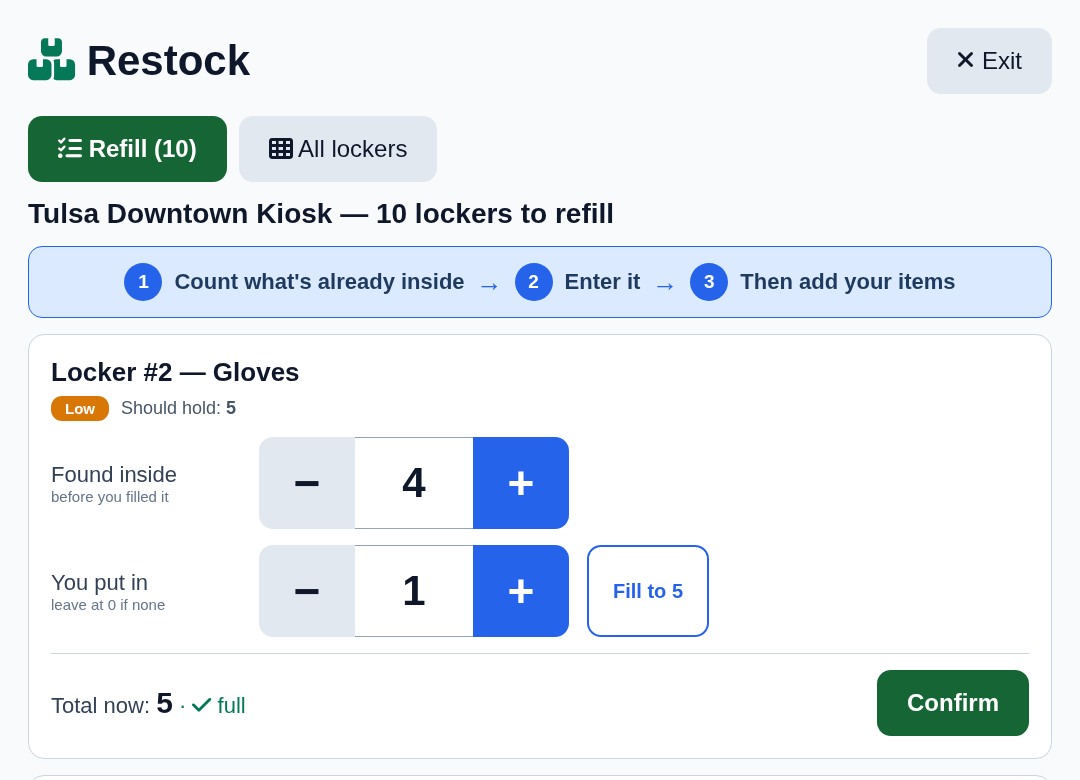
If you fill first and count after, you count your own items as "found" and then add them again. The machine records nearly double, and visitors find it empty while the dashboard says full.
Tap Confirm. That locker is saved right away and the card shrinks to one line: what it holds now, what you found, what you added. If your shift ends or a visitor walks up, everything you've confirmed is already kept.
Confirming also takes what you added out of the back-room count, so nobody has to update it separately.
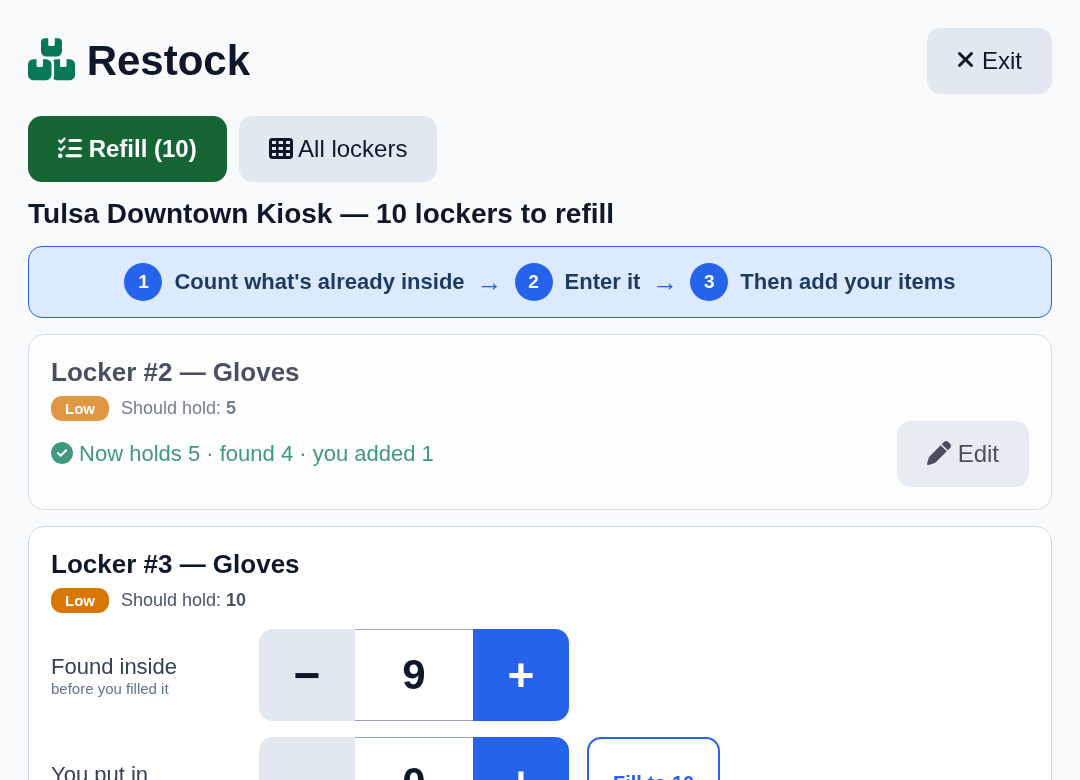
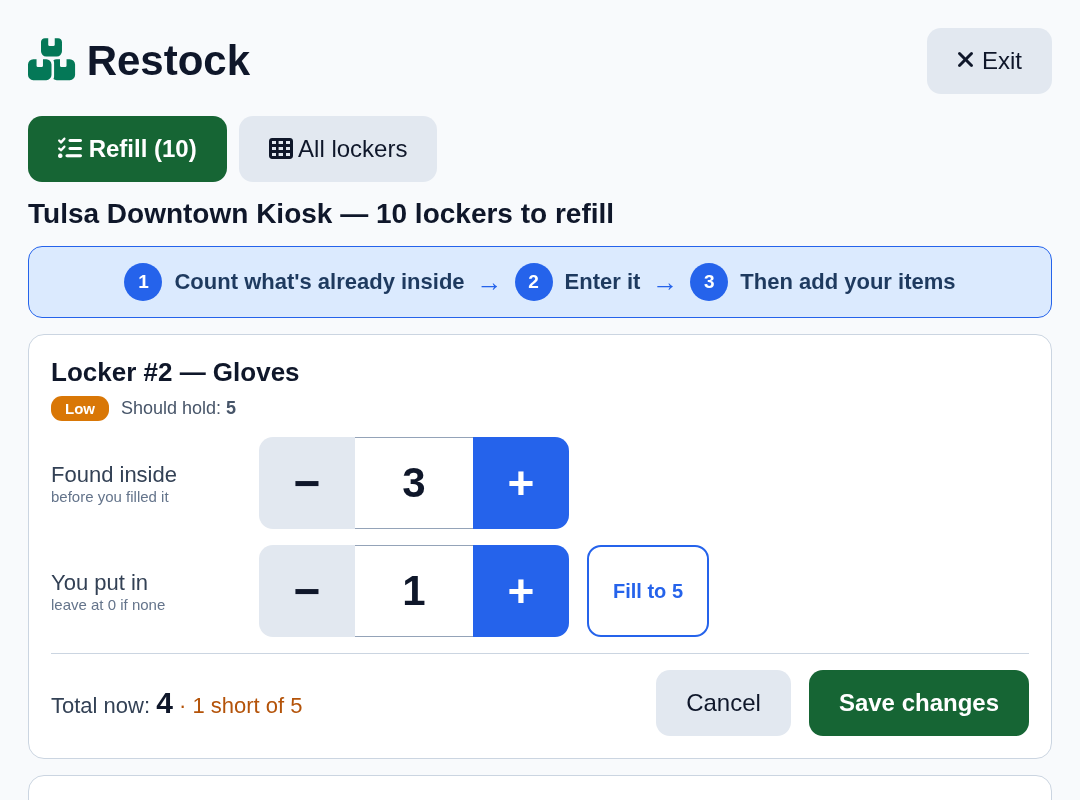
Miscounted, or tapped + one too many? Tap Edit on that row. The card opens again with your numbers. Fix them and tap Save changes, or Cancel to leave it as it was.
Here the volunteer realized there were only 3 inside, not 4.
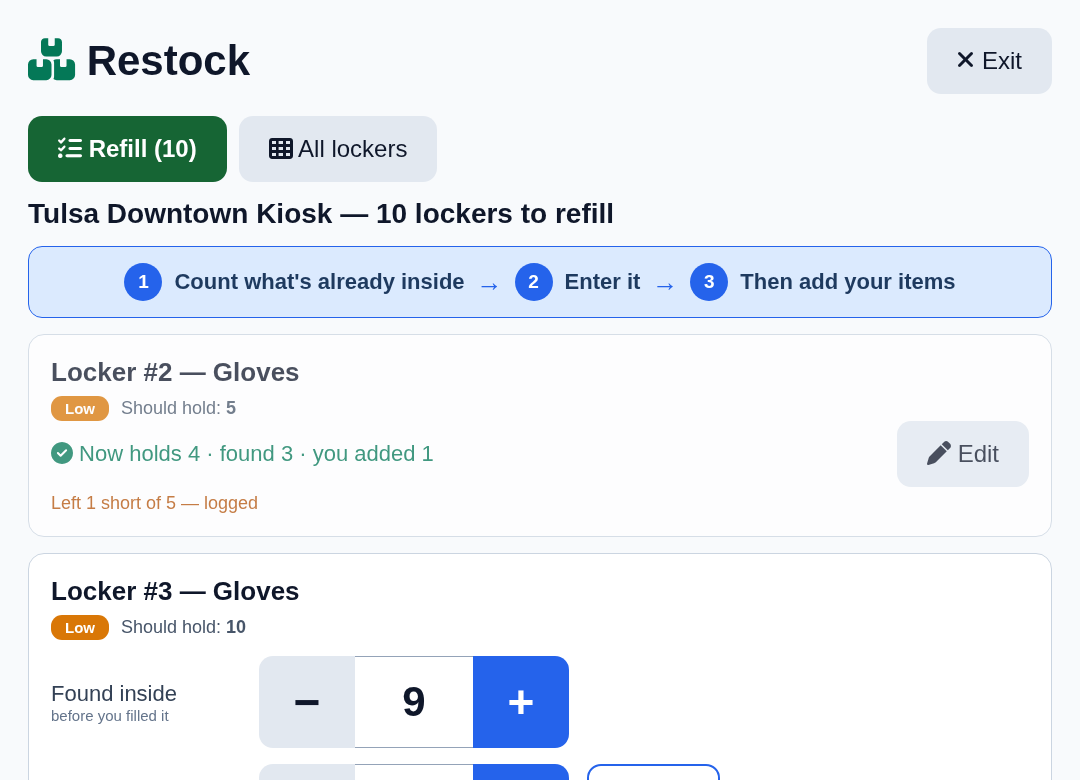
The row now shows the corrected numbers. This locker is 1 short of 5, and the machine logs that. Short is fine. It goes back on the next list. Never round up to make it look full.
Fix numbers before you leave the restock screen. After that, tell your coordinator.
The All lockers tab shows the machine laid out the way it's built. Tap a locker to open its door. Colors match the dashboard: red is empty, orange has been opened since the last restock. A door that's open gets a yellow outline.
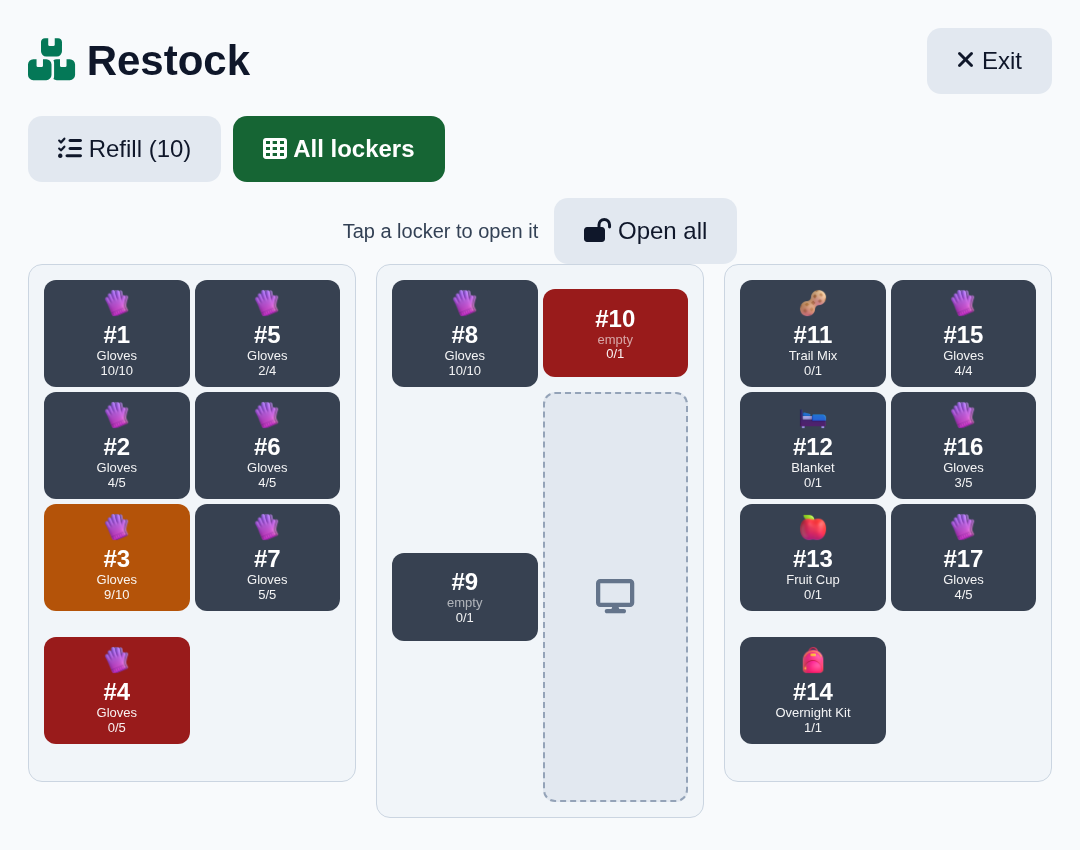
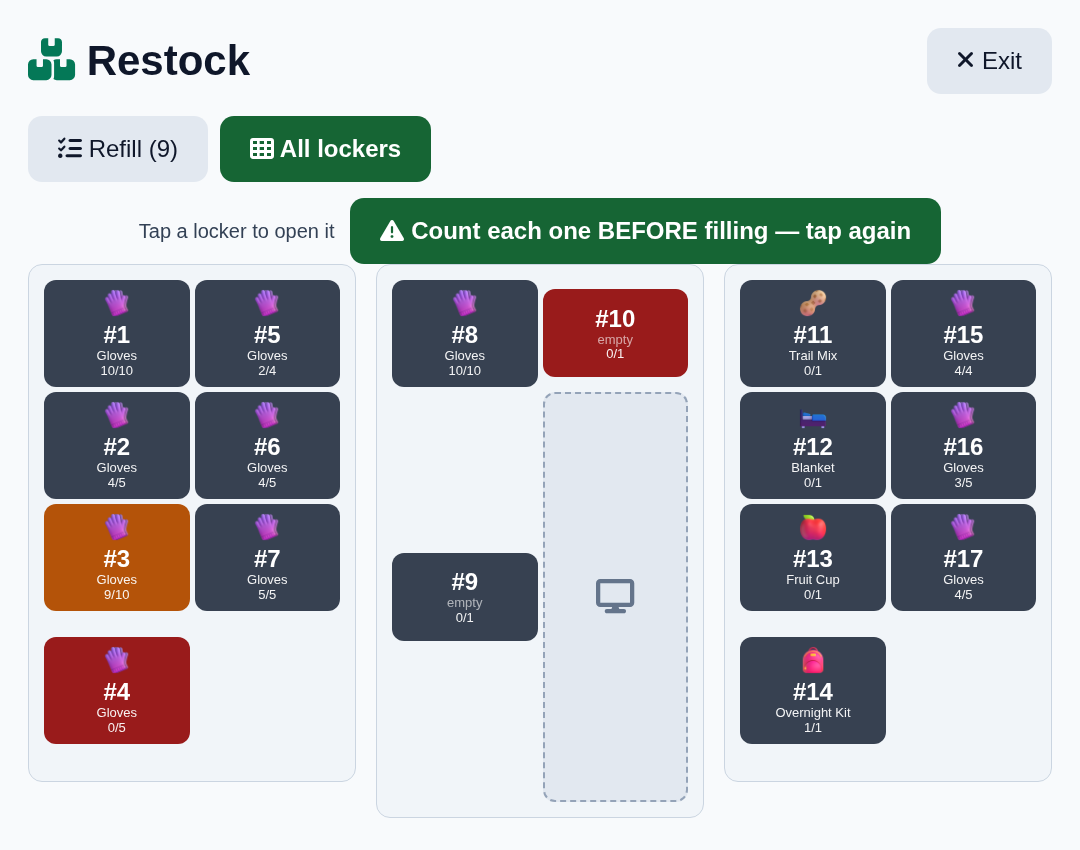
Open all pops every working door at once. The first tap only warns you: "Count each one BEFORE filling, tap again." Tap again within 3 seconds to open them.
With every door open it's tempting to fill everything first. Don't. Go card by card: count, enter, fill, confirm.
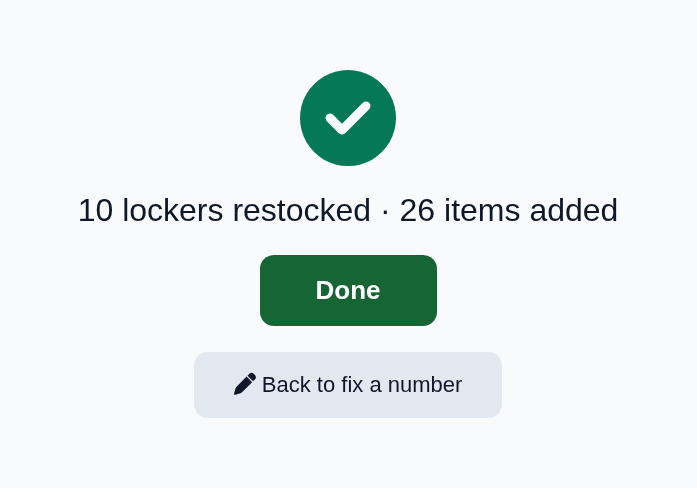
After the last locker the machine shows how many lockers you restocked and how many items you added. Still need a fix? Back to fix a number takes you to the list, where every confirmed row has its Edit button.
Close every door firmly, then tap Done. A door left ajar can't be sensed.
Only had 3 of 5? Enter 3. The machine logs it and puts it back on the next list.
Opening a door with the physical key isn't recorded. Use the screen; keep the key for a stuck lock.
A paused locker isn't on the list. Ask staff to resume it first.
An Edit only changes the difference, so anything a visitor took since you confirmed still counts.
The original numbers stay in the restock history, so a fix never hides what happened.
Everything you confirmed is already saved. Unconfirmed cards are simply not recorded.
Everything above happens at the machine. In the dashboard, a coordinator prints the restock sheet before a run, and afterwards a report lists every run: who restocked, which lockers, how many items they added, and anything left short. Each volunteer's counts are on the record, so the numbers you can act on are the numbers they really put in.
 Serve.Love