Serve.Love · Team chat
Your team hears about volunteer activity in the channel they already read: sign-ups, cancellations, a shift that is short two days out, a Monday summary. One link to copy, one page to fill in, nothing to install. Shown here with a demo organization, Harvest Table Community Pantry, in Microsoft Teams.
Copy a channel's webhook link from Teams, Slack or Google Chat, paste it into Serve.Love, tick the moments you want, send a test.
A volunteer signs up, a volunteer cancels, a shift is short two days out, a weekly summary on Monday morning, applications waiting for review.
Three optional switches add a short weekly note and a ready-to-paste recruiting message. Off until you turn them on.
Teams, Slack and Google Chat all let a channel hand out a private link that accepts posted messages. Your coordinator pastes that link into Serve.Love once. From then on, every post is short, names the event and the shift, says how full it is, and ends with one button. Volunteers appear as first name and last initial.
Open the channel's menu (the three dots next to the channel name), choose Workflows, pick "Send webhook alerts to a channel" and confirm the team and channel. Teams shows the workflow with a Copy webhook link button. That link is the only thing Serve.Love needs.
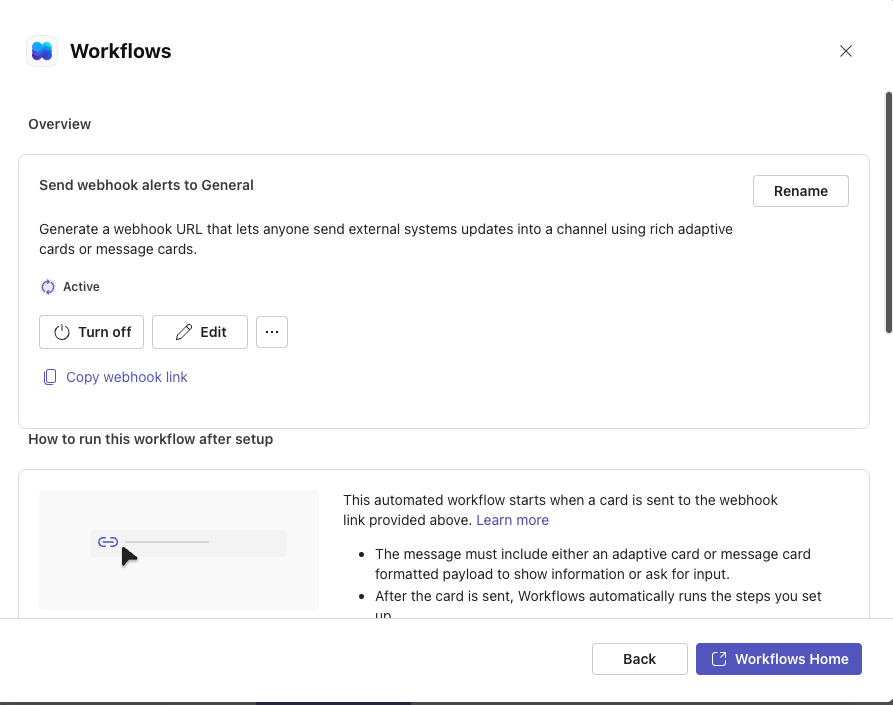
Your team owns the link. The workflow can be turned off from this same dialog at any time, and Serve.Love never shows the link again after you save it.
Manage → Organization Settings → Integrations → Team chat. Name the channel, paste the link (Serve.Love recognizes Teams, Slack or Google Chat from the link itself), tick the moments under Post when, click Save, then Send a test message. The card tells you when the post landed, or what went wrong.
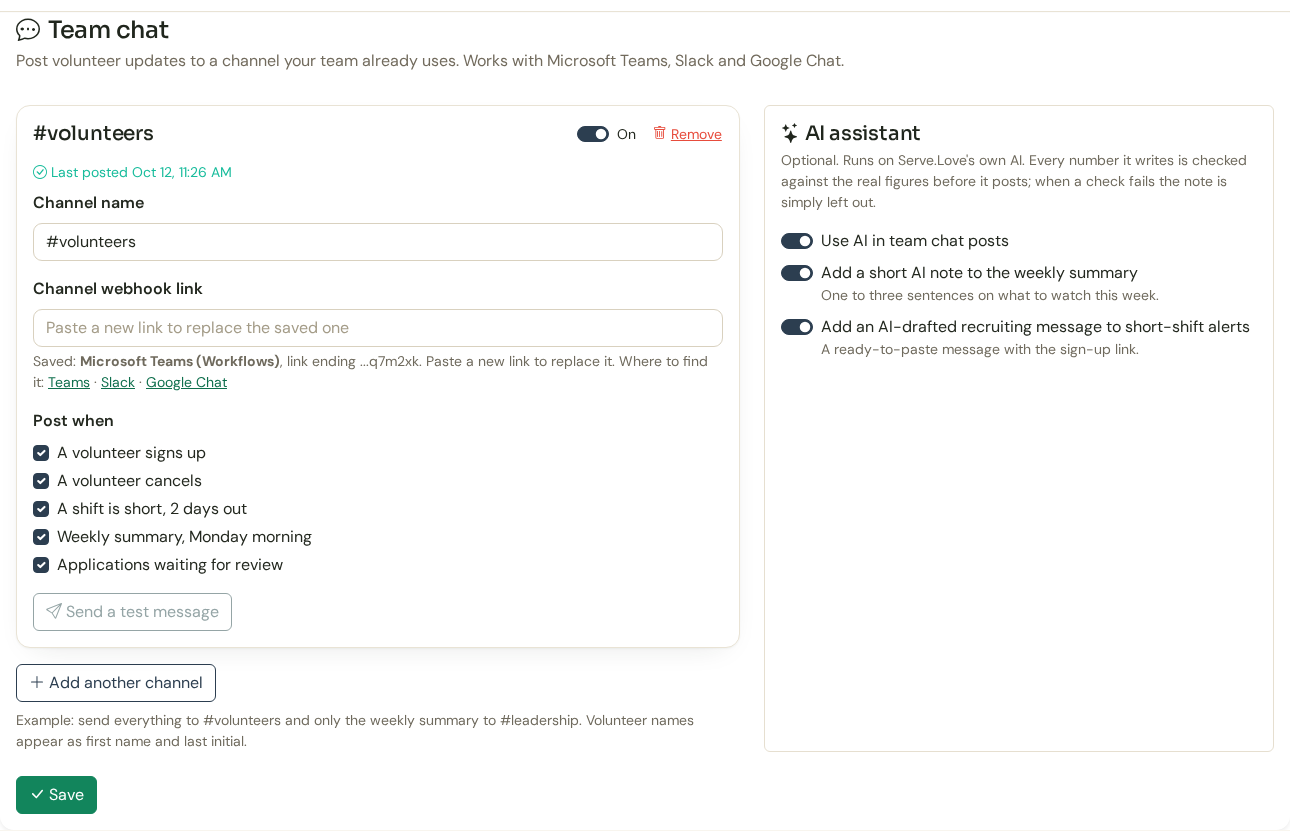
The link is kept, not shown. After you save, the page only ever shows the last few characters of the webhook link. Add another channel lets you send everything to one channel and only the Monday summary to another.
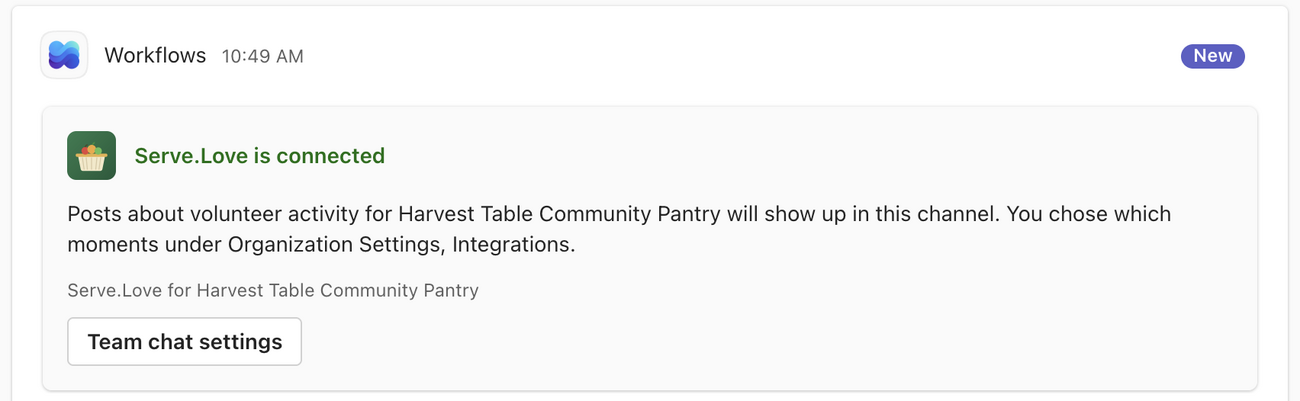
Seconds after Send a test message, this card shows up in the channel. It names the organization that is posting, carries your logo, and its button takes an admin back to the settings page.
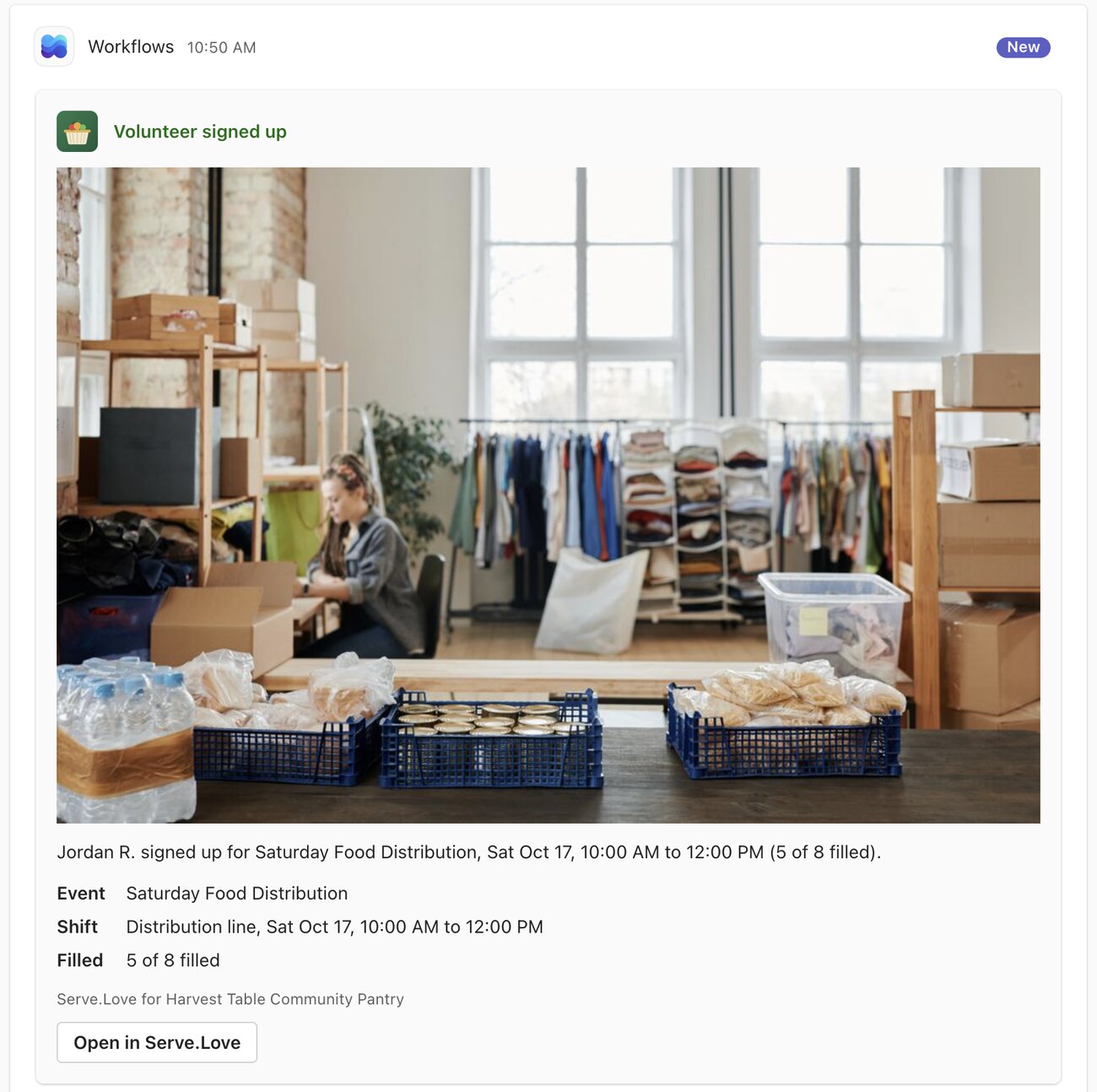
The moment someone signs up, the channel knows: who (first name and last initial), which event and shift, and how full the shift now is. The event's own photo is on the card, and Open in Serve.Love goes straight to the event. Cancellations post the same way, with the updated count.
Each morning Serve.Love looks at every shift two days away. If one is still short, the channel gets one card for it: the shift, how many more are needed, and the public sign-up link, ready to share. Each shift is flagged once a day, so the channel is not nagged.
With the AI switch on, the card also carries a recruiting message you can copy and paste into a group text, a newsletter or a social post. It is written from the event's own description and always ends with the sign-up link. It is marked as an AI draft, so someone reads it before it goes out.
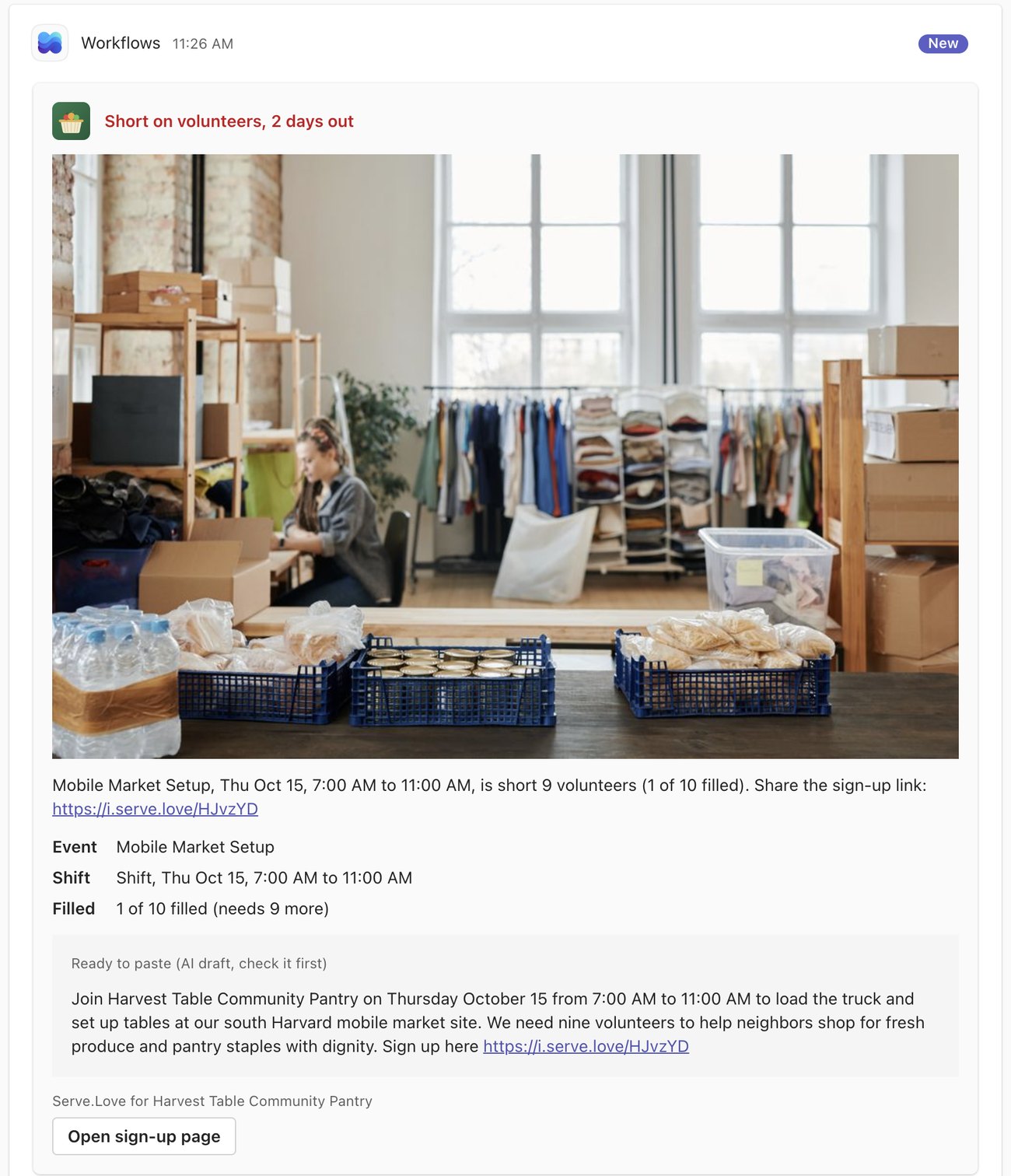
The number check. Before the draft posts, Serve.Love compares every number in it (written as digits or as words) with the facts it gave the AI. If the draft mentions a number Serve.Love did not give it, the draft is thrown out and the card posts without it.
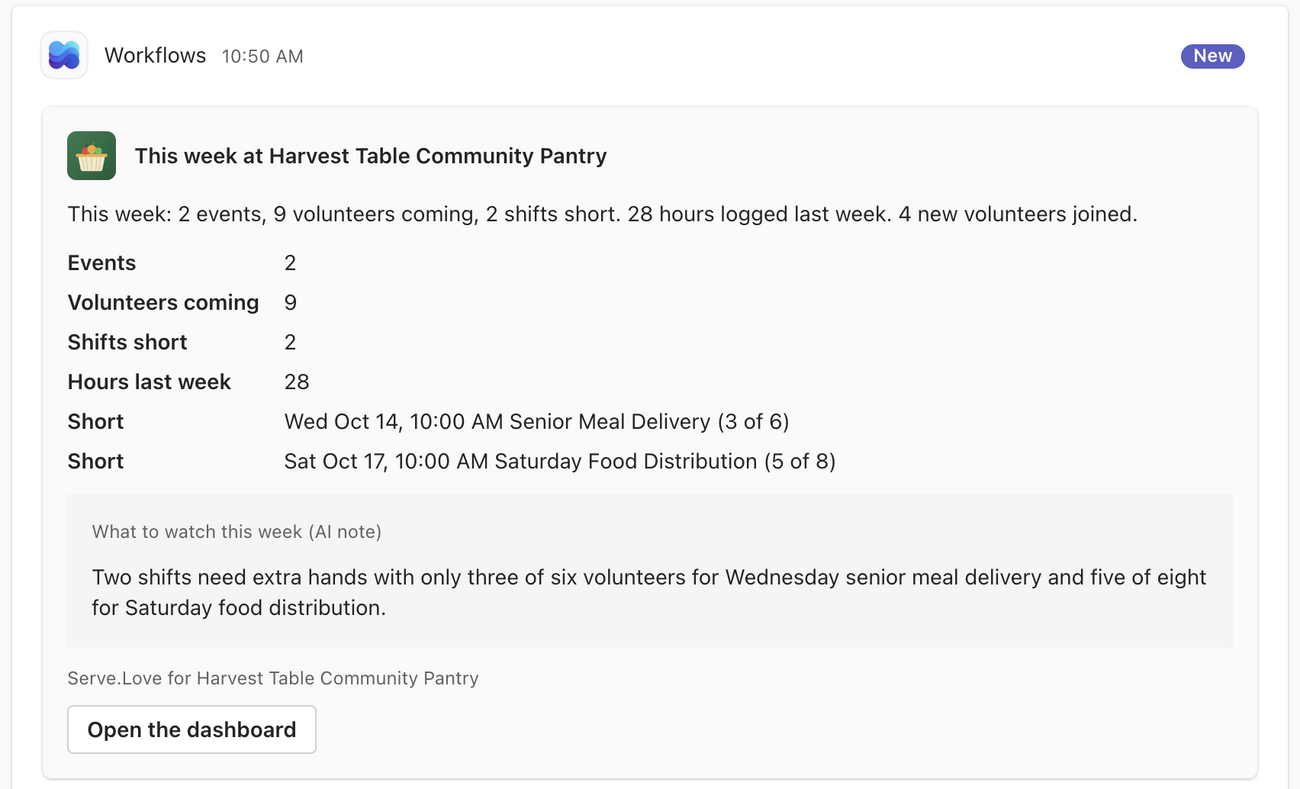
One card every Monday morning: events this week, volunteers coming, shifts still short (listed), hours logged last week, new volunteers, and applications waiting for review. The numbers come straight from the schedule and the hours on record. With the AI switch on, a short "What to watch this week" note is added underneath, written only from those same numbers and checked the same way.
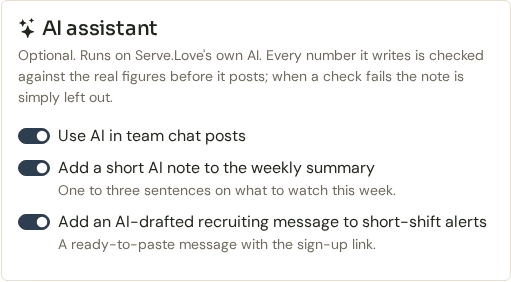
The posts above work without any AI. If you want the extra help, the switches live on the same settings card: one to use AI at all, then the weekly note and the recruiting draft.
The AI runs on Serve.Love's own servers. Your volunteer data is not sent to an outside AI company. Everything it writes is labelled as AI, is advisory, and goes through the number check before it posts. If a check fails, the note is simply left out and the card still goes.
Every AI call is logged, so we can show you what was asked and what was written.
The screens above are from Microsoft Teams. Slack and Google Chat get the same five moments and the same AI text, laid out in each app's own message style. The only difference is where the link comes from.
Channel menu → Workflows → "Send webhook alerts to a channel" → Copy webhook link.
Create a Slack app for your workspace, turn on Incoming Webhooks, add one for the channel, copy its URL.
Open the space → Apps & integrations → Webhooks → add a webhook, copy its URL.
The two-days-out card lands in the channel with the sign-up link while there is still time to make calls.
Everything to the pantry channel, only the Monday summary to leadership. One Serve.Love account, as many channels as you need.
Last week's logged hours are on every Monday card, from the hours on record, so the number is ready before anyone asks for it.
When someone applies for a role that needs screening, the channel hears "1 application is waiting for review" each day until it is handled.
Built and being switched on next. Not live yet.
In any channel of the team: @Serve.Love who's on the crew for Saturday? "Looking that up..." appears at once, and the answer card follows a few seconds later. Answers come from your live data; "How do I" questions are answered from the Serve.Love help articles.
It only reads. Names come back as first name and last initial, no per-person hours, and each answer card quotes the question and who asked it. Setup is one outgoing webhook in Teams, with the callback link and security token copied from the same settings card shown above. Your Microsoft 365 admin may first need to allow custom apps in Teams, a one-time setting; Serve.Love walks them through it.
Site lead, block captain
Nobody on your team logs in to anything new. The posts arrive where they already are.
Volunteers appear as first name and last initial. No emails or phone numbers are posted.
If the channel link is deleted, Serve.Love switches the channel off after three failed posts in a row and emails your primary admin once, instead of failing quietly.
Flip the channel's On/Off switch in Serve.Love, remove the channel, or turn the workflow off in Teams. Any one of them stops the posts.
A volunteer who takes two shifts in one sign-up gets one card listing both. A short shift is flagged once a day.
Every time on a card is in the event's time zone, with your organization's time zone as the fallback.
 Serve.Love