Serve.Love · Events
How a coordinator turns one event into a weekly or monthly series, changes the dates still to come, and cancels or brings back dates. You see the exact dates before anything happens, and Undo is there after.
Try a pattern and see the dates on a calendar. Nothing is created until you pick Create.
A date with volunteers signed up is never removed by a change to the series. Earlier dates stay as they are.
A new series, or a change to later dates, comes with Undo. It stays on the event page after you close the window.
Open any event and find Repeats next to the date. A new event says Once, with a Make this repeat... button under it.
That button only opens a place to try things out. Nothing on your calendar changes from opening it.
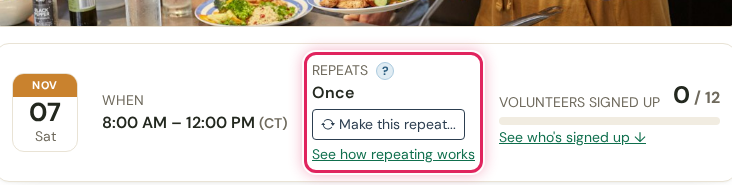
Repeats: Once. One button to try out a pattern, and a link to this page.
The choices are written from your event's own date: Every Saturday, Every weekday, Every day, The first Saturday of each month. Others, like the second or last Saturday, sit under More patterns.
Click one and a two-month calendar shows every day the event would happen, in green. Click another and it updates. The top line says it plainly: "Try a few options. Nothing changes until you pick Create." Want the exact times? Show the dates opens the list.
Not now closes the window and leaves the event as it was.
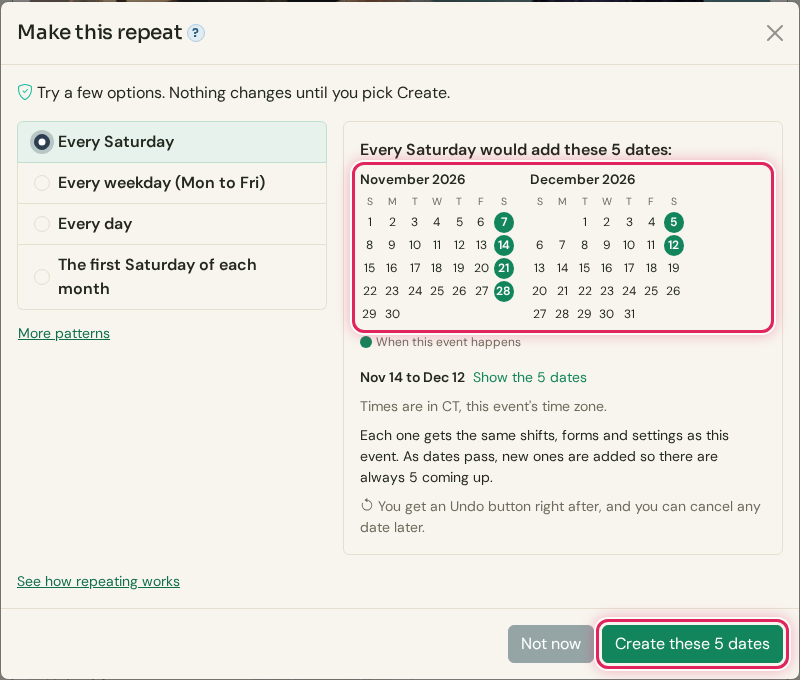
Every Saturday. Green is every day this event would happen. Nothing exists yet.
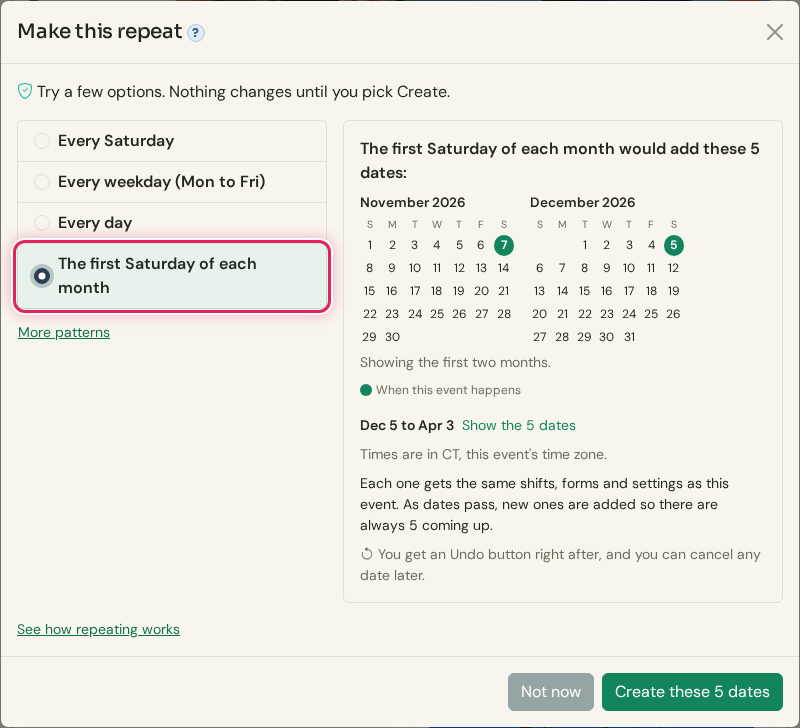
The first Saturday of each month. Same window, different pattern, new dates. Flip between them as much as you like.
Pick Create these 5 dates. A few seconds later: "Done: 5 dates added, Nov 14 to Dec 12." The same dates you saw in the preview, and an Undo button if you change your mind.
Each new date gets the same shifts, forms and settings as this one.
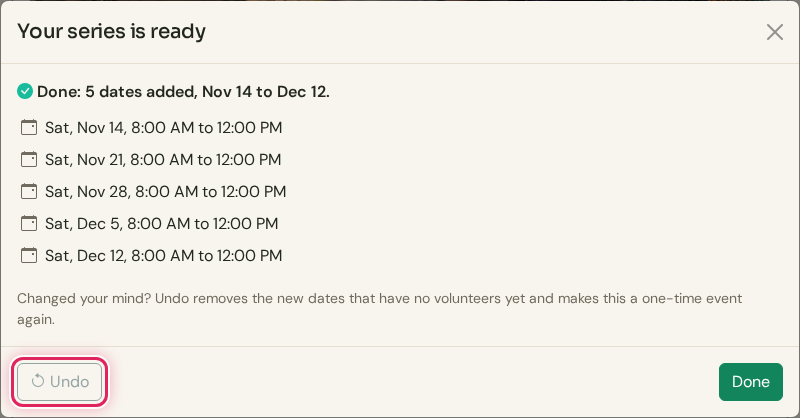
Undo removes the new dates that have no volunteers yet and makes this a one-time event again.
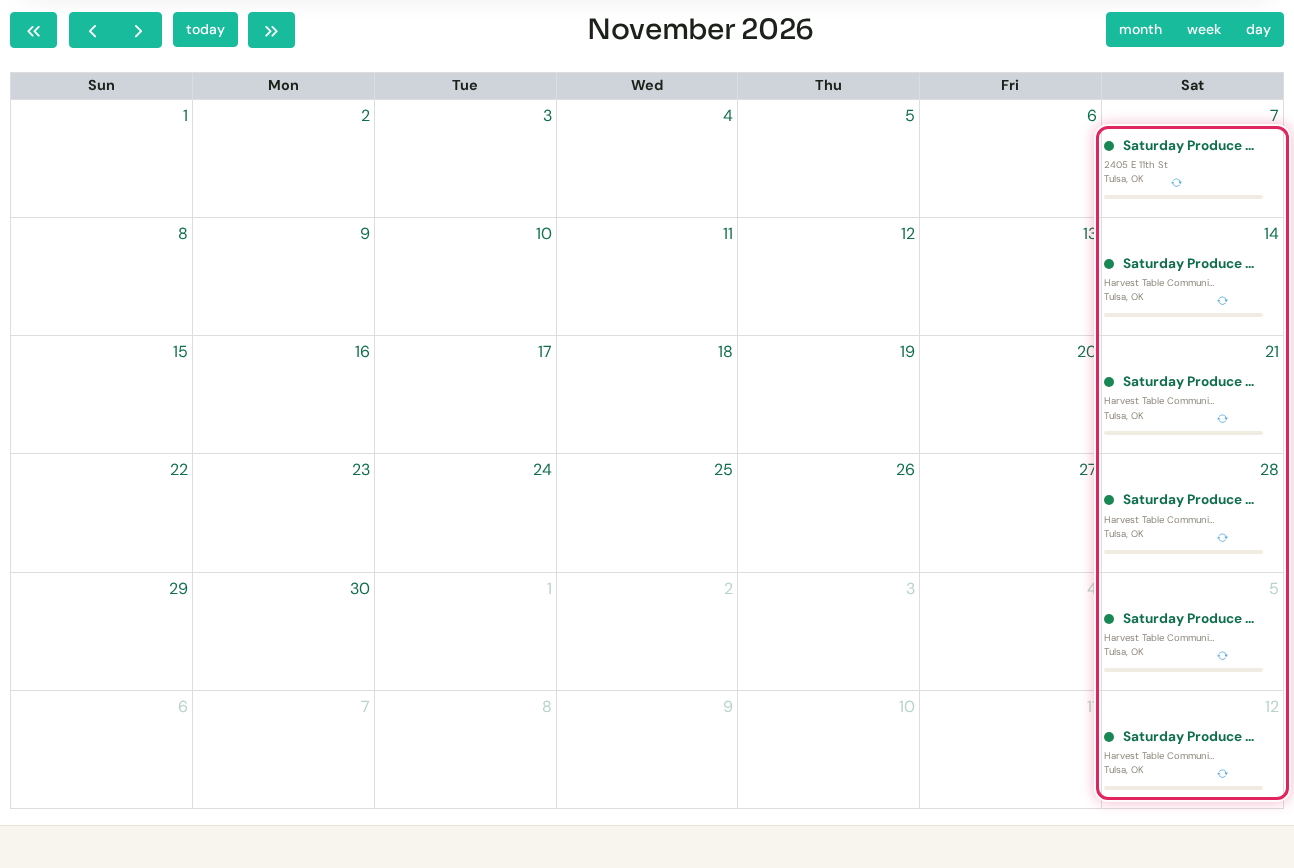
On the calendar. Every Saturday from Nov 7 to Dec 12, each one its own date volunteers can sign up for.
Once an event repeats, Repeats shows the pattern, like Every Saturday, with two buttons: Change... and Stop repeating.
Change... opens the same try-it window. Pick a new pattern and the calendar shows every day the event will happen from this date on. Click Use this pattern and your calendar matches it exactly.
The window tells you, in one or two lines, what that means: how many dates it adds, and which dates it cancels because nobody signed up for them. A date with volunteers signed up is never removed. It stays where it is, and the window names it.
Nobody is texted or emailed. One Undo puts it all back: the new dates go, the cancelled dates come back, and it repeats the old way again.
Stop repeating lists the dates that stay, so nobody loses a spot. Nothing is cancelled, and there is an Undo right after.
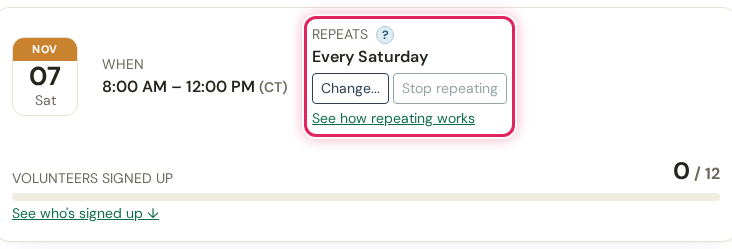
Repeats: Every Saturday. Change it or stop it from right here.
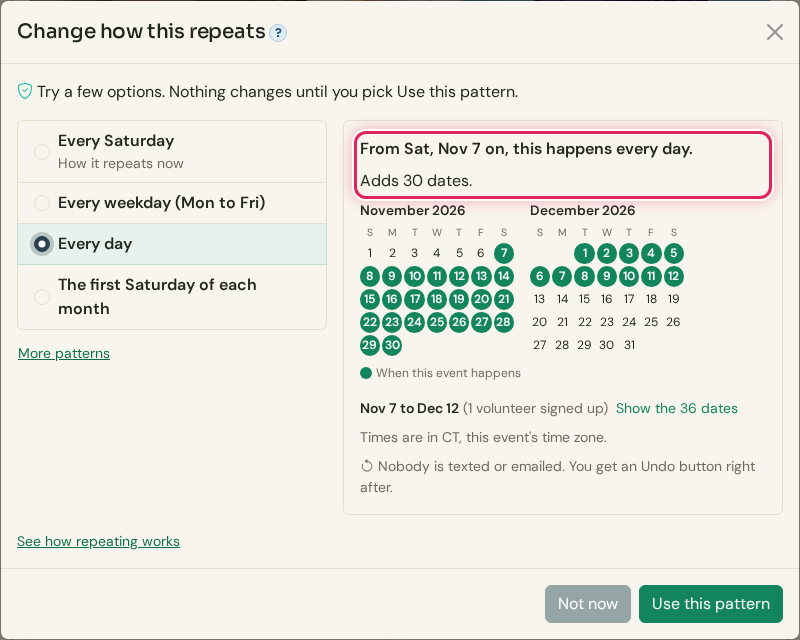
Every Saturday to every day. The calendar fills in every day from Nov 7 on. That is exactly what Use this pattern does.
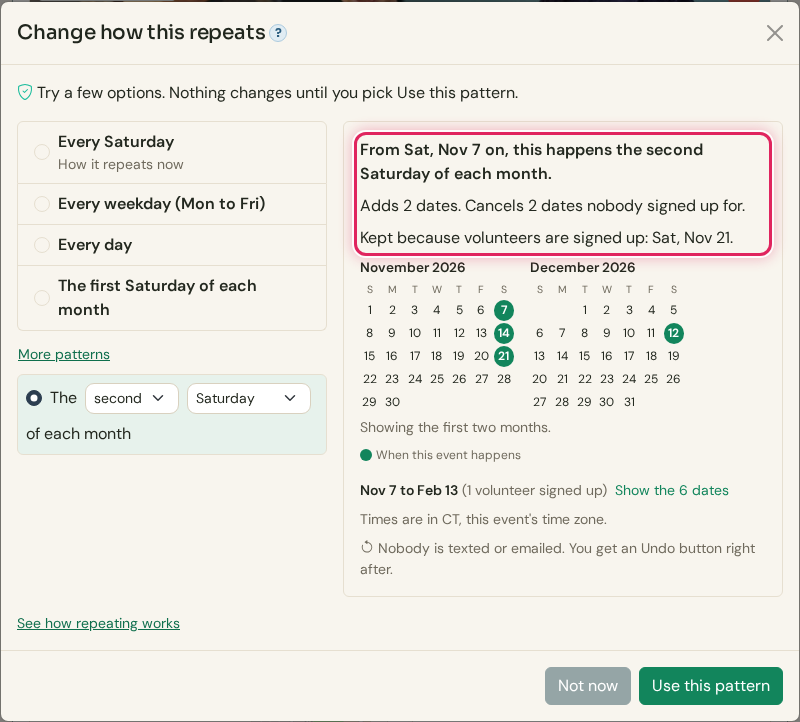
The second Saturday of each month. Nov 28 and Dec 5 have nobody signed up, so they would be cancelled. Nov 21 has a volunteer, so it stays.
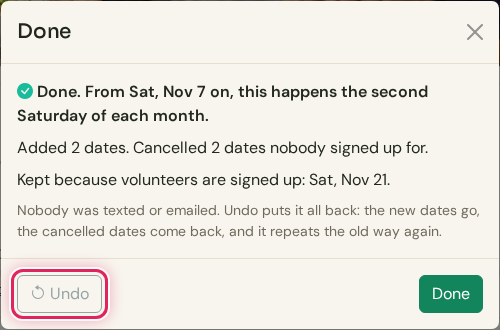
Done, with Undo. The same words as the preview, and one button that puts every date back the way it was.
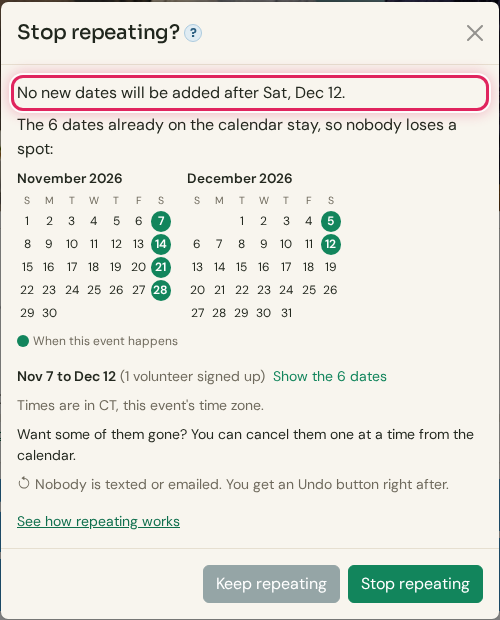
Stop repeating? No new dates after Dec 12, and the 6 already on the calendar stay.
Open any date in the series and edit it as usual. Here the Nov 21 date gets a new name for the winter coat drive. When you save, one question: Only this date, or This and all later dates.
The box spells out what the second choice means: "This will update 4 dates: Sat Nov 21, Sat Nov 28, Sat Dec 5, Sat Dec 12. Earlier dates are not changed."
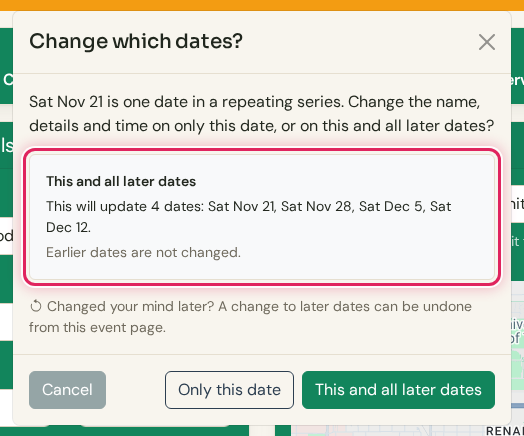
Change which dates? The same question for names, times, details, images, shifts and status, always with the dates listed.
You see which dates changed and an Undo that puts back exactly what was there before, on those dates only.
Closed the window already? The event page keeps a Last series change line with its own Undo.
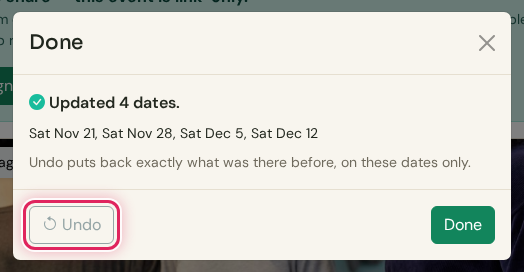
Updated 4 dates. Undo right on the result.
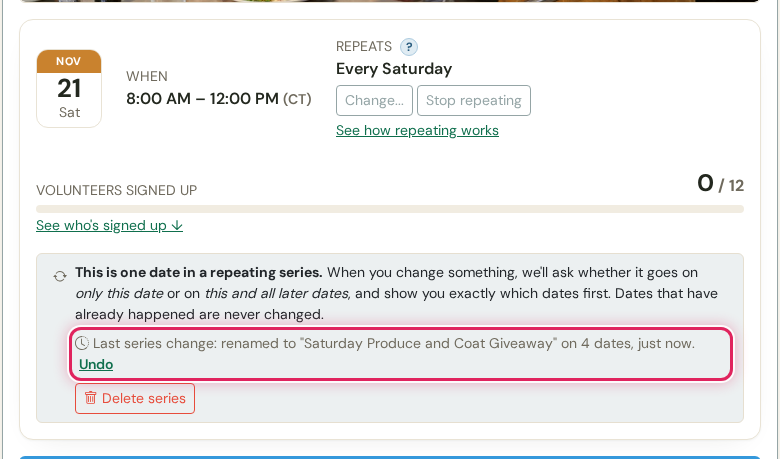
Last series change: renamed on 4 dates. Undo. Still there after you close the window and come back later.
Set a date's status to Canceled and you get the same choice. Only this date cancels that Saturday and the series carries on. This and all later dates cancels that date and every one after it.
If volunteers are signed up, it tells you how many, and that we do not text or email anyone about a cancel. They see the date as cancelled.
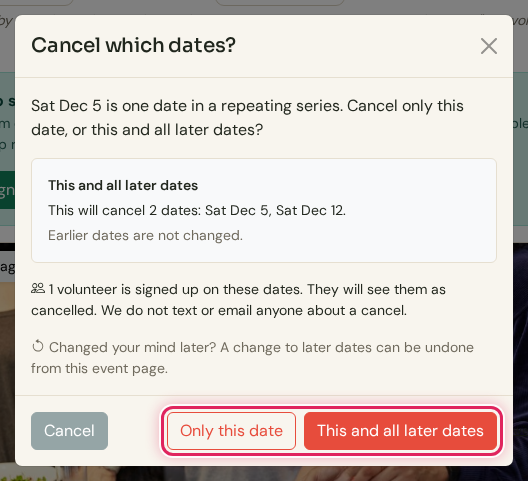
Cancel which dates? Here we picked Only this date: Dec 5 is off, the rest of the series stays.
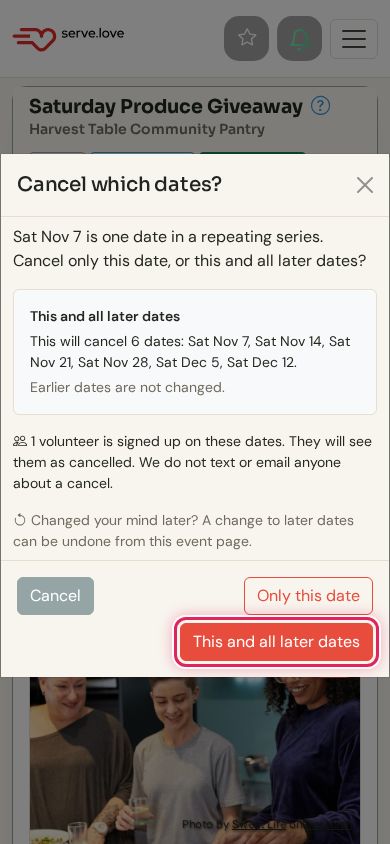
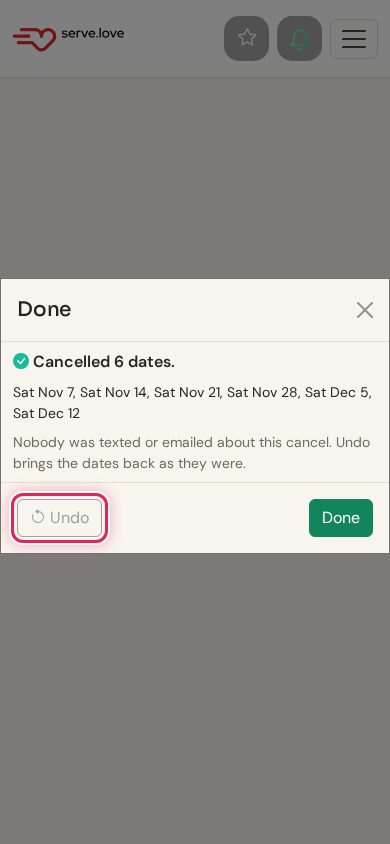
Setting dates back to Active with This and all later dates brings the series back on. A date you cancelled by itself stays cancelled unless you tick "Also bring back the date you cancelled?". The list above updates as you tick it.
In this example Nov 28 and Dec 12 had been set to Draft, and Dec 5 had been cancelled on its own.
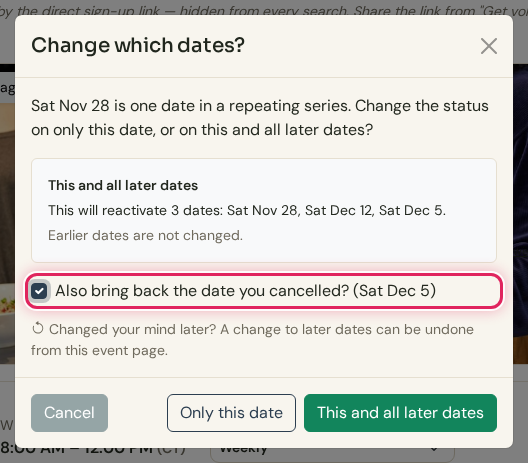
Also bring back the date you cancelled? Off unless you tick it.
As dates pass, new ones are added so there are always 5 ahead (15 for a daily series).
A change to this and all later dates also shows up on dates added later. A change to only one date stays on that date.
Dates that have already happened are never changed.
Undo puts back only what nobody has changed since. Anything changed again is left alone, and it tells you which.
Undoing a new series keeps any date that already has volunteers signed up, and tells you which ones.
Nobody is texted or emailed about a cancel. Volunteers see the date as cancelled.
 Serve.Love