Serve.Love · Sign-offs
The most common gate: make volunteers sign what you need, a Code of Conduct, a liability waiver, a photo release, before they can join an opportunity. Attach one form or several. Volunteers go through them in the order you set, then finish signing up. No certification needed.
If you just need people to read and sign one or more forms before they join, yes, this is the simple path. If you need multi-step training first (a quiz, a device setup, a review), that is a certification instead. See Volunteer certifications.
Write each agreement or waiver as a form with a signature. Takes a minute each.
Add each one under the opportunity's Required Forms. The arrows set the order.
They sign each form, one after another, then confirm their spot. Nothing else to manage.
Open Documents & Forms and choose Create a form. Paste your Code of Conduct or waiver and the assistant turns it into a form, keeping your wording. Add a Signature field so volunteers actually sign it. Make one form for each thing you need signed. Here it is as a Volunteer Agreement, with the policy text, a signature and a date. A second form, a Volunteer Code of Conduct, was made the same way.
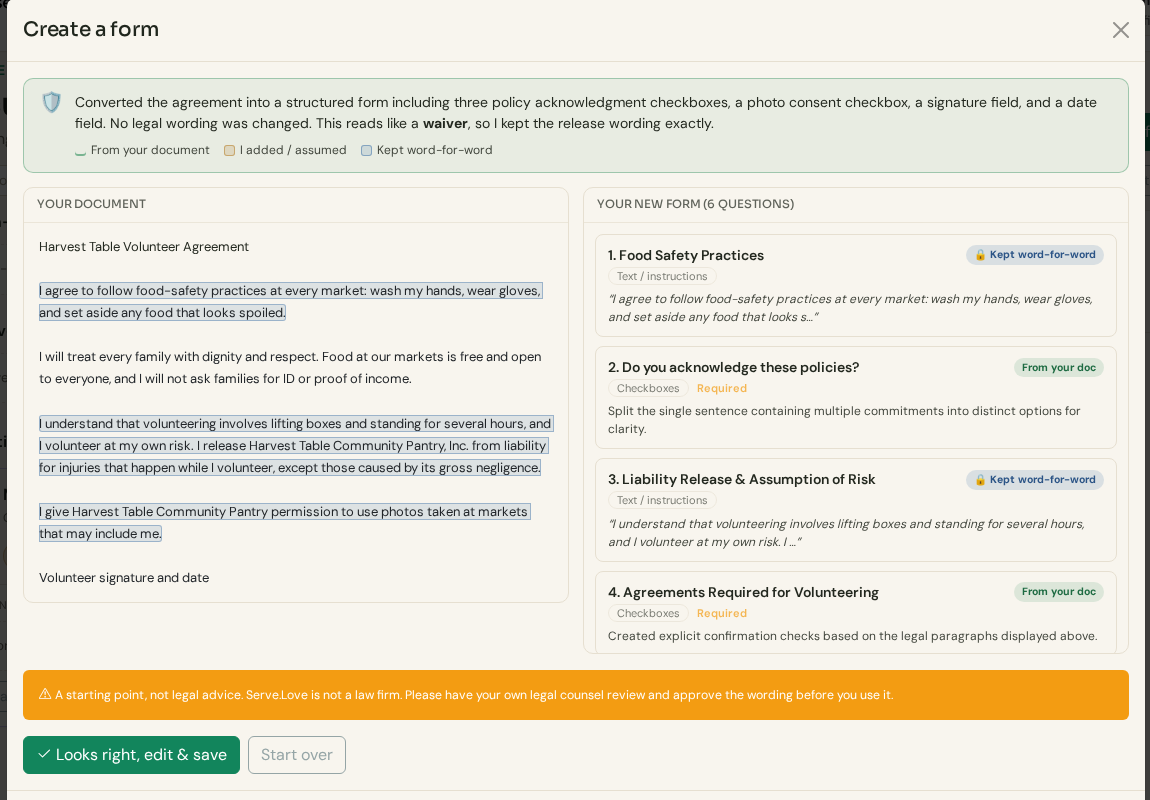
Your agreement as a form. Save it and it lands in your Documents & Forms.
Documents & Forms › Create a formOpen the volunteer opportunity and click More settings. Under Required Forms, click + Add a required form and pick a form. Do it again for each form you need. The up and down arrows change the order, and volunteers get the forms in that order. The red × takes a form off. That is it, the opportunity now requires every form on the list before anyone can sign up.
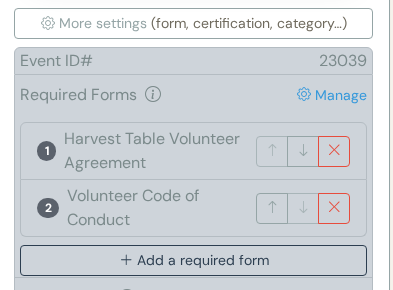
Two forms required, numbered in the order volunteers get them: 1 the Volunteer Agreement, then 2 the Code of Conduct. + Add a required form adds another.
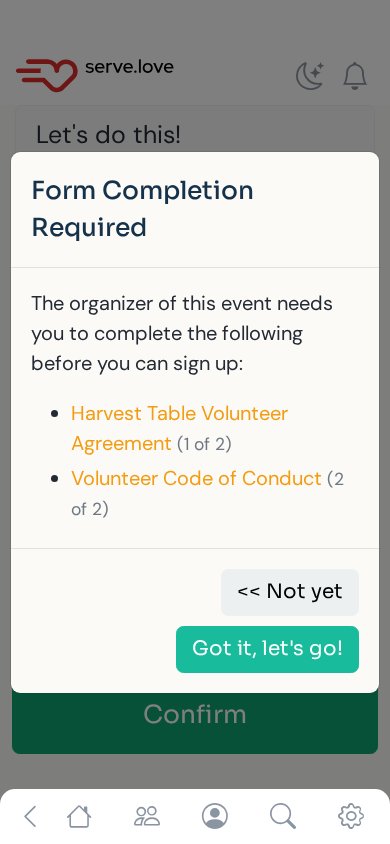
Your opportunity › More settings › Required FormsThe volunteer picks a shift and taps Confirm. Before their spot is saved, Serve.Love lists every form they still need to sign, numbered so they know how many there are. Got it, let's go! takes them to the first one. If they already signed one of these forms for your organization, they are not asked again; the list only shows what is left.
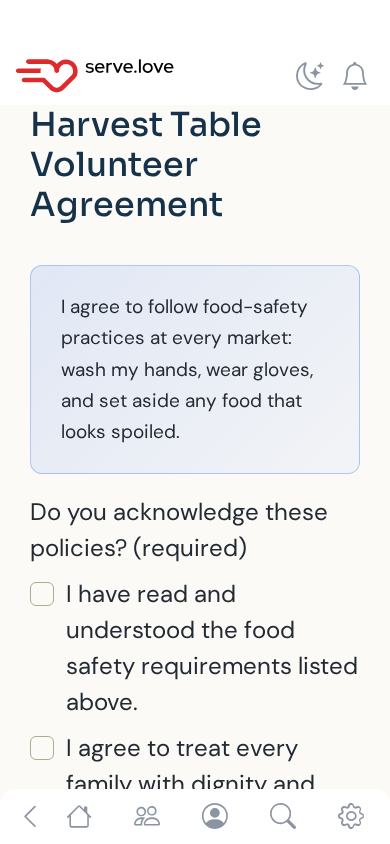
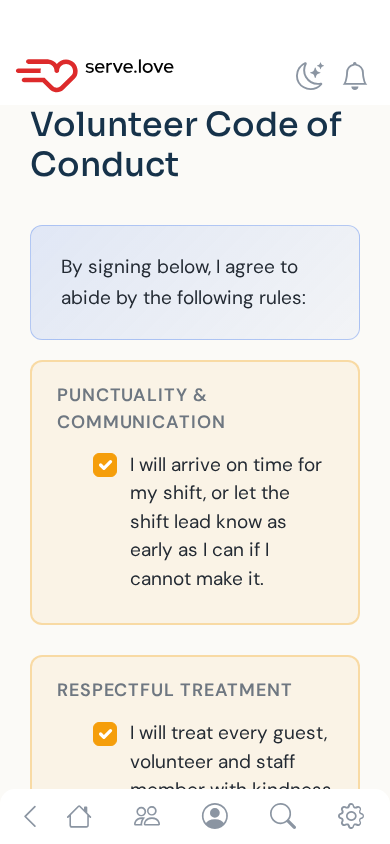
The first form opens right in the app. They check the boxes, sign with a finger, add the date and tap Submit.
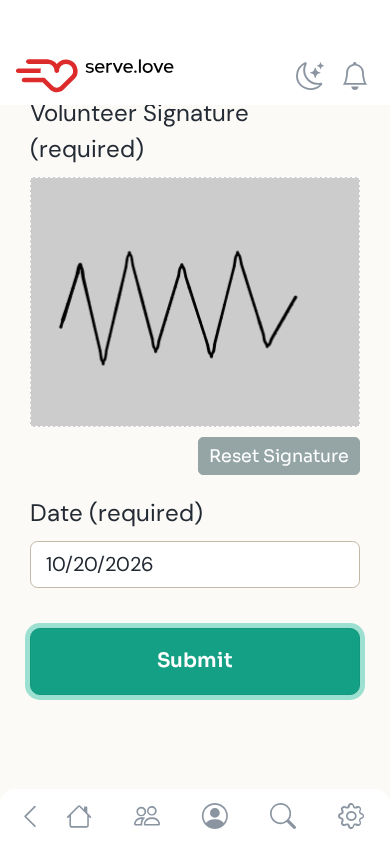
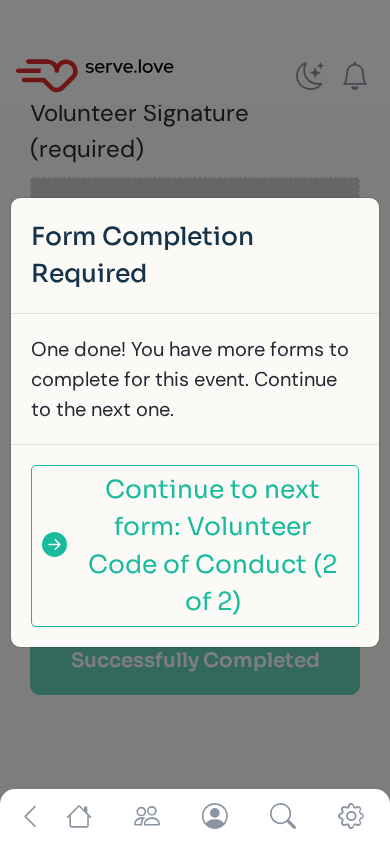
As soon as one form is in, the app says so and offers the next one by name, with how far along they are. One tap opens it, and they sign it the same way.
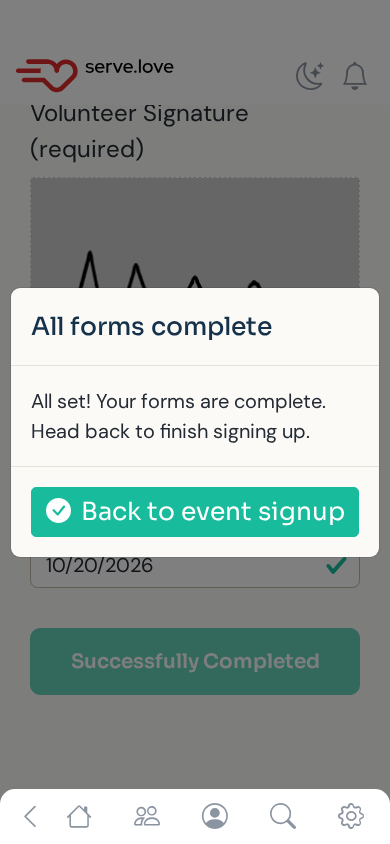
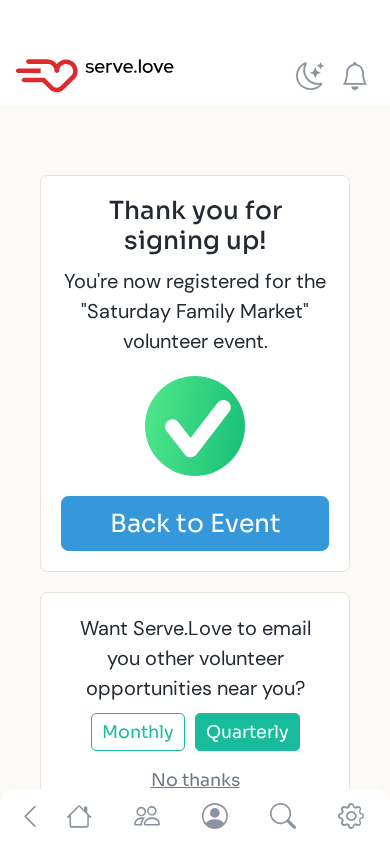
After the last form, the app tells them they are all set and takes them back to the opportunity with their shift still picked. They tap Confirm and they are signed up. If they stop partway, nothing is lost: the forms they signed stay signed, and next time they only get the ones that are left.
Each form the volunteer signs is saved as a PDF on their profile, under Documents. Open one to see exactly what they signed and when, or use Print All for a paper copy. No chasing, no filing.
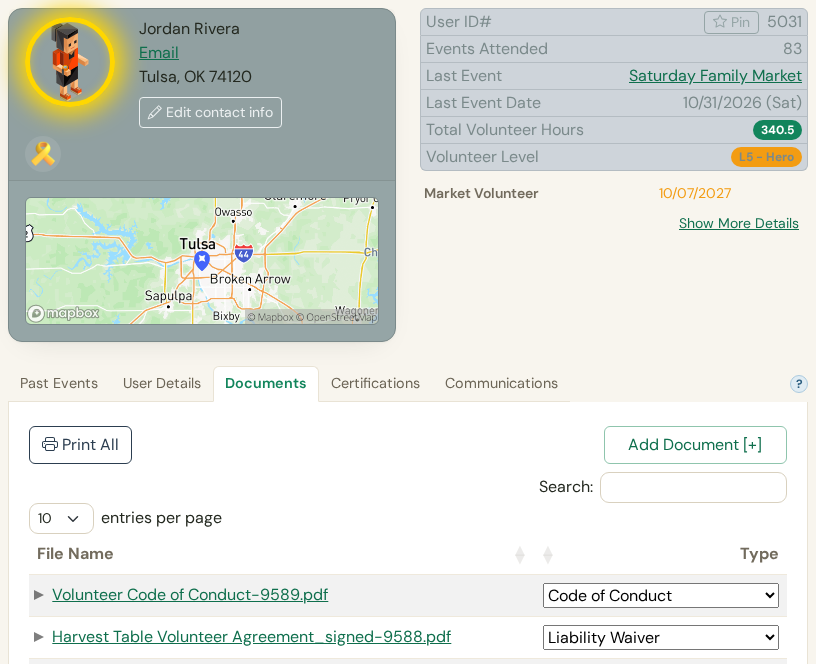
The volunteer's Documents tab: both signed forms at the top, the Code of Conduct and the Volunteer Agreement.
Volunteers › the volunteer › DocumentsThey solve different problems. Most of the time you want the sign-off.
One or more forms to read and sign before joining: a Code of Conduct, a liability waiver, a photo release. Add them under the opportunity's Required Forms, in the order you want. No approval, no expiry.
Multi-step training a volunteer must finish before they can sign up: a quiz, a device setup, a practice call, with optional review and an expiry date. See Volunteer certifications.
You can also use both on one opportunity. The volunteer finishes the certification first, then signs the forms.
 Serve.Love