Serve.Love · Certifications
For the volunteers and staff who review certification applications, like Virtual Volunteer. Each application has an intro video, a few answers, a quiz and an agreement. You watch, decide, and the applicant hears from us by email. It works on a computer or a phone.
The walkthrough below shows every screen. This is all of it at a glance.
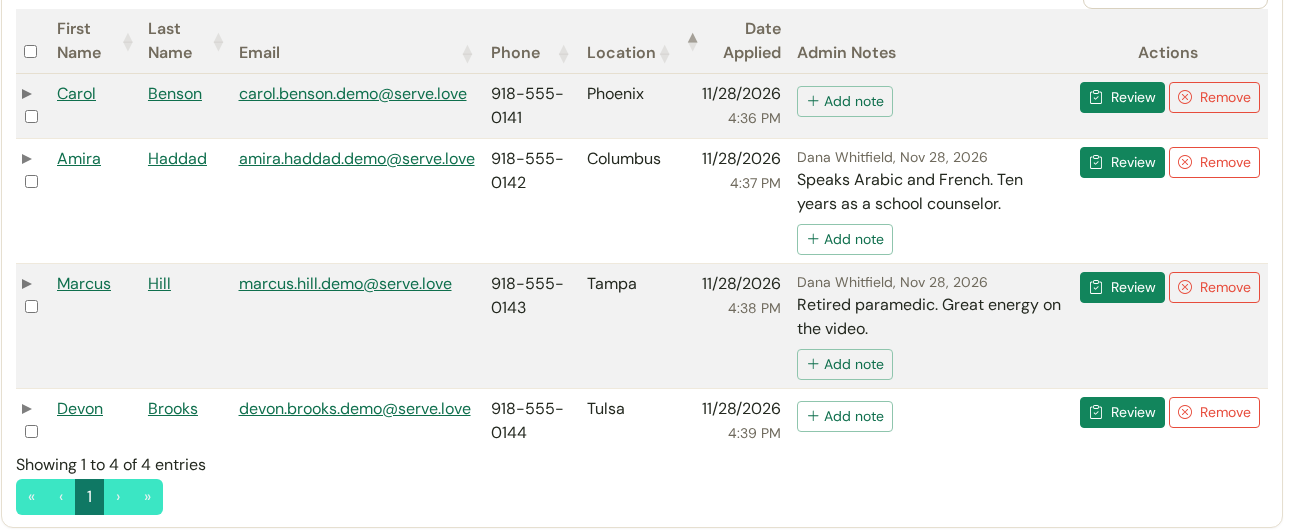
Reports, then Certification approvals. Oldest applications are at the top.
See this step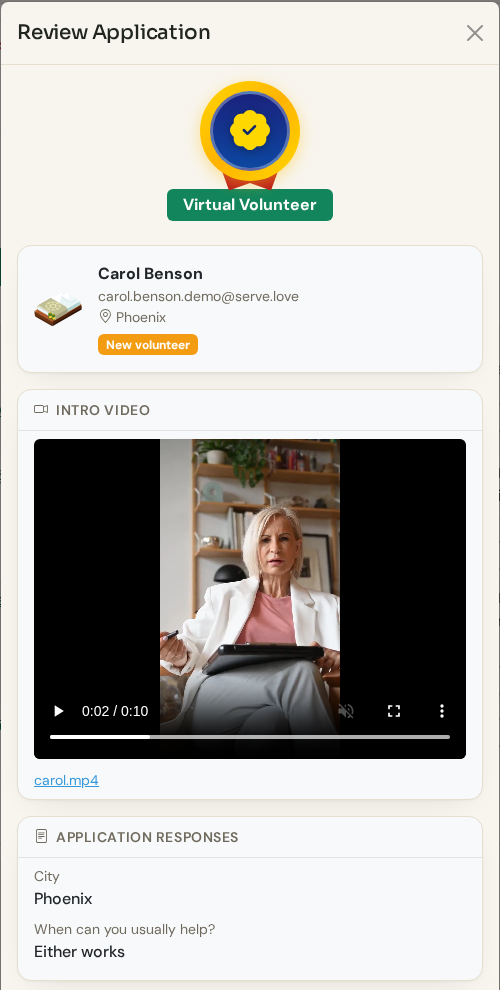
Tap Review. The video, the answers and the quiz are all in one window.
See this step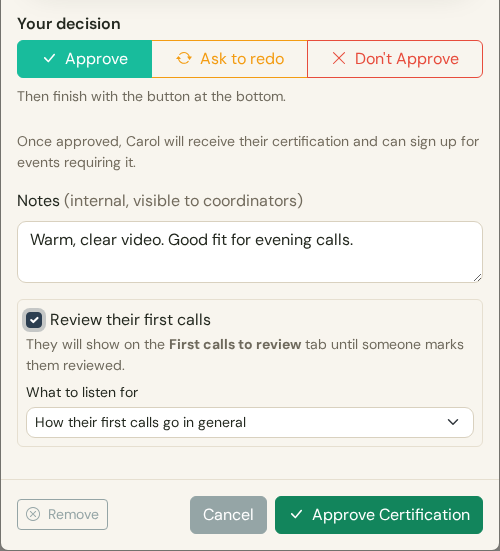
Approve, Ask to redo, or Don't Approve. Then the button at the bottom.
See this step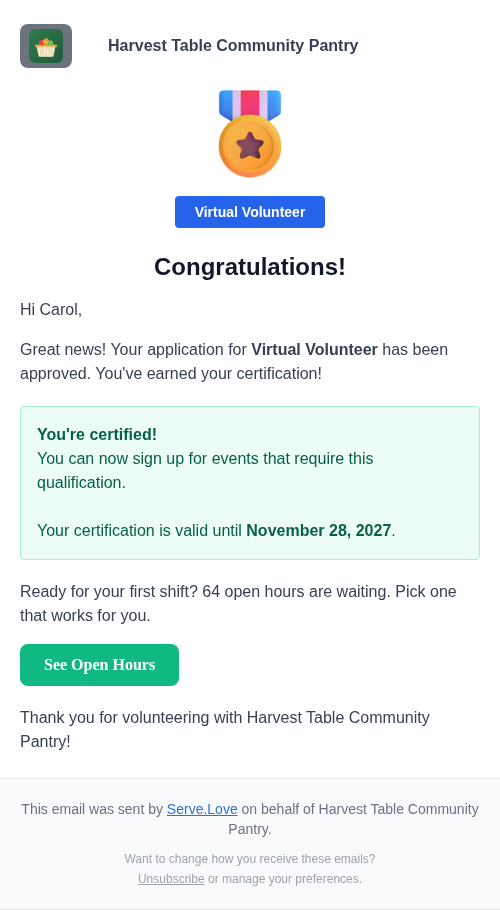
An email goes out right away, with the next step for them.
See this stepMost of it is watching a 15 to 30 second video.
Shown here with a demo organization, Harvest Table Community Pantry, and sample applicants. The intro videos are stock footage.
Go to dashboard.serve.love and sign in with the username and password you were sent. Sign in with Google works too if your login is a Gmail address. You stay signed in, so save it once on your phone and your computer.
If you review for another organization, your login only opens their applications. Volunteer profiles, events and the First calls list stay with that organization.
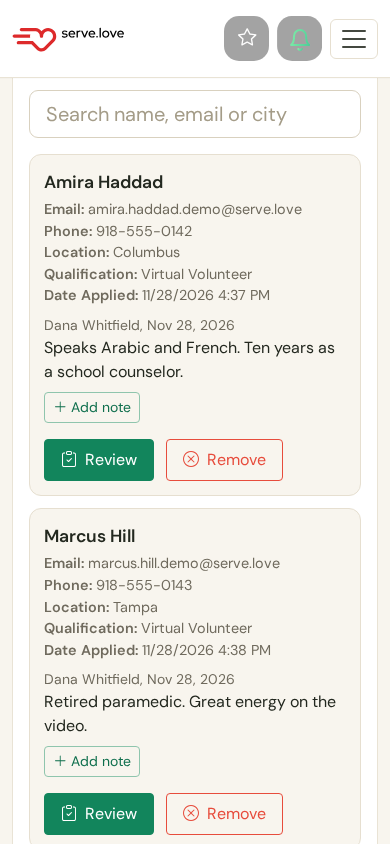
Go to Reports, then Certification approvals. Bookmark it. The Pending Review tab is everyone waiting on a decision, with the date and time they applied.
Admin Notes shows what other reviewers wrote, with their name and the date. Review opens the application. Remove is for duplicates or junk: it takes the application off the list without recording a decision.
Four applicants waiting. Two already have notes from another reviewer.
On a phone, each applicant is a card with their details, notes and a big Review button. The search box at the top finds a name, email or city.
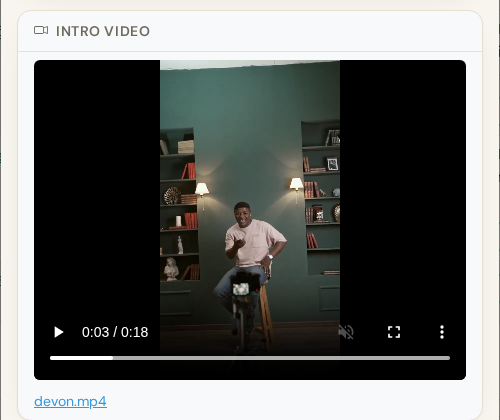
At the top: their name, email, city, and any admin notes. Then the intro video. Tap play and listen for who they are and why they want to help.
Below the video are their application answers, their quiz answers and the agreement they signed. Applicants have to pass the quiz before they get here.
What to look for in the video: can you see their face, can you hear them, and do they come across warm and patient? Those are the things guests notice on a call.
Under Your decision, pick Approve, Ask to redo or Don't Approve. That only picks the form. The green button at the very bottom is what sends it.
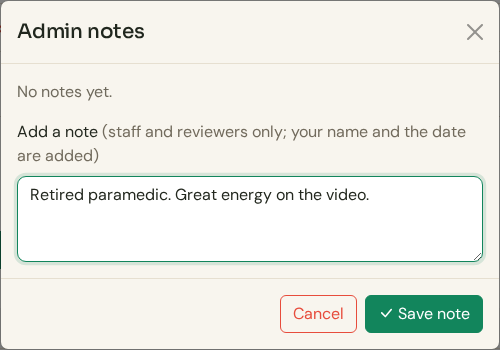
Notes are for staff and reviewers only. They're added to the admin notes with your name.
Tick Review their first calls if you'd like someone to listen to their first few calls, and pick what to listen for. They'll show on the First calls to review tab.
Then Approve Certification. They get the congratulations email right away.
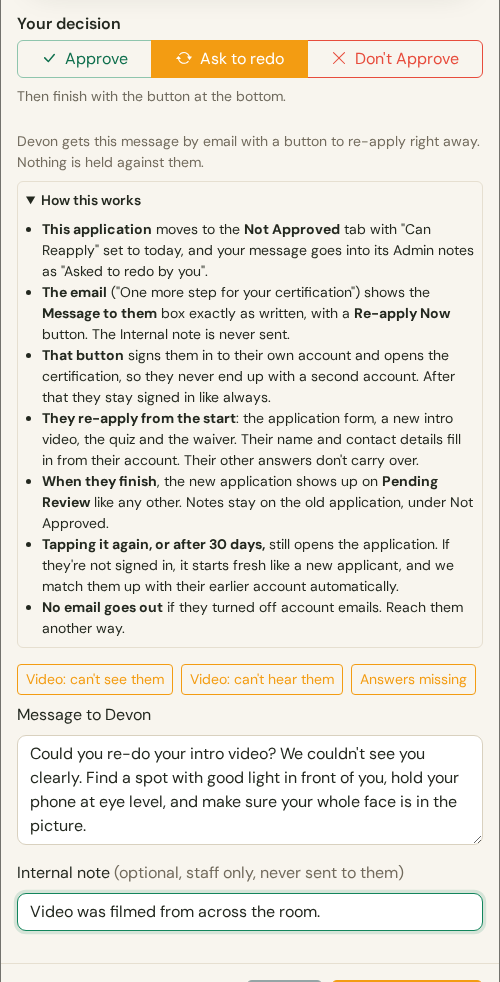
Devon filmed his video from across the room, so you can't see him. That's not a no. Pick Ask to redo.
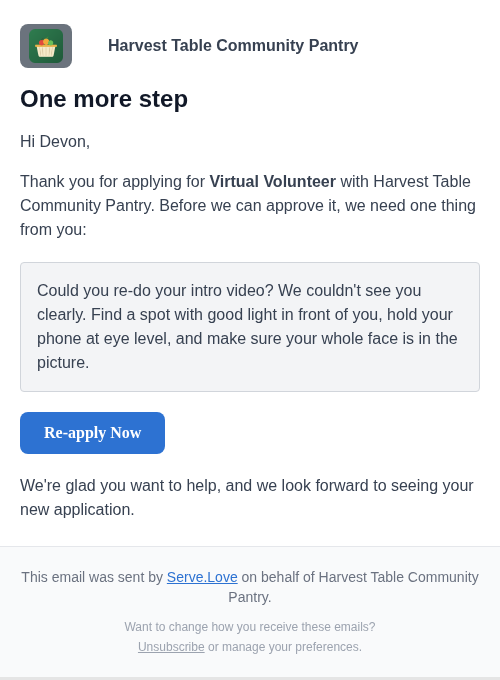
Start from a quick pick (Video: can't see them, Video: can't hear them, Answers missing) and change the words however you like. That message goes to them by email exactly as written, with a Re-apply Now button. The Internal note is never sent.
They can re-apply right away. They go through the application again with a new video, and it lands back on Pending Review. How this works in the window has the details.
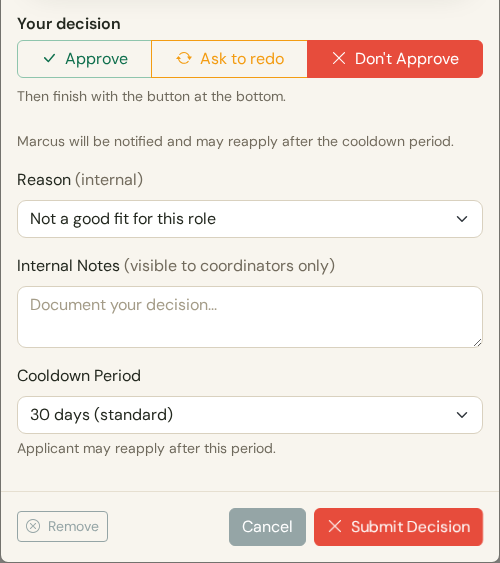
Pick Don't Approve, choose a reason and add a note. These are for staff only. The applicant gets a short, polite email that doesn't say why.
Cooldown Period is how long before they can apply again: 30 days is standard. If a better video or a couple of answers would fix it, use Ask to redo instead.
Every person has an Add note button, on the list and on their card. Use it for special skills (languages, nursing, counseling), anything that stood out, or why you haven't approved someone yet.
Your name and the date are added for you. Notes can't be edited, so each name always matches what that person wrote.
The Certified tab lists everyone approved, with every note on their application. View opens their application. Resend approval email helps someone who lost it. Revoke takes the certification away, so they can no longer sign up.
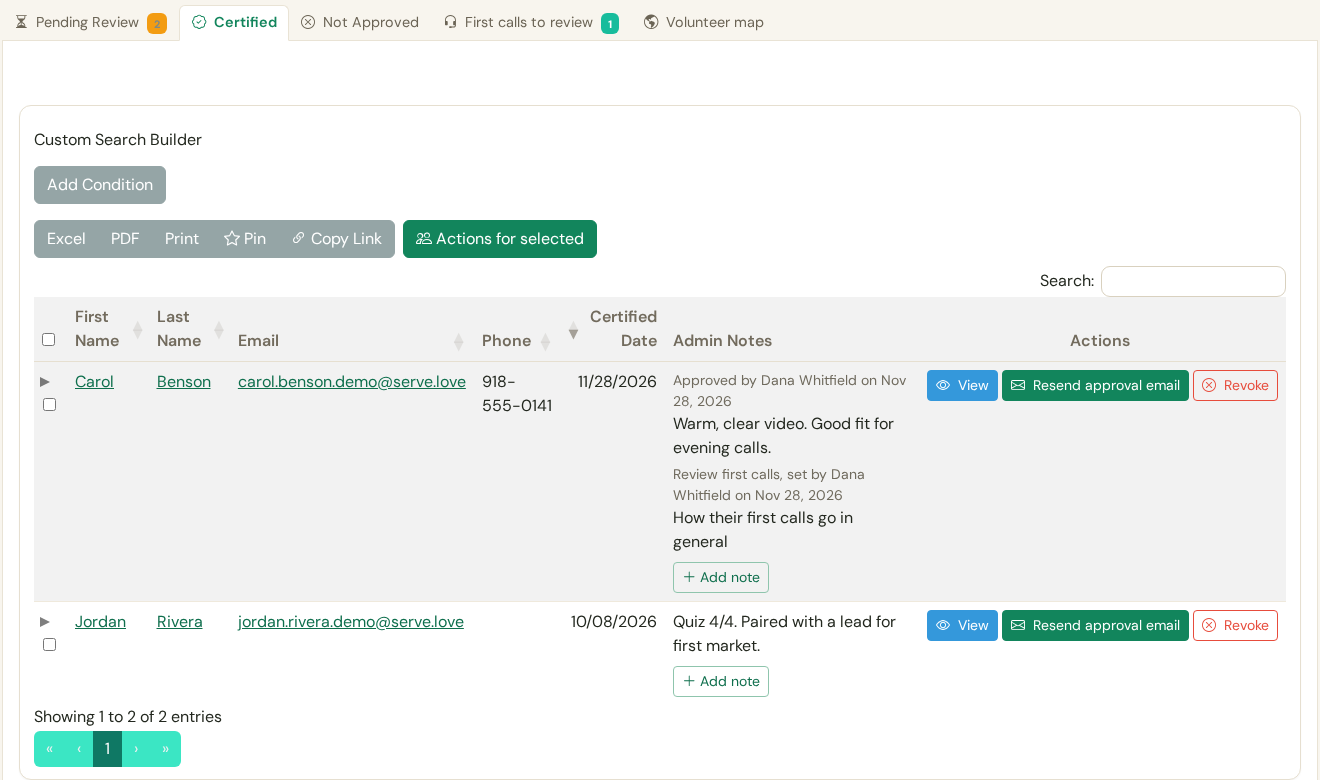
Carol is certified. Her notes came with her.
The Not Approved tab holds both. Devon's note says what we asked him to redo. Allow Retry lets someone apply again right away, even during a cooldown.
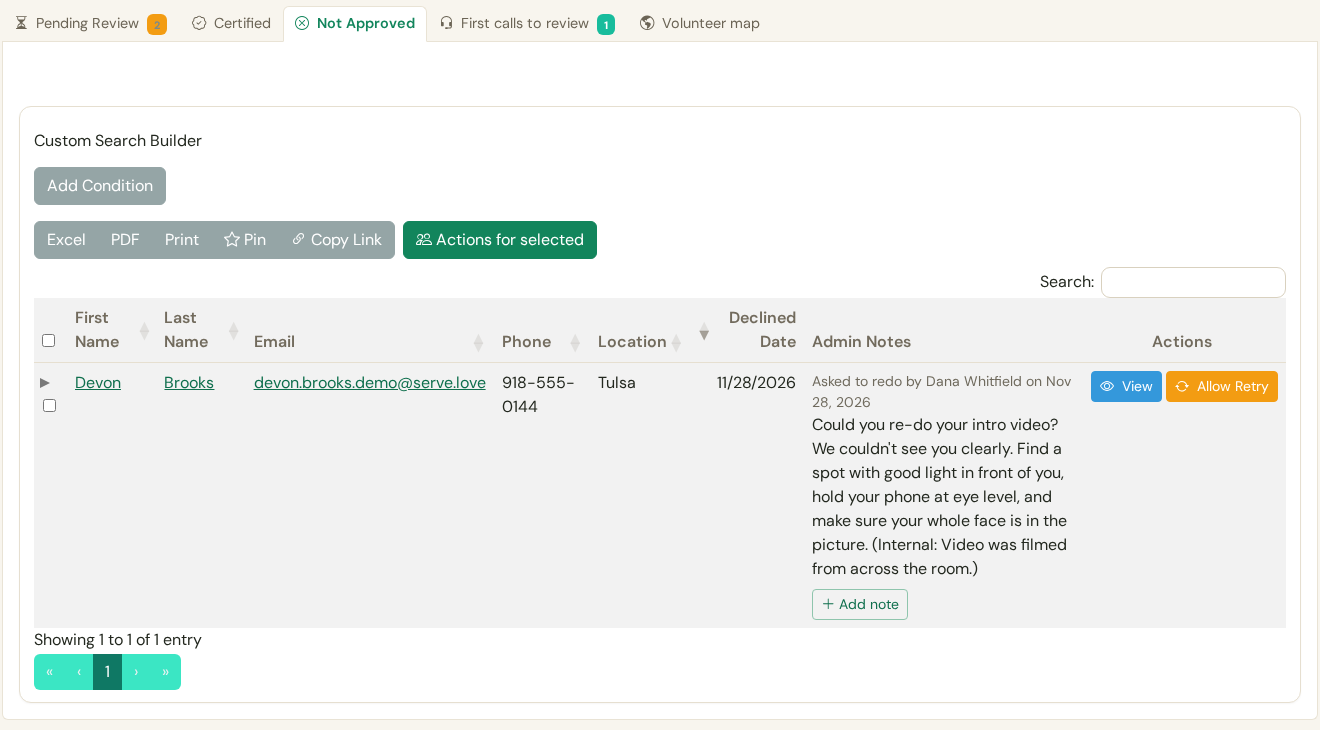
Devon can re-apply now. The note shows what we asked.
People approved with Review their first calls show on First calls to review, with what to listen for and their calls so far. View application brings back their video and notes, so you know why they were flagged.
When you've listened, tap Reviewed. If you tap it by mistake, Undo puts them back. This tab is for the organization's own staff.
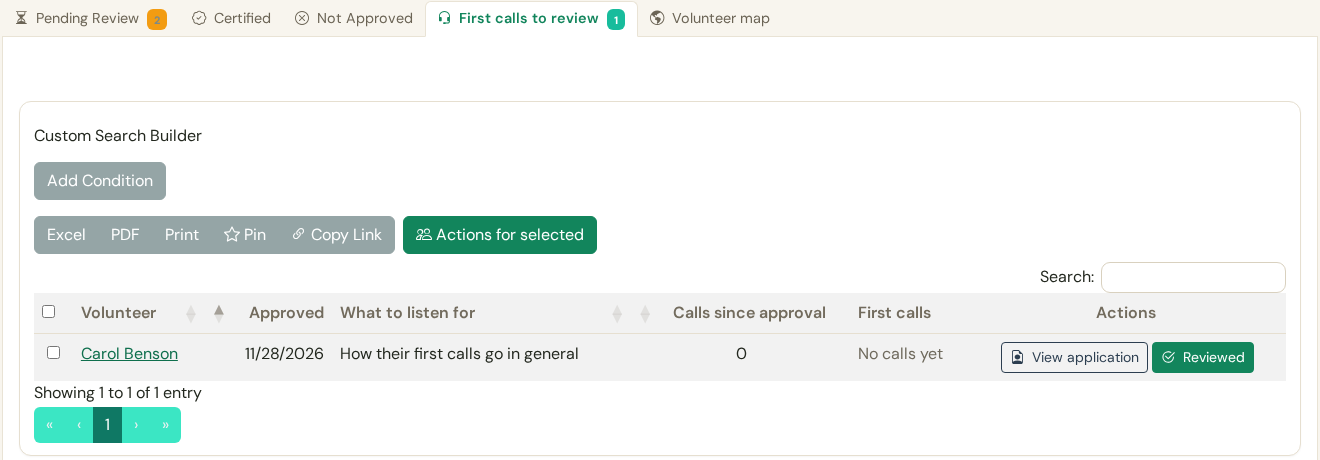
Carol is on the list until someone listens.
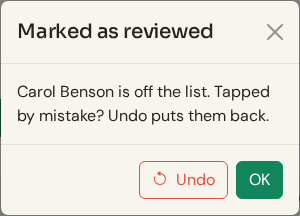
Undo, for a tap by mistake.
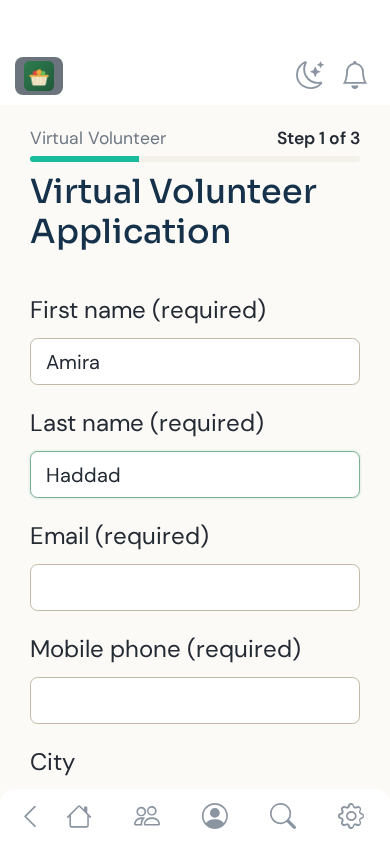
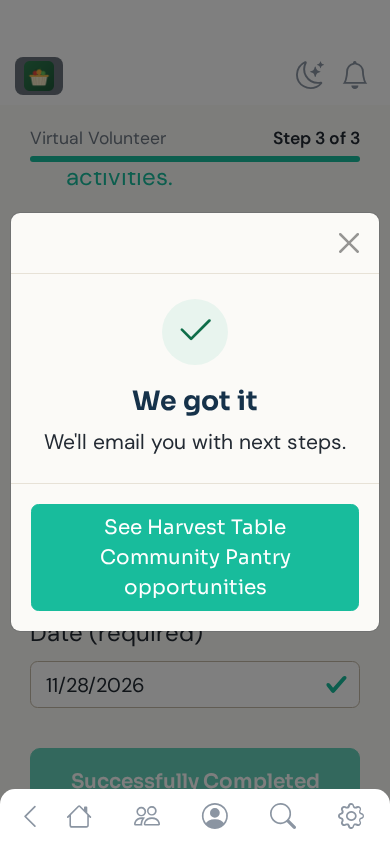
Applicants use one link. Step 1 is the application with their intro video, step 2 the quiz, step 3 the agreement. They don't need an account. When they finish, they see We got it, and the application shows up on your Pending Review list.
The approval email tells them how many hours are open and links to one page with every open hour across all the days. They tap an hour that works and sign up for it.
An Ask to redo sends "One more step". It thanks them, shows your message exactly as you wrote it, and has a Re-apply Now button that opens the application again.
If they tap it again later, or after 30 days, it still opens the application. If they apply again without signing in, we match the new application to their earlier one automatically.
 Serve.Love