
Day-Of: Helping Volunteers Find You
Getting Started Guide
Your event is tomorrow. Volunteers are signed up. Now what?
The biggest day-of headache isn’t no-shows—it’s confused volunteers calling because they can’t find parking or walked into the wrong entrance. Let’s fix that before it happens.
The Arrival Feature: Your Volunteers’ GPS
Serve.Love has a built-in arrival system that sends volunteers everything they need to find you: parking location, entrance instructions, photos, and a contact number if they get lost.
Here’s what volunteers see in their reminder email:
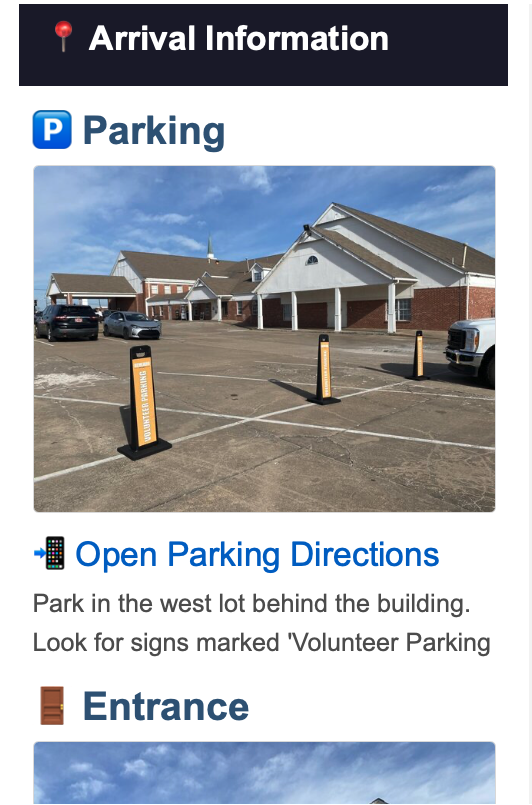
The “Open Parking Directions” link takes them straight to Google Maps. The photo confirms they’re in the right spot. No phone calls needed.
Setting Up Arrival Info (5 Minutes)
Open your event and click the Arrival tab. You’ll see sections for parking, entrance, and contact info.
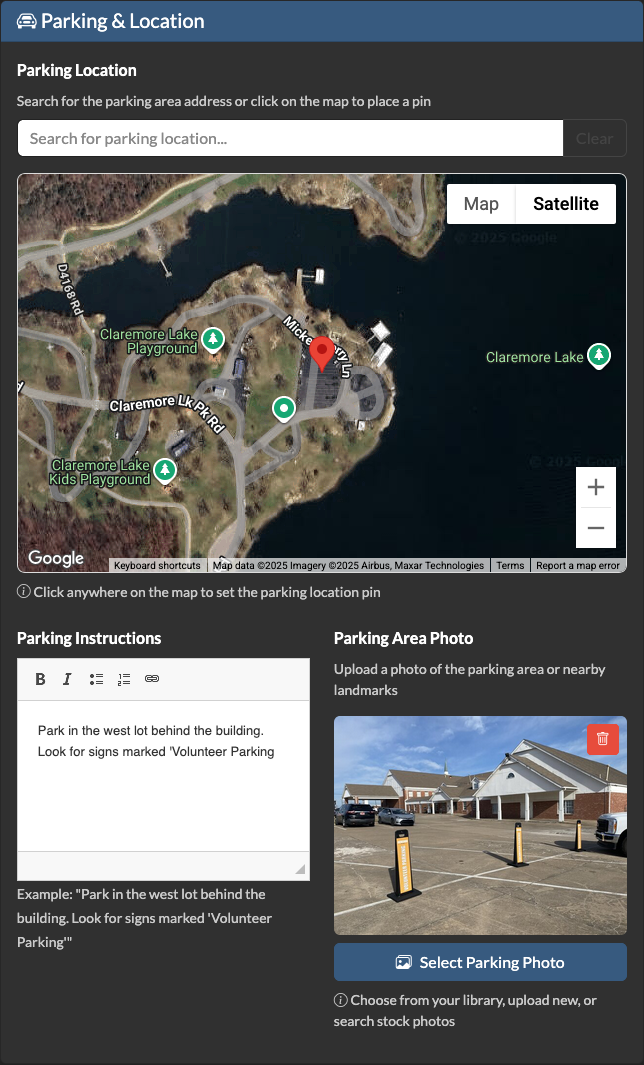
1. Parking Location
Click on the map to drop a pin where volunteers should park. You can also search for an address if the parking lot has one.
Add written instructions below the map:
- Which lot to use (if there are multiple)
- Where NOT to park (reserved spots, client areas)
- Whether it’s free or paid
- Any access codes or validation needed
Pro tip: Add a photo of the parking area. A picture of the “Volunteer Parking” sign or lot entrance helps more than words ever could.
2. Entrance Location
Same idea—drop a pin on the exact door volunteers should use. This matters more than you’d think:
- Large buildings often have multiple entrances
- Client entrances vs. volunteer entrances
- Side doors that aren’t obvious from the street
- Doors that are locked (ring doorbell, call when arrived)
Add a photo of the entrance. First-time volunteers will recognize “that’s the door with the blue awning” instantly.
3. Contact Information
Add a day-of contact—someone volunteers can call or text if they’re lost or running late.
Use the dropdown to quickly fill in a staff member’s info, or type in custom details. You might use:
- The event coordinator’s cell
- A volunteer desk phone number
- “Ask for Sarah at the front table”
4. Additional Notes (Optional)
Anything else that would help:
- “The GPS sometimes takes you to the back of the building—go around to the front”
- “Don’t be confused by the shelter entrance—volunteers use a different door”
- “Look for the Serve.Love banner outside”
When Do Volunteers See This?
Serve.Love automatically sends reminder emails to volunteers:
- 24 hours before – Full event details plus arrival info
- 1 hour before – Quick reminder with arrival link
Arrival info also appears in:
- Confirmation email – Right after they sign up
- Arrival page – A mobile-friendly page they can pull up on their phone
You don’t need to send anything manually. Once you set it up, every volunteer gets the info automatically.
Recurring Events: Set Once, Apply to All
If your event repeats weekly or monthly, you don’t have to set up arrival info each time.
When you save arrival info, you’ll see a prompt: “Apply to all events in this series?”
Click yes, and every instance of your recurring event gets the same parking, entrance, and contact info. If something changes (new parking arrangement, different contact), update once and apply to future events.
Checklist: Before Your Event
Run through this the day before:
- ☐ Parking pin is on the correct lot
- ☐ Parking photo uploaded (if available)
- ☐ Entrance pin is on the right door
- ☐ Entrance photo uploaded (if available)
- ☐ Day-of contact info is current
- ☐ Instructions are clear and specific
Test it yourself: click “Open Parking Directions” and make sure Google Maps routes to the right place.
Getting Started Guide — Part 3 of 5
← Previous: Your Event Checklist: What to Set Up Before Going Live
→ Next: Keeping Volunteers Coming Back: Communication Basics